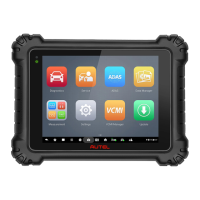
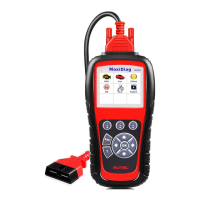
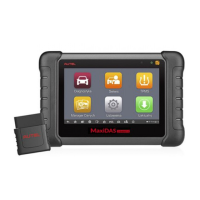
This quickstart guide applies to the MaxiSys
®
Ultra, MaxiSys
®
MS919 and MaxiSys
®
MS909.
QUICKSTART GUIDE
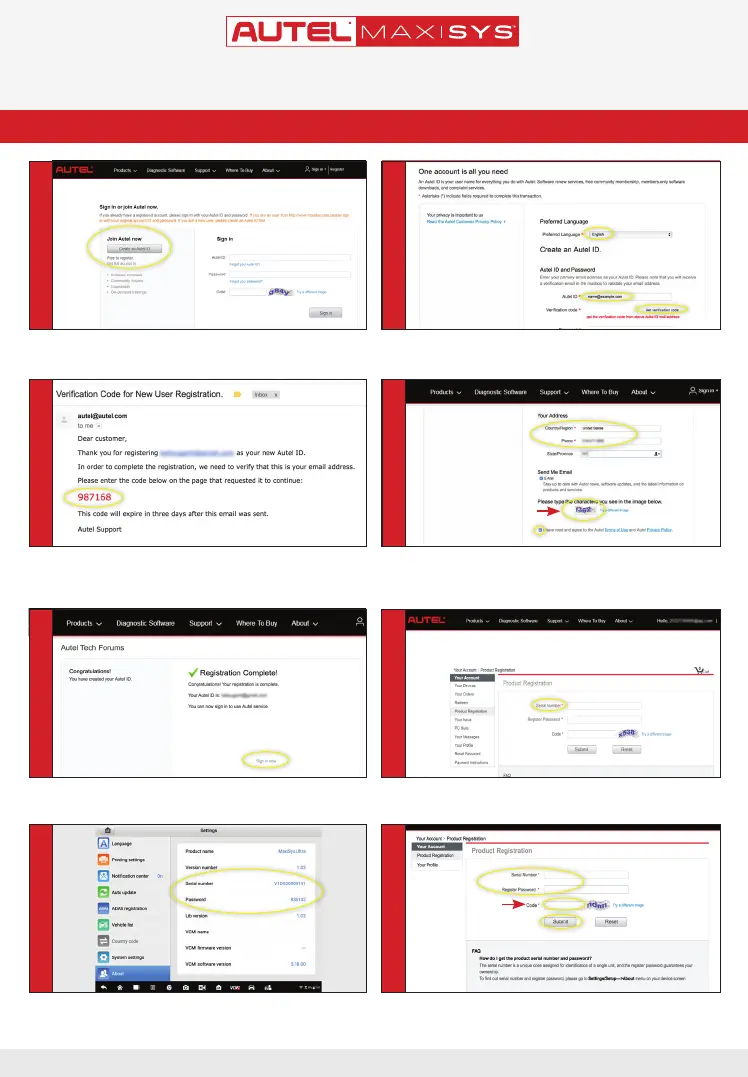
TOOL REGISTRATION VIA PC
• Set preferred language
• Enter your email address as Autel ID
• Click Get Verication Code
• Select Product Registration from the menu list
- Product Registration screen will display.
• Input your tablet’s Product Serial Number and Password
• Type Captcha code as shown
• Click Submit to complete tablet registration
• Using a computer, launch an Internet browser and go to http://pro.autel.com
• Click Create Autel ID on the left side of the screen
• If you already have an Autel ID, sign in and skip to Step 6
- An email titled “Verication Code for New User Registration”
will be sent to you.
• Open email and copy the 6-digit verication code
• Return to http://pro.autel.com to continue registration
• Click Create Autel ID at the bottom of the screen
- Registration Complete screen will display.
• Click Sign in Now and log in
• To locate the tablet’s serial number and password: from the Main
Menu select the Setting icon and tap About
• Enter verication code and all other required information marked
with a red asterisk
• Enter Captcha code as shown
• Read the Autel Terms of Use and Privacy Policy and select the check box
6
2
4
Captcha code
8
Captcha code
5
1
3
7
ONLY REGISTERED AUTEL TOOLS CAN DOWNLOAD SOFTWARE UPDATES



 To Next Page