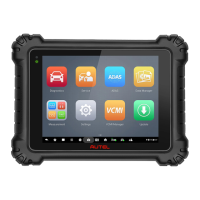
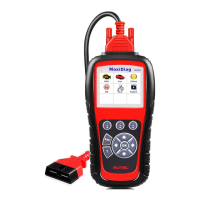
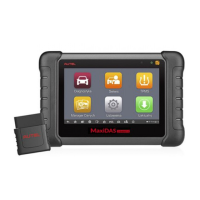
This quickstart guide applies to the MaxiSys
®
Ultra, MaxiSys
®
MS919 and MaxiSys
®
MS909.
QUICKSTART GUIDE
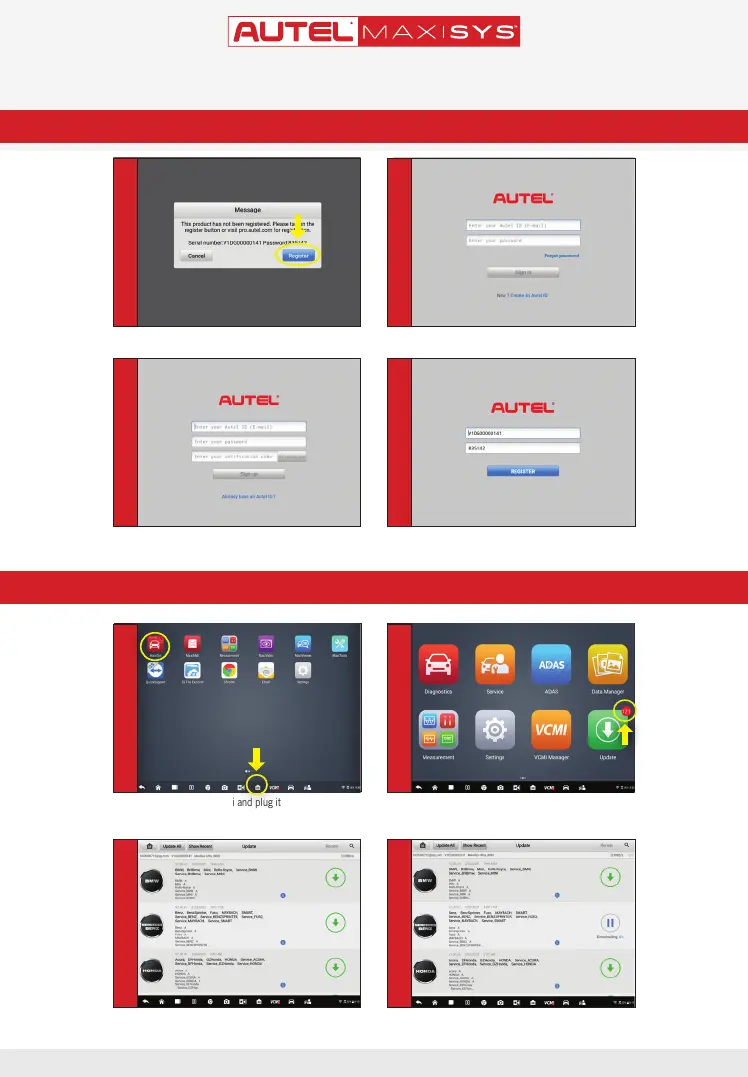
TOOL REGISTRATION VIA TABLET
• A sign-in screen will display
• Create an Autel ID using an accessible email address
• The serial number and password elds will be
automatically completed
•
Tap Register
NOTE:
To nd
your Product
Serial Number
and Register
Password, go to
the Main Menu
select Settings,
then About
NOTE: Update
one at a time.
Select
Update All
button will take
more time.
- A dialog box will display asking you to register your tablet.
• Tap Register
• On a computer or mobile device, check your email
• On the tablet registration screen, enter your email
address, password and verication code
•
Download update for each vehicle manufacturer you service
• Select the i Information icon next to each update
button to view update details
Software updates are available for FREE for the rst year from date of purchase. Your tool must be registered as per the directions on Page 1 to download software updates.
• Download the system update by selecting the
update button on the right
• Connect your tablet to Wi-Fi and plug it into a power source
• Select the
MaxiSYS
application or the
MaxiSYS
home icon
at the bottom of the screen to open the main menu
DOWNLOAD SOFTWARE UPDATES
1
3
3
2
4
4
21
ONLY REGISTERED AUTEL TOOLS CAN DOWNLOAD SOFTWARE UPDATES
• If updates are available, the number of available updates
will display above the green Update button
• Select the Update button to view a list of available updates



 To Next Page