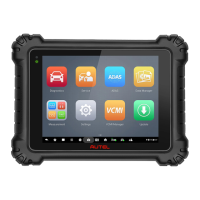
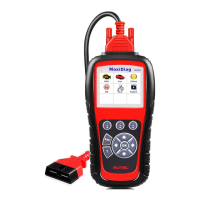
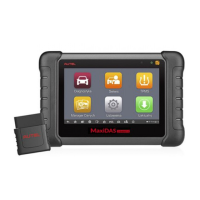
This quickstart guide applies to the MaxiSys
®
Ultra, MaxiSys
®
MS919 and MaxiSys
®
MS909.
QUICKSTART GUIDE
DON’T WAIT FOR INITIAL YEAR EXPIRATIONDON’T WAIT FOR INITIAL YEAR EXPIRATION
PURCHASE TO EXTEND MAXISYS
WARRANTY
&
SOFTWARE
SUBSCRIPTION COVERAGE FOR ONE YEAR
EXTEND INITIAL YEAR OF COVERAGE WITH
SAME DAY ORDER & ACTIVATIONSAME DAY ORDER & ACTIVATION
GET YOUR SUBSCRIPTION FASTER
RECEIVE ACTIVATION CODES VIA EMAIL
ASK YOUR LOCAL TOOL DEALERASK YOUR LOCAL TOOL DEALER
NEW
PURCHASE & ACTIVATE A NEW TCP SUBSCRIPTION
BEFORE UPDATES EXPIRE TO LIMIT DOWN TIME
AND ENSURE CONTINUED VEHICLE COVERAGE
@AutelTools
TRAININGTRAINING
VIDEOSVIDEOS
View More Autel Videos at: https://www.youtube.com/auteltools
REGIS TER YOUR M A XISYS AT
PRO.AUTEL.COM & PURCH ASE TCP
USE ACTI VAT ION CODE ON CARD OR
DIGITA L CODE PROVIDED IN EMAIL
REDEEM CODE TO AC TI VATE
SUBSCRIPTION & WARRANTY
YEAR-TCPYEAR-TCP
TOTAL CARE PROGRAM
DIGITAL DELIVERY
DIGITAL DELIVERY
NEW TCP
Activation Code
PRINTING INSTALLATION & SETUP
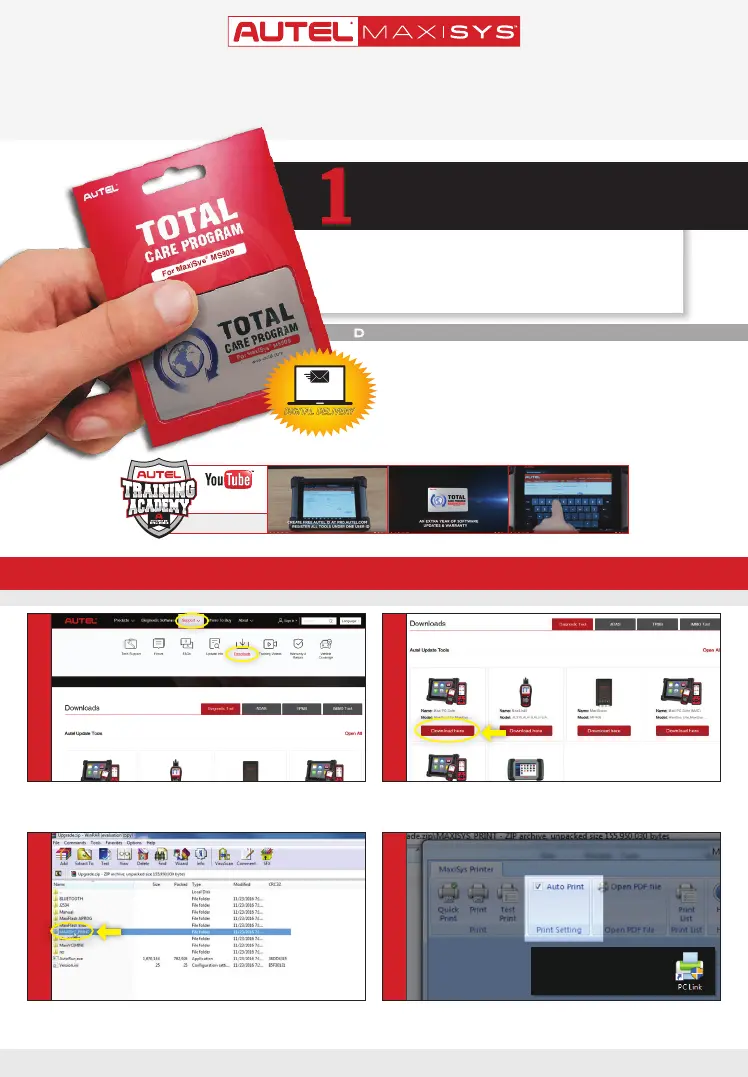
• Locate the MaxiSYS PC Suite software and click on the Download Here
button
• Open the zip le
•
Within the program dialogue box, check
Auto Print
to automatically use the
default printer
•
Select
Quick Print
to use the default printer or select
Print
to choose a printer
• Make sure your Window PC and tablet are on the same Wi-Fi network
• On your computer, go to Autel.com, select Support > Downloads > Autel
Update Tools
• Select MaxiSYS Print, then click the setup.exe le to install the program
Works with any printer with a Wi-Fi connection. No need for special software or driver on the tablet.
4
1
3
2
ONLY REGISTERED AUTEL TOOLS CAN DOWNLOAD SOFTWARE UPDATES
You will need to reclick or open
each time you restart windows



 To Next Page