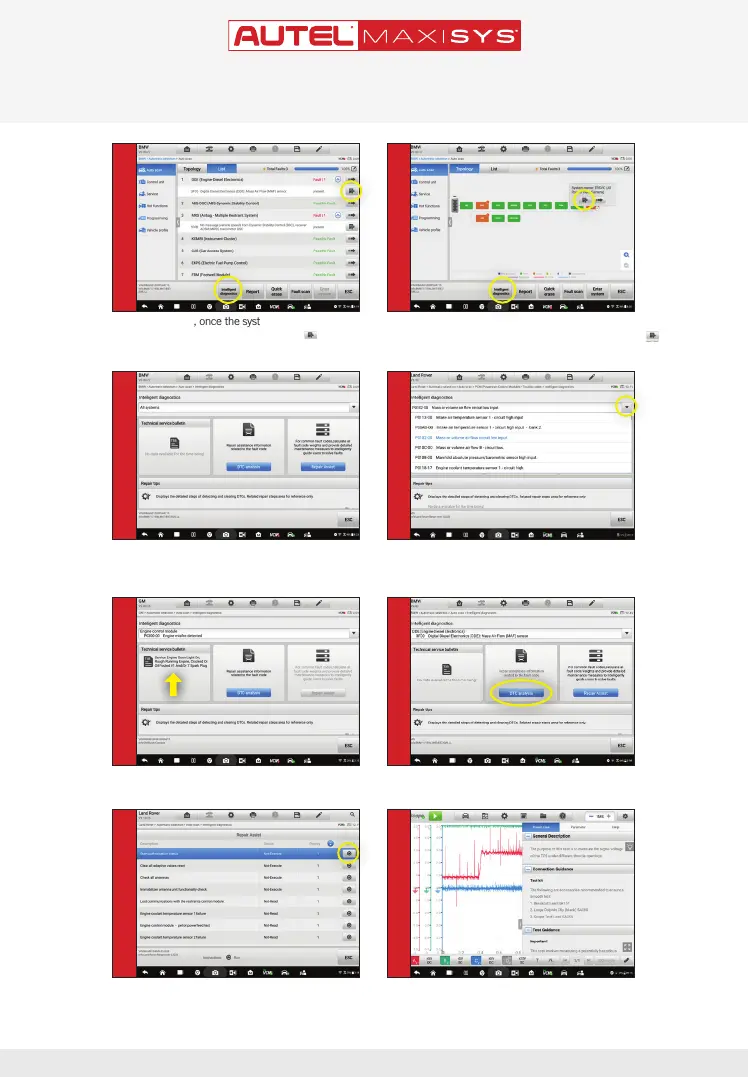
• On the list page, once the system scan is
complete, tap the
Intelligent Diagnostics
icon or
Intelligent Diagnostics
button to view Intelligent
Diagnostics page
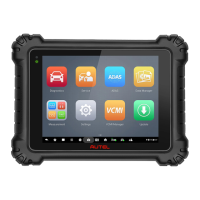
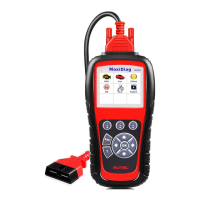
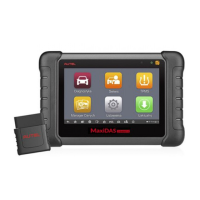
This quickstart guide applies to the MaxiSys
®
Ultra, MaxiSys
®
MS919 and MaxiSys
®
MS909.
QUICKSTART GUIDE
• On the topology page, tap an orange-colored system icon
(faults detected) to display the
Intelligent Diagnostics
icon.
Tap the icon or the
Intelligent Diagnostics
button.
1 2
- Code-related information such as Technical Service
Bulletin (TSB), DTC Analysis, Repair Assist, Repair
Tips, Component Measurement, and Relevant
Cases will display on the screen.
• Tap the drop-down menu to view comprehensive
information of All systems or select a different
fault code to review.
3 4
• Select a TSB to display page, and review the
code-related vehicle manufacturer advisory.
5 6
• Tap the
DTC analysis
button
- Repair data related to fault codes will display.
ONLY REGISTERED AUTEL TOOLS CAN DOWNLOAD SOFTWARE UPDATES
• Select a component test under the
Component
Measurement
section
- The oscilloscope page displays relevant wiring
diagrams, standard waveform, waveform analysis,
and detailed notation.
• Tap the
Repair Assist
button on the Intelligent
Diagnostics page
- The system will automatically prioritize DTCs, and
display step-by-step repair guide.
7 8



 To Next Page