USB Communications & Software
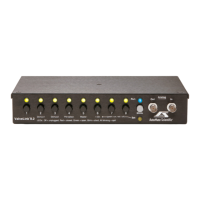
The ValveLink8.2 includes a USB-1 port for easy connection to a computer.
The connector is a USB "B" style female socket. AutoMate Scientic sells
USB "A" male to "B" male cables and 4-port USB hubs for use with the
ValveLink8.2. AutoMate Scientic oers a free program for Microsoft
Windows 2000 and above called "ValveLink8.2 User Interface." This
program allows manual control of valves from your PC and networking
of up to eight ValveLink8.2s. It can be downloaded from AutoMate
Scientic's web site at http://www.autom8.com/valvelink.html.
Screen shots show Windows XP, but ValveLink software also works on Vista to Windows 10.
Installation
If you have one, insert the ValveLink8.2
CD into your computer and follow
the instructions to install the main
application. Or double-click the "setup.
exe" installer you have downloaded
from AutoMate Scientic's web site.
Once the program is installed you can plug a USB A-B cable into the
ValveLink8.2 (powered ON) and into your running computer.
Depending on your version of Windows, the rst time a ValveLink8.2 is
installed by USB cable, Windows will "nd new hardware." A dialog box
will appear asking if you want Windows to connect to Windows Update to
search for the necessary software drivers. Select "Yes" and click "Next" to
continue.
If Modes #4 and #5 are both active, the user will be prompted for the Mode
#4 ‘pre-selected’ valve rst, then the Mode #5 ‘master’ valve when leaving
mode selection. If Modes #2-4 are turned-o, then the TTL inputs resume
direct control of their respective valves.
Multiple Modes
As mentioned above, most of the ve modes above can be active
concurrently, such as Mode #2 - Addressing, Mode #5 - Master Valve, and
Mode #6 - One-at-a-time. Valves are opened or closed accordingly. Only
Modes #2 and #3 cannot both be on simultaneously.
Example mode selection LEDs (red = o, green = on):
1 2 3 4 5 6 7 8
Dark Red Grn Red Grn Grn Dark Dark
#3 on = Addressing Mode valves 9-16 (2nd ValveLink8.2)
#5 on = Master Valve
#6 on = One-at-a-time Mode
In this example, when the "Mode" button is pressed to leave mode
selection, all LEDs will ash waiting for the master valve (Mode #5) to be
selected. Select a valve and press "Mode" again to nish.


 To Next Page
 Loading...