Autostacker™ Parking Lift 53 P/N 5900248 — Rev. B — May 2021
8. Remove the Power Unit from its packaging, then place the Power Unit near the first Lift.
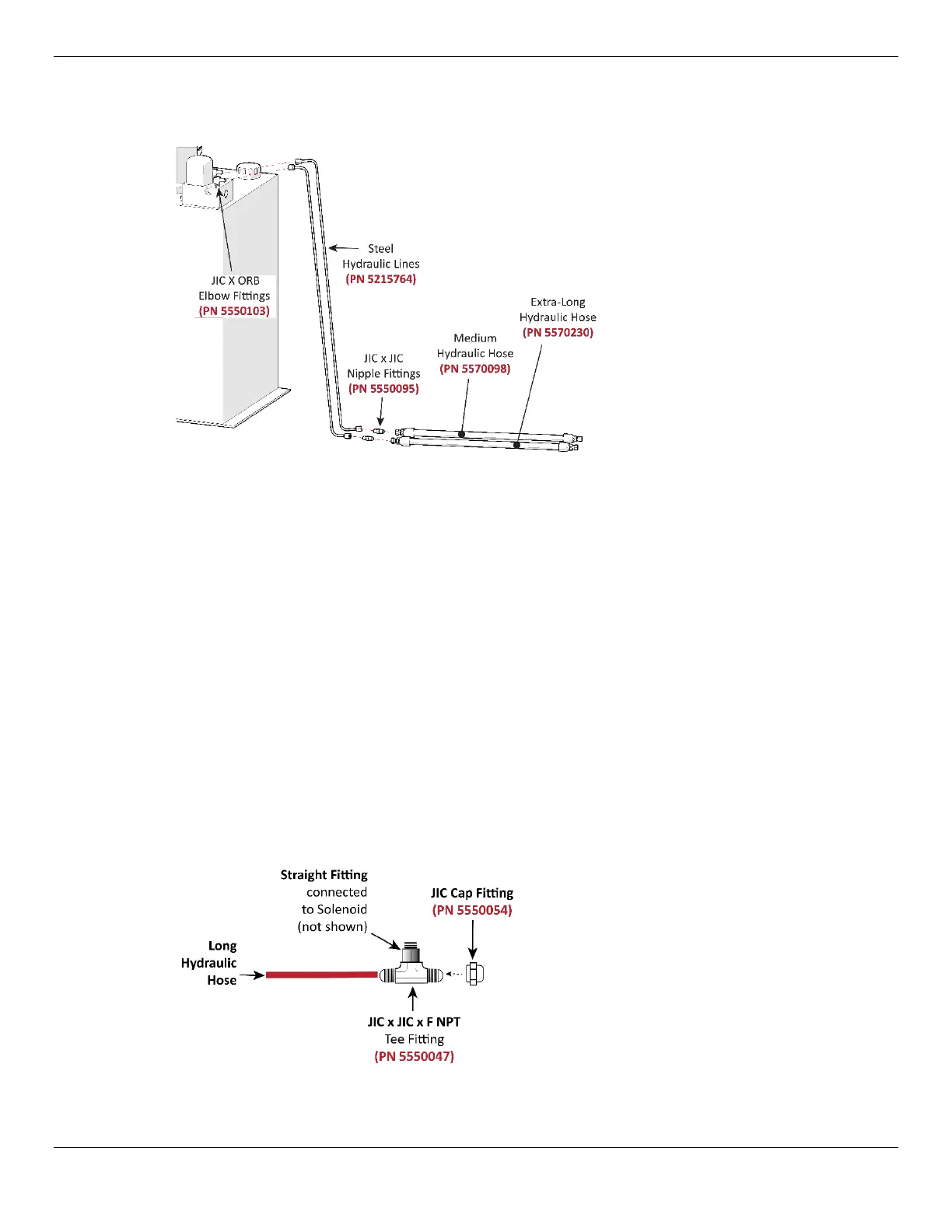
9. Attach an Elbow Fitting from the MPU Plumbing Kit to each Hydraulic Out Port on the Power Unit.
Drawing shows the Hydraulic
connections to make to the
Master Power Unit.
Not all components are shown.
10. Connect the two Steel Hydraulic Lines from the MPU Plumbing Kit to the Hydraulic Elbow Fittings
you just connected to the Power Unit.
11. Find the Medium and Extra-Long Hydraulic Hose from the MPU Plumbing Kit and connect them to
the Steel Hydraulic Lines using two Nipple Fittings.
12. Connect the other end of the Medium Hydraulic Hose to the Tee Fitting attached to S1.
13. Connect the other end of the Extra-Long Hydraulic Hose to the Tee Fitting attached to S2.
14. Take the Long Hydraulic Hose and connect it to the unattached end of the Tee Fitting on S1.
15. Using the components from the Control Kit for the next Lift, prepare the next set of Hydraulic
Cylinders. Refer to Steps 1 through 8 for additional instruction.
16. Using the same Long Hydraulic Hose attached to S1 on the first Lift, connect the other end to the
Tee Fitting on S3 on the next Lift.
17. Connect the second Long Hydraulic Hose to the Tee Fitting on S2 on the first Lift, then connect
the other end of the same Hose to the Tee Fitting connected to S4 on the next Lift.
18. If there are no further Lifts to connect to, secure the unattached ends of the Tee Fittings with a Cap
Fitting, as shown in the following drawing.
Drawing shows the connections
to make to the last set of Long
Hydraulic Hoses.
Not all components shown. Not
drawn to scale.
NOTICE If there are additional Lifts to connect the Hydraulic Hoses to, continue repeating Steps
1 through 17 until you reach your desired configuration, and then complete Step 18.



 To Next Page