Unified Communications Module Installation and Maintenance Page 49
15-601011 Issue 03l (28 August 2012)IP Office
Server Maintenance: Logging In
5.2 Changing the Web Password
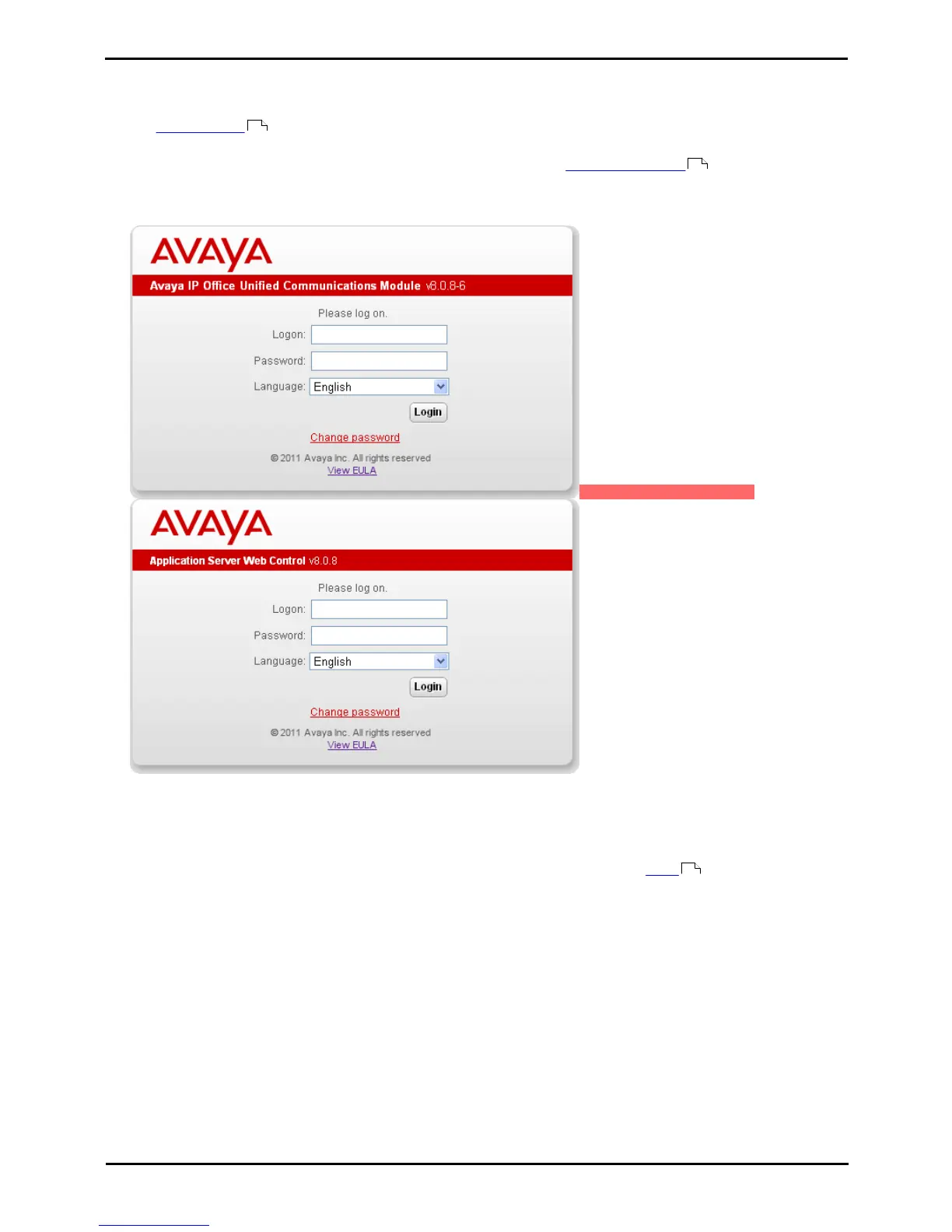
From the Logon menu you can select the Change Password option to perform a password change. When selected, fields
are displayed to entry the current password and for entry and confirmation of the new password. This password is also
used for SSH file access to the server.
1.
From a client PC, start the browser and enter http:// followed by the address of the Unified Communications
Module and :7070. The port number used can be changed through the Settings | General page after logging
in.
2.
The Unified Communications Module login page is displayed. The default name and password are webcontrol and
web.
IF PREBUILT,STANDARD
3.
Select the Language required.
4.
Click on the Change password link. The change password menu is displayed.
Enter the current password and the new password.
5.
Click OK. The menu will confirm whether the change was successful or not.
6.
If the new password is accepted, click Cancel to return to the Login menu and then login with the new
password.
91
69
47


 To Next Page