64
PTZApp 2
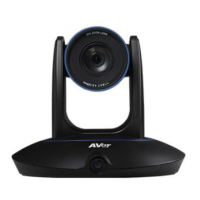
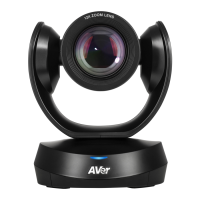
In PTZApp 2, user can change the IP address setting of CAM520 Pro2, configure the parameters of
the camera, set up AI tracking functions and some advanced image settings, pan, tilt, and zoom the
camera.
Install PTZApp 2
Please go to https://www.aver.com/download-center (Global & European Headquarters) or
https://www.averusa.com/business/support/ (USA) to download the PTZApp 2. After downloading,
double-click on the file and follow the on-screen instructions to complete the installation.
After installing the PTZApp 2, double-click on the PTZApp 2 icon to run the application.
Use PTZApp 2 with USB Devices
1. Run your video application and make a video call.
2. During your video call, you can use the PTZApp 2 to pan, tilt and zoom the camera in/out and
enable/disable the true WDR, brightness, and sharpness feature.
3. Launch PTZApp 2 (
) and it will open in Chrome browser automatically.
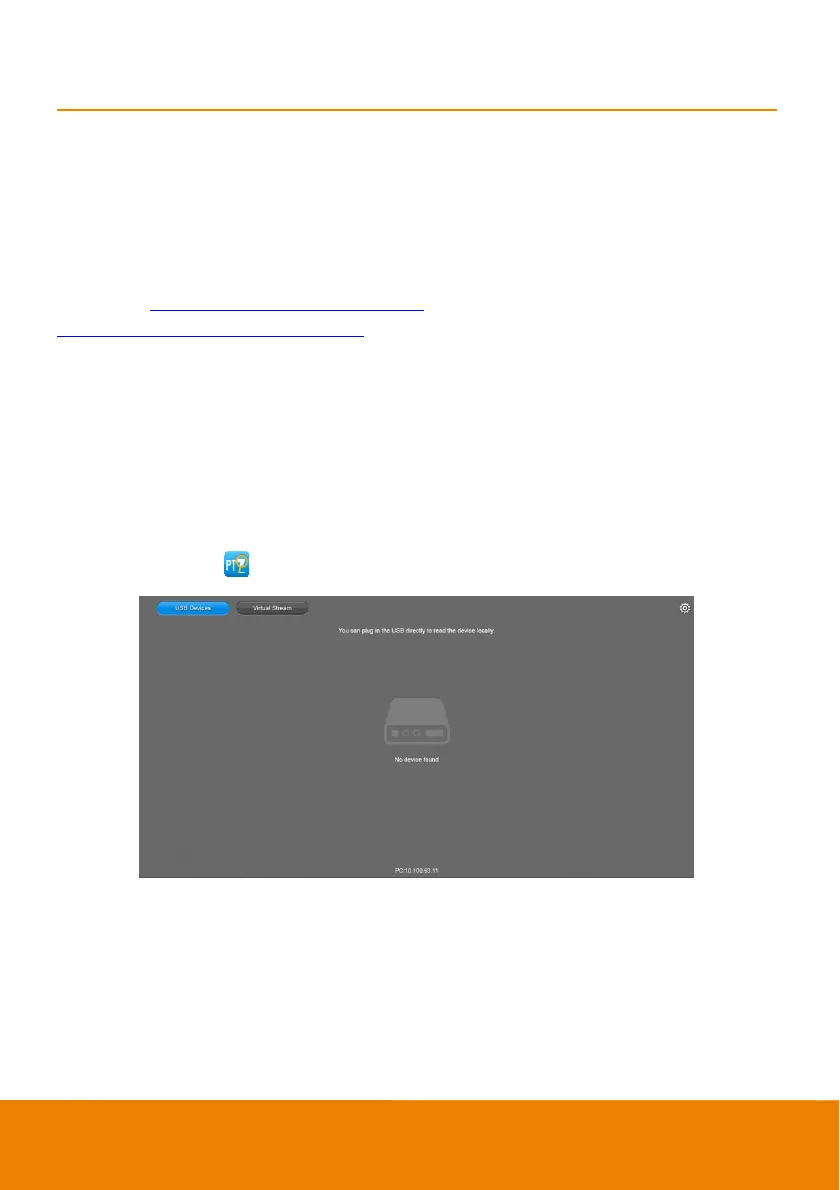
4. Choose “USB device” and connect CAM520 Pro2 to PC/laptop with USB cable
. When the
camera is detected, the product card will show up.


 To Next Page