9
EN
720P WIFI IP OUTDOOR CAMERA
d - CONFigurATiON
8 Manualstartforrecordingonacomputer's
harddisk
9 Displaytheimagefullscreen(double-click
onimagetorevert)
2.2 - SETTINGS
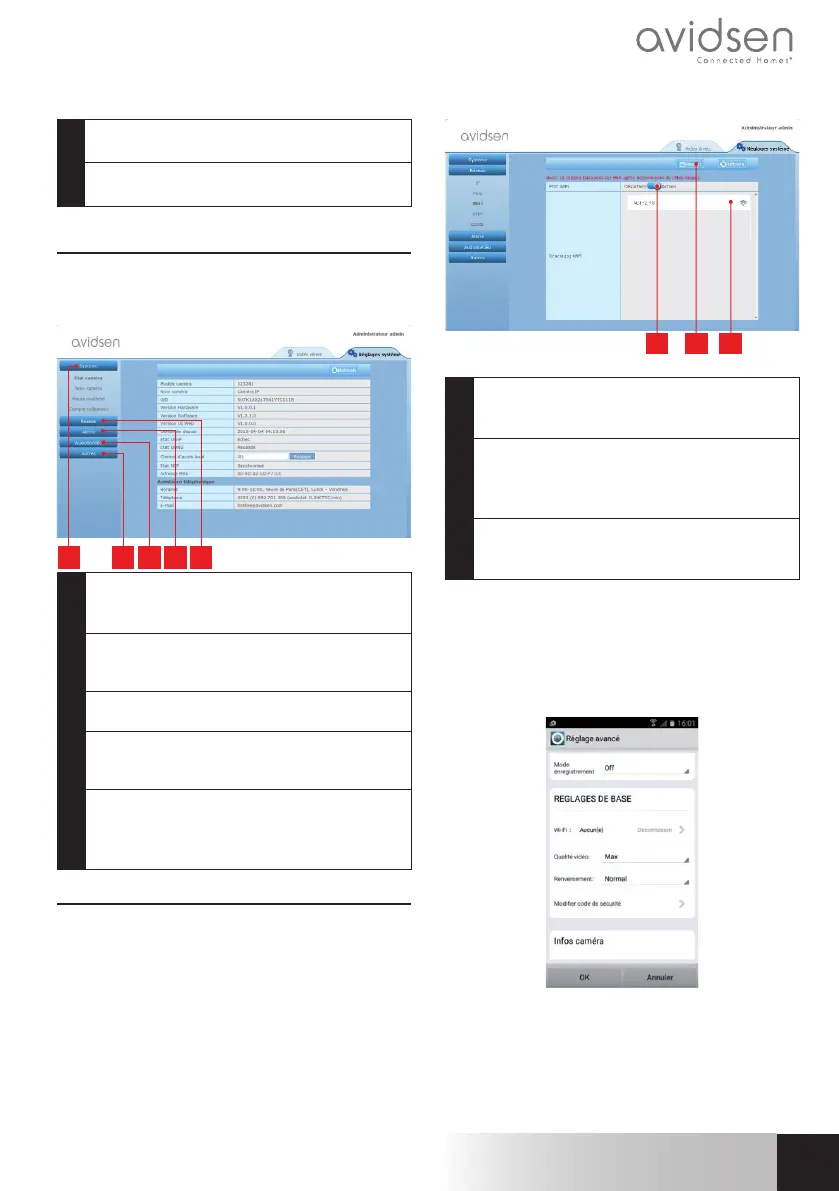
Youcanaccessyourcamerasettingsbyclickingon
"Réglages système [System settings]"atthetop
ofthewindow:
2 3 4 51
1 "Système[System]"Section:givesyou
accesstoyourcamera'sbasicsettings,such
asitsnameandthetimesettings
2 "Autres[Others]"Section:optionsforbackup
andfactoryreset,optionsforrestartingand
resettingthecamera
3 "Audio&Video"Section:settingsforeach
videostream,resolution,framerate
4 "Alerte[Alert]"Section:denitionofthezones
andmotiondetectionsensitivity,email
settingsforsendingalertsviaemail
5 "Réseau[Network]"Section:allthesettings
forwiredandwirelessnetworkconnections.
HereyoumaydenetheWiFinetwork
towhichyouwishtoconnectthecamera.
2.3 - SETTING UP A WIRELESS CONNECTION
ToconnectyourcameratoaWiFinetwork,gotothe
"Réseau[Network]"menu,"WiFi"inyourcamera's
systemsettings:
2
1
3
1 Clickon"Activer [Activate]"toactivate
thecamera'swirelessconnectionanddisplay
theWiFinetworksdetectednearthecamera
2 IMPORTANT:Whenyouhavenished
conguringthedevice,donotforgettoclick
on"Sauver[Save]"atthetopofthescreen
toconrmtheentriesyouhavemade.
3 Thedetectednetworksappearhere.Clickon
oneofthemtoenterthecorresponding
passwordandgetconnected.
IMPORTANT: Once your camera is set up to
connecttoawirelessnetwork,unplugthenetwork
cabletoputthesecongurationsintoeffect.
Note:Thecamera'swirelessnetworksettingsare
alsoaccessiblethroughtheapp
"Avidview"onAndroidandiOS:
(See Section F)


 To Next Page
 Loading...