13
EN
TheAvidviewsoftwareprovidedontheCDprovides
simple remote access to the camera and can
manage16separatecameras.Installthe program
onthecomputeryouwanttousetoconnecttoyour
camera.
Launch the software on your computer. Click on
the"Ajoutcaméra[Addcamera]"icon
.Inthe
windowwhichopens,enterthenameyouwantto
giveyourcameraanditsUID.TheUIDisaunique
codeassignedtoyourcamera.Enteryourcamera's
passwordaswell(default:"admin").TheIDforyour
cameraisnotrequestedhere.
ConrmbyclickingonSavethenclickonthe"Ouvrir
touteslescaméras[Openallcameras]"icon
.
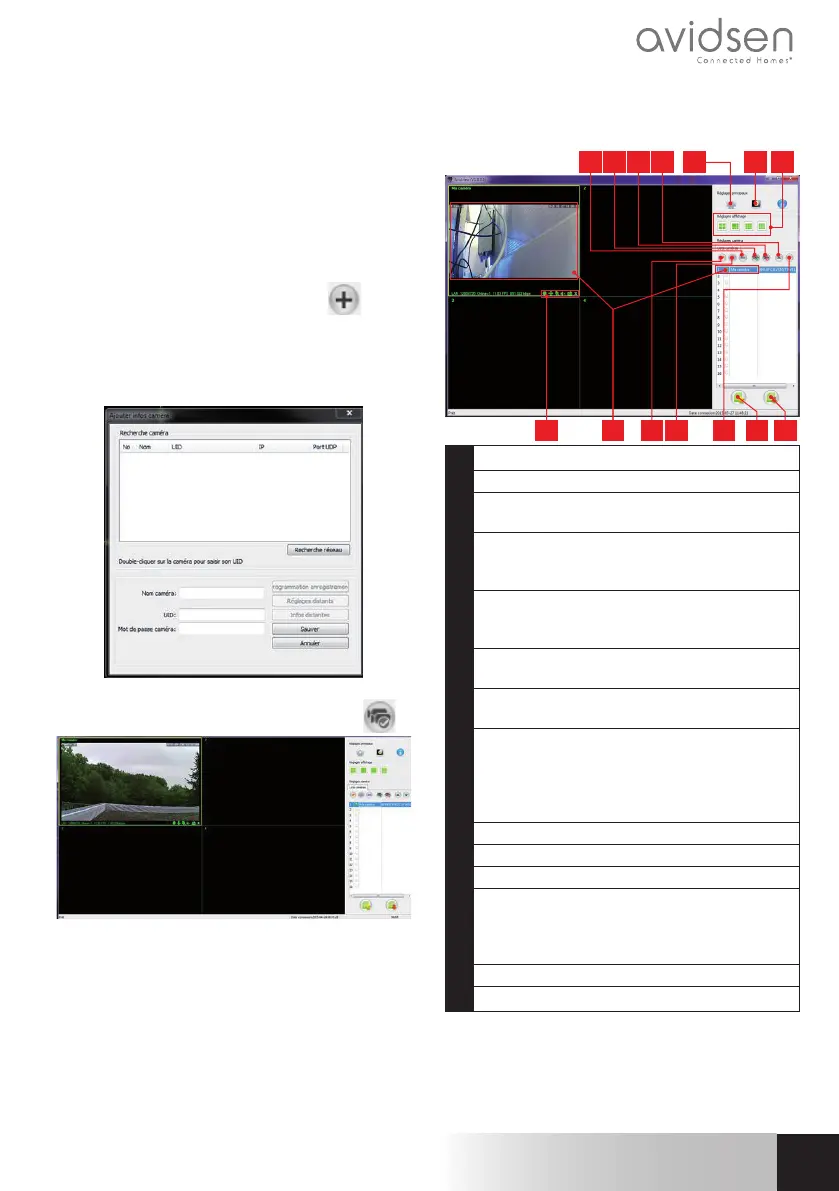
The AvidView software lets you manage several
cameras at once and gives you complete control
overeachoneandtheirrespectivesettings:
4321
1110 12 138 9 14
5 6 7
1 Addinganewcameratothesoftware
2 Runningavideoofalltherecordedcameras
3 Stoppingthevideoofalltherecorded
cameras
4 Upbuttonforthecameracurrentlyselected
inthelist:ifyouhaveseveralcameras,this
allowsyoutoreorderthem
5 Accesstothesoftware'soptions:storage
folderforthevideosandphotostakenwith
thesoftware,noticationsounds,etc.
6 Accesstothephotosandvideosrecorded
withthesoftware
7 Viewoftheimageofthecamerasonthe
screen
8 Controlsofthecurrentlyselectedcamera:
startingavideoorphotorecording,control
overthemotors(motorisedcamerasonly),
runningthecamera'smicrophoneor
loudspeaker,etc.
9 Cameracurrentlyselected
10 Editionofthecameracurrentlyselected
11 Addinganewcameratothesoftware
12 Downbuttonforthecamera
currentlyselectedinthelist:ifyouhave
severalcameras,thisallowsyoutoreorder
them
13 Savingthelistofcurrentcamerasinale
14 Recallingalistofcamerasfromale
720P WIFI IP OUTDOOR CAMERA
F - uSiNg THE prOduCT ON A COMpuTEr
ViA THE AVidViEW SOFTWArE


 To Next Page
 Loading...