12
WIRELESS ALARM KIT
EN
D - CONFIGURATION
- Your central unit is now linked to your user
account, it cannot be added to another account
until you remove it from your list.
2 - ACCESS TO ALL THE SETTINGS
2.1 - Adding/deleting accessories
Once your central unit has been added to your
account, you must add the various detectors and
remotes to use your central unit:
• Press the “+” on the top left of your screen to add
remote controls and other detectors.
• In the centre of the square, place the QR-code
of the accessory you want to add to your alarm
(remotes/detectors).
• Repeat this process for each accessory.
You can rename each of your sensors/remotes, or
delete them by tapping the icon of the detector you
want to change:
• Tap on a detector or remote control to bring up
the menu.
• Tap on
to rename the detector. Customising
the name makes it easy to fi nd the location when
detecting accessories.
• To delete your accessory, press the “suppression”
[delete] button.
2.2 - Central unit menu
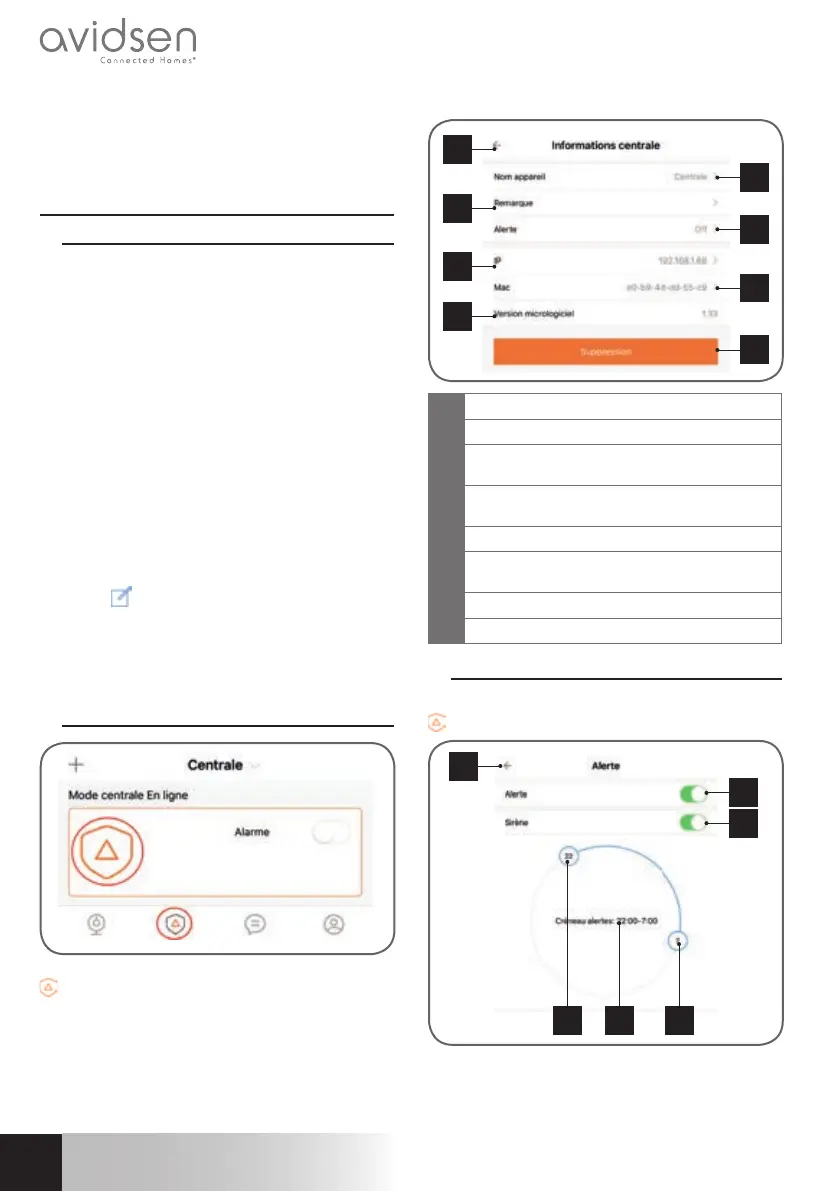
From the “Centrale” [central unit] menu, click the
icon to display the confi guration menu:
2
4
6
8
1
3
5
7
1
Return to previous menu
2
Menu to rename your central unit
3
Allows you to add information about your
central unit: position, owner
4
Siren confi guration menu and operating
hours
5
Displays your central unit’s current IP address
6
Displays your central unit’s current MAC
address
7
Displays your central unit’s Firmware version
8
Deleting the central unit from your account
2.3 - Central unit advanced menu
From the “Centrale” [central unit] menu, click on the
icon of the central unit and press “alerte” [alert].
2
3
1
4
5 6
iOS


 To Next Page
 Loading...