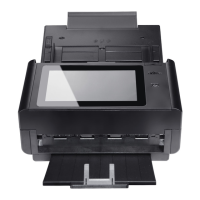
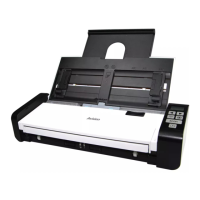
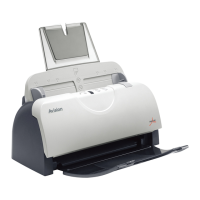
1-Sided Face Down: Choose to scan single side of your
document and make sure the scanning side faces down on the
document feeder.
1-Sided Face Up: Choose to scan single side of your
document and make sure the scanning side faces up on the
document feeder.
2-Sided: If your original is a double-sided document, choose
2-Sided to scan both sides of your document.
Subject Enter text for the default email subject for all outgoing mails
sending from the product. Up to 64 characters are allowed.
Output
Color
Choose your desired output color for your scanned image.
Choice: *Color, Gray, B&W
Color: Choose Color if you wish to scan a color image for
your original in color.
Gray: Choose Gray image if your original contains actual
shades of gray.
Choose B&W if your original contains only text, pencil or ink
sketch.
File Format
Choose the file format for your scanned image.
Choice: *JPEG, PDF, M-PDF, TIFF, M-TIFF
Note:
M-PDF or M-TIFF file format allows you to scan
multi-page document and convert it to a single file.
PDF file format allows you to save one image page in a
single file.
JPEG file format is available for Color and Gray images
only.
TIFF file format is available for B&W images only.
* Factory Default



 To Next Page