User’s Manual
7.3 Connect the scanner to a Wi-Fi network in a client
mode
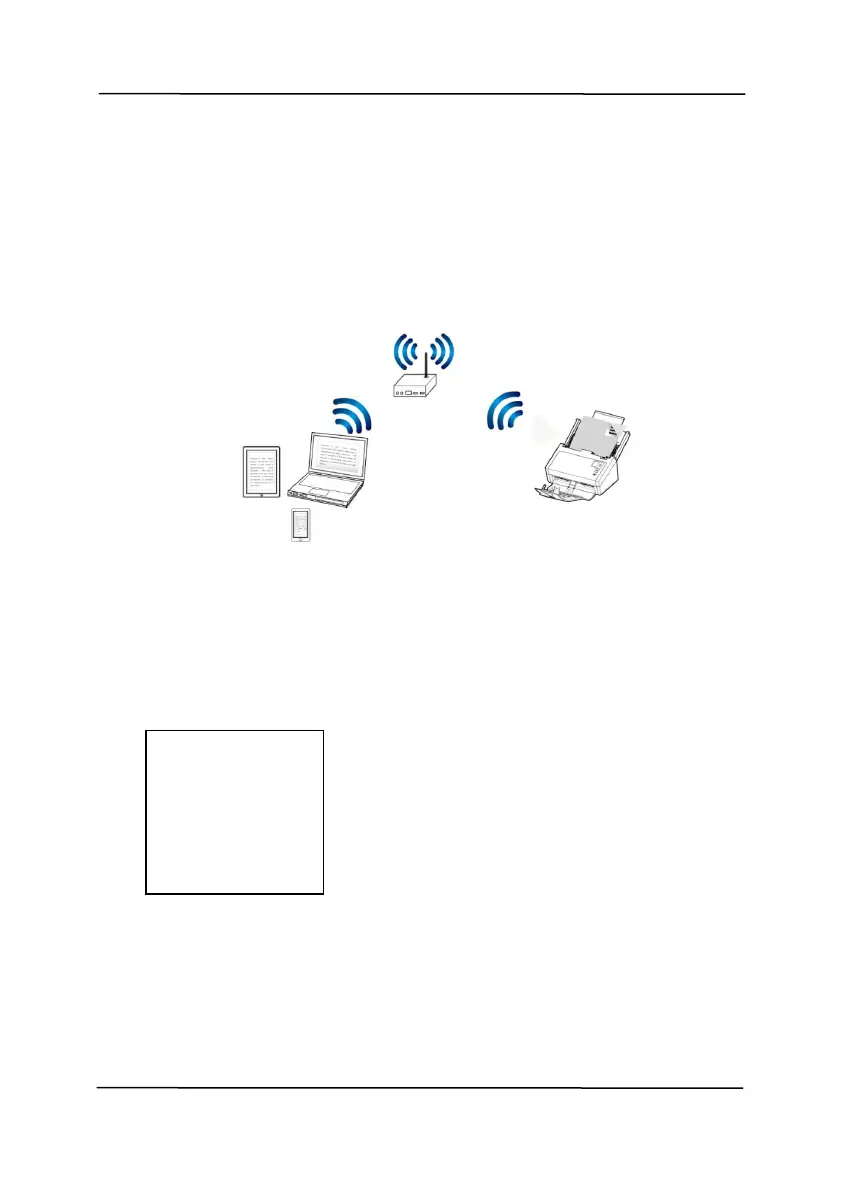
In a Client mode, your mobile devices and scanner are
connected wirelessly through an additional AP (Access Point).
This mode is also the default wireless mode.
Connect Your Scanner to an AP (Access Point):
1. Connect the scanner to a wired network via a network cable.
2. On the scanner, press the
[Setting]>[Information]>[Ethernet] on the control panel.
The IP for the wired network will be displayed.
3. Open your browser (i.e. 10 or above).
4. Type ETHERNET IP address on the URL bar (for example,
http://10.1.20.119) to prompt the embedded web page.
Please login first with the default user name and
password – [admin].
IP Address
10.1.20.119
MAC Address:
000232-
1a2b3c
DHCP:
Enable



 To Next Page