RF1 R L VIDEO S-VIDEO Pr Pb Y PC-IN VGA HDMI POWER
Headphone out
Audio in
RF2
RF1 R L VIDEO S-VIDEO Pr Pb Y PC-IN VGA HDMI POWER
Headphone out
Audio in
RF2
12
Connection
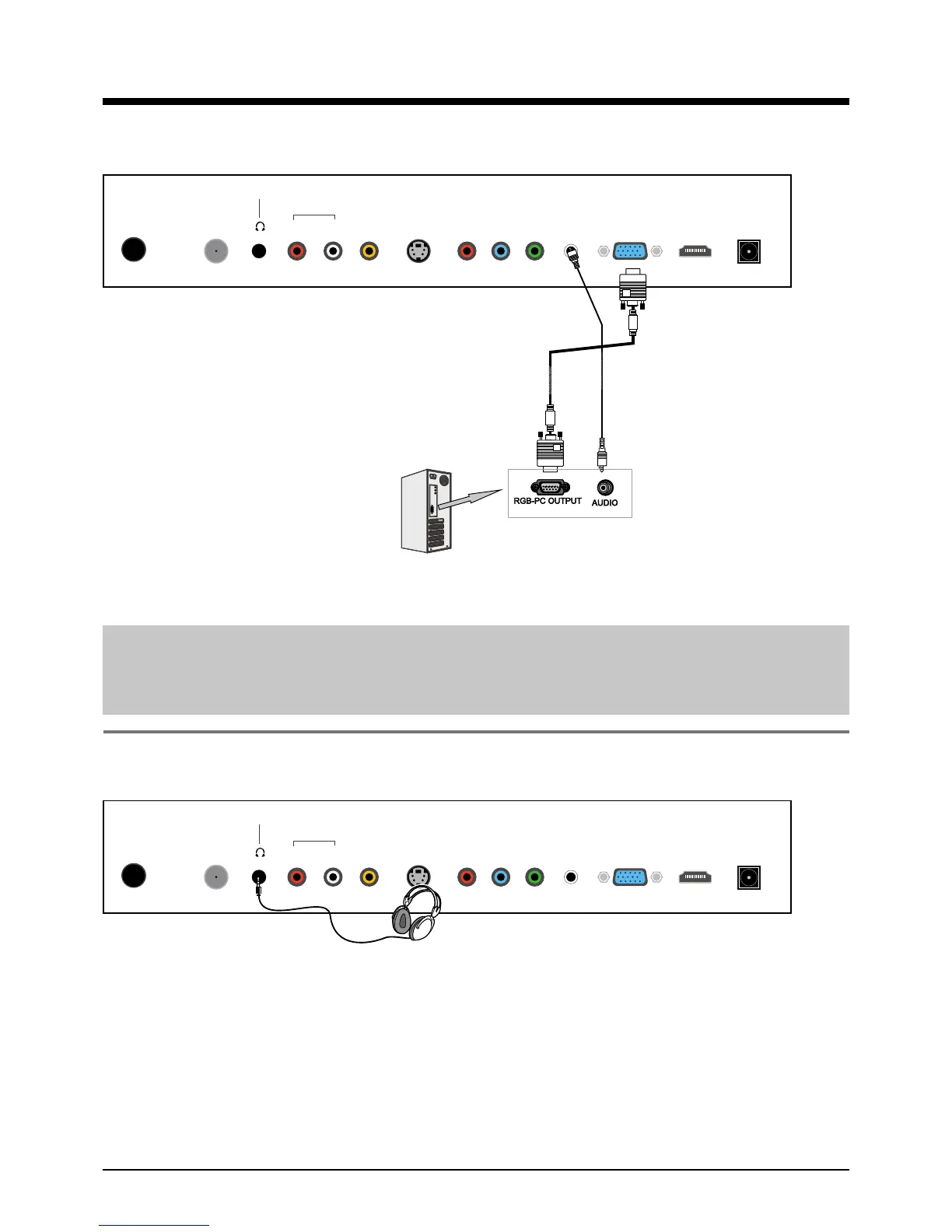
PC Connection
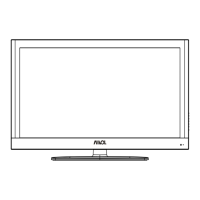
Headphone Connection
Note: All cables shown are not included with the TV.
Note: All cables shown are not included with the TV.
- Connect the RGB jack on the PC to the VGA jack on the TV set with a VGA cable.
- Connect the audio output jack on the PC to the PC IN jack on the TV set with a stereo audio
cable.
- Turn on the PC, and select “VGA” in the input source menu.
- If using a sound card, adjust the
PC sound as required.
- Set the video resolution of your
PC to 1024x768,60Hz on its
original monitor.
Make the connections between
the TV monitor and your PC,
switch on the monitor before
booting the PC.
You can now set your preferred
resolution from the choice
supported.
See the table of supported
resolutions on the right.
- You can connect a headphone to your TV if you wish to watch program without disturbing
people around you.
- Insert some standard headphones with a 3.5mm jack plug into the 3.5mm jack on the back of
the TV(see diagram).
Note: 1.HEADPHONE VOLUME WARNING.
Connect headphones with the volume set low and increase it if required.
Prolonged listening through some headphones at high volume settings can result in
hearing damage.
2. You will not receive the sound from the TV when you connect headphones to the
system.



 To Next Page