"*
You can select the type of picture which best corresponds to your viewing requirements.
The following picture effects are available the order given:
STANDARD, DYNAMIC, MILD, USER
1. Press the MENU button.
Result : The PICTURE menu is display.
2. Press the VOL[ + ] button.
Result : The "PICTURE MODE" menu is active.
3. Select to satisfy your preference by pressing the
VOL [ + ] or VOL[ - ] button.
4. When you have been finished, press the MENU
button repeatedly to return to normal viewing.
Changing the Picture standard
Your TV have several setting which allow you to control
picture quality:
CONTRAST, BRIGHTNESS, COLOUR,
SHARPNESS
1. Press the MENU button.
Result : The “PICTURE” menu is display.
2. Press the VOL[ - ]button.
Result : The "PICTURE MODE" menu is active.
3. Use the PROG[
] or PROG[ ]button to select
setting menu.
4. Press the VOL[ - ] button.
Result : The “Contrast” menu is displayed.
Result : The “Brightness” menu is displayed.
Result : The “Colour” menu is displayed.
Result : The “Sharpness” menu is displayed.
5. Adjust to satisfy your preference by pressing the
VOL[ + ] or VOL[ - ] button.
6. Press the TV MENU button twice to exit and save
the changes.
"+
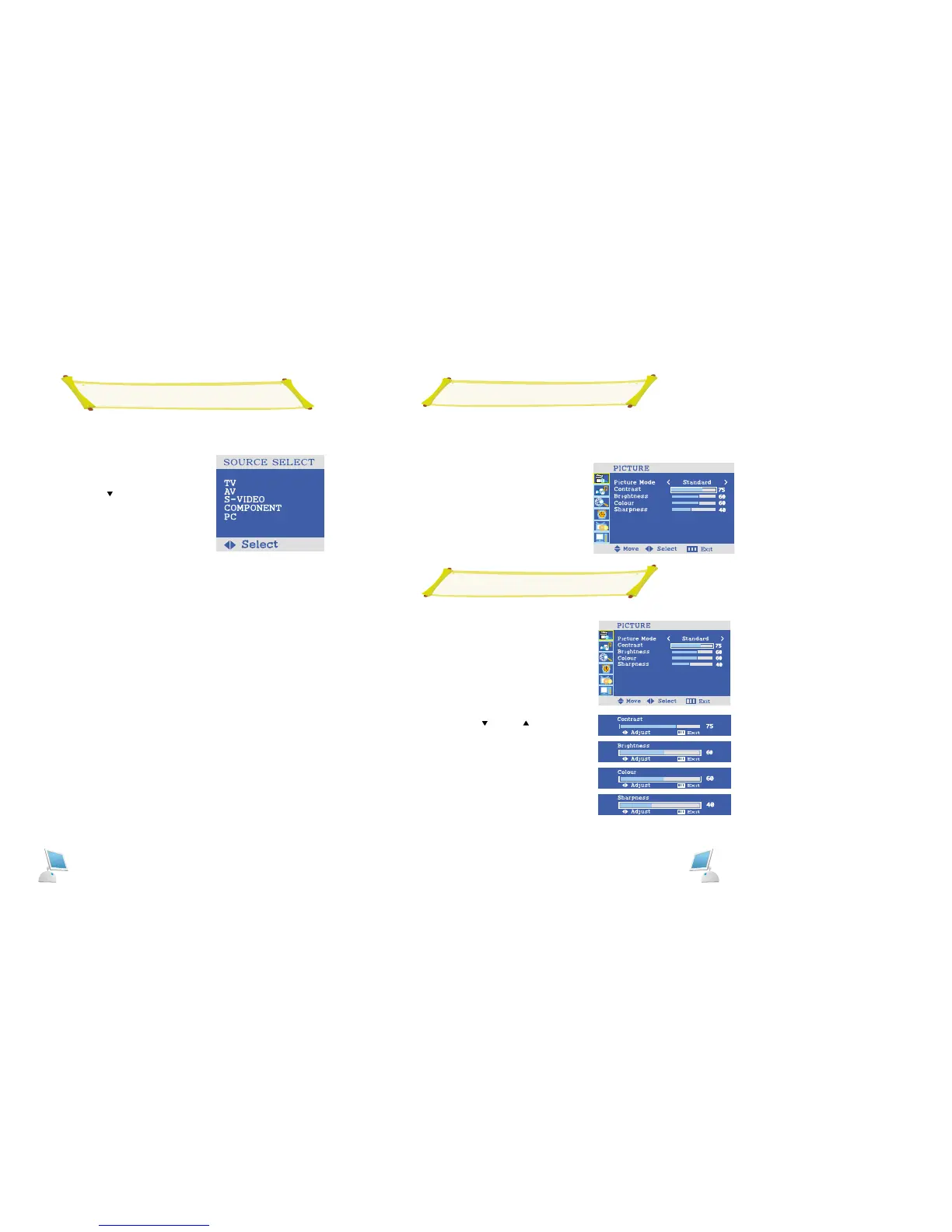
Changing the INPUT SELECT Standard
You can select the type of INPUT which best corresponds to your viewing requirements.
The following picture effects are available the order given:
TV, AV, S-VIDEO, COMPONENT, PC
1. Press the TV/VIDEO button.
Result : The INPUT SELECT menu is display.
2. Press the PROG[
] button.
3. Select to satisfy your preference by pressing the
VOL[ + ] or VOL [ - ] button.
4. When you have been finished, press the MENU
button repeatedly to return to normal viewing.
Adjusting the Picture settings



 To Next Page