%)
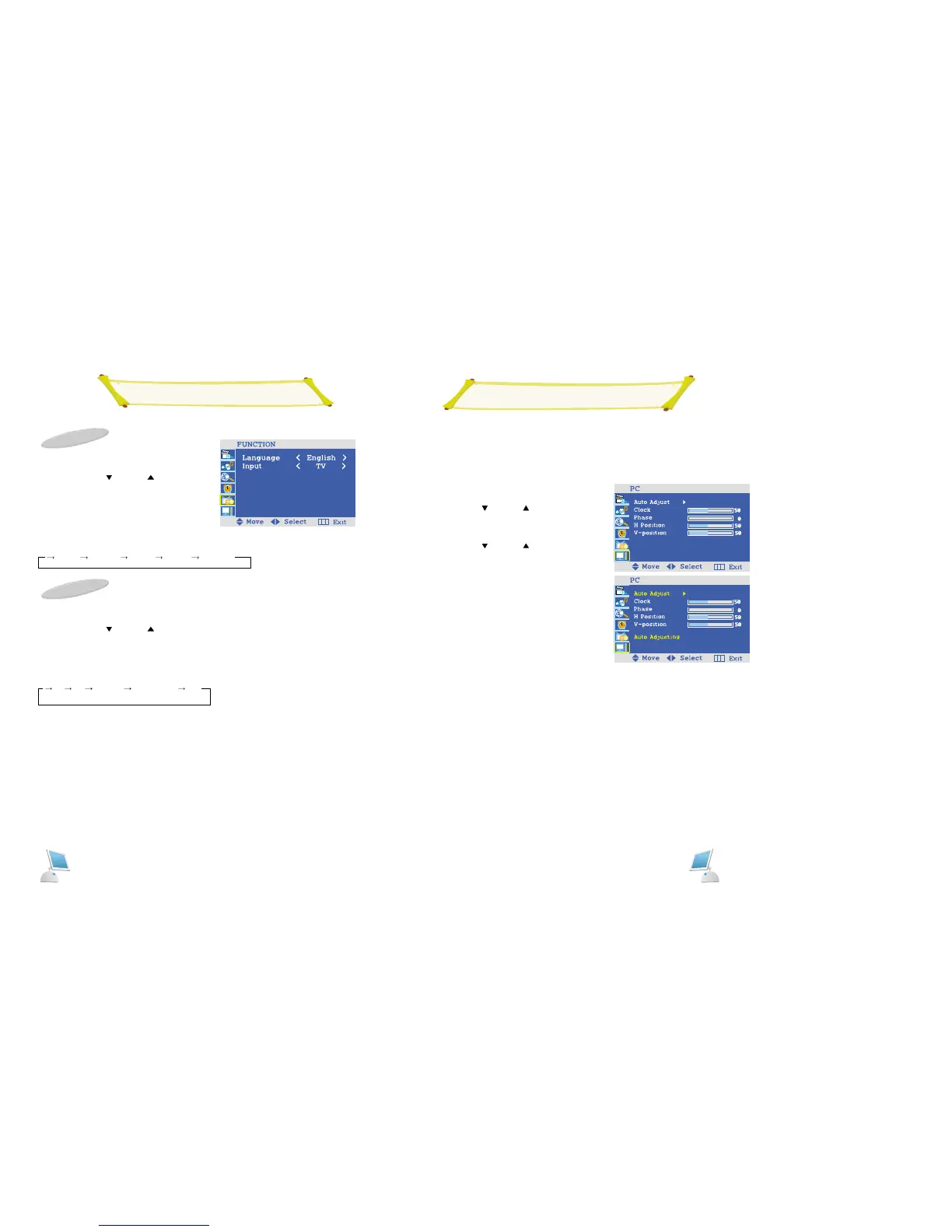
PC SETTING
When the screen is unstable in PC settings, or to make your PC sta-
ble by adjusting the Clock and Phase, set the PC in the following
sequence:
1. Press the MENU button.
2. Press the PROG[ ] or PROG[ ] button to select
"PC” and press the VOL[ - ] button.
3. Press the VOL[ - ] button
Result: The AutoAdjust menu is active.
3. Press the PROG[ ] or PROG[ ] button to
select frequency.
4. CLOCK VOL[ + ] or VOL[ - ] button.
PHASE VOL[ + ] or VOL[ - ] button.
H- Position VOL[ + ] or VOL[ - ] button.
V- Position VOL[ + ] or VOL[ - ] button.
Auto Adjust:
Adjust the screen’s status in PC mode automatically
Clock:
Adjusts the horizontal size of screen by
increasing/decreasing the number of pixels.
Phase:
Sets the focus of screen.
Adjusts when some noise exists or the character lines
are seen overlapped.
H Position/V Position:
Adjusts the horizontal/Vertical focus of screen
When you are satisfied with the settings, press the
MENU button repeatedly to return to normal viewing.
Language Setting
1 Press the Menu button.
2.
Press the
PROG[ ] or PROG[ ]
buttons
to select
“FUNCTION”
3. Press the VOL[ - ] button.
4.
Result: The "OSD LANGUAGE" menu is
displayed.
5.
Press the
VOL[ + ] or VOL[ - ]
button to
select which you want language.
INPUT
1 Press the Menu button.
2.
Press the
PROG[ ] or PROG[ ]
buttons to
select "FUNCTION"
3. Press the VOL[ + ] or VOL[ - ] button to
select "INPUT".
4. I
t will able to select want signal by using the
VOL[ + ] or VOL[ - ]
buttons.
Function Setting
English Francais Deutch Italiano Español
TV AV S-VIDEO COMPONENT PC
%(



 To Next Page