EasyManua.ls Logo

Axis 225FD - User Manual

Axis 225FD
65 pages
Print Icon
To Next Page IconTo Next Page
Loading...
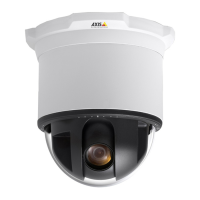
AXIS 225FD
Fixed Dome Network Camera
User’s Manual

Other manuals for Axis 225FD

Questions and Answers

  • P
    payneanthonySep 23, 2025
    What to do if the Status and Network indicator LEDs are flashing red rapidly on Axis 225FD Security Camera?
    • T
      Tammy GarciaSep 23, 2025
      If the Status and Network indicator LEDs are flashing red rapidly, the cause may be a hardware failure. Contact your Axis dealer.
  • M
    Mrs. Karen NewtonAug 25, 2025
    Why is my Axis 225FD accessible locally but not externally?
    • K
      Kim WashingtonAug 25, 2025
      If your AXIS 225FD camera is accessible on your local network but not externally, the cause may be firewall protection. Check the Internet firewall settings with your system administrator.
  • S
    Sean StephensonAug 25, 2025
    What causes poor network connection on Axis 225FD?
    • S
      Susan MartinAug 26, 2025
      If you are experiencing a poor or intermittent network connection with your Axis Security Camera, and you are using a network switch, check that the port on that device uses the same setting for the network connection type (speed/duplex) as set in the advanced TCP/IP settings.
  • A
    ashley03Aug 26, 2025
    How to view Axis 225FD Security Camera without ActiveX component?
    • R
      robert73Aug 27, 2025
      If the installation of additional ActiveX components is restricted or prohibited, configure your AXIS 225FD to use a Java applet for updating the video images under Live View Config > Layout > Default Viewer for Internet Explorer.
  • C
    Christopher ScottAug 27, 2025
    What to do if AXIS Security Camera cannot send notifications outside local network?
    • J
      Juan LozanoAug 27, 2025
      If your camera cannot send notifications, uploads, or alarms to a destination outside the local network, the issue might be due to firewall protection. Configure the camera to use a SOCKS server to reach networks on the other side of a firewall or proxy server.
  • A
    Adrian WoodsSep 15, 2025
    What to do if Axis 225FD Security Camera is on a different subnet?
    • B
      Brian AllenSep 15, 2025
      If the camera is located on a different subnet, contact your network administrator to obtain an appropriate IP address.
  • R
    Ryan StewartSep 12, 2025
    What to do if browser freezes when using Axis 225FD?
    • J
      Jessica GonzalezSep 12, 2025
      If your browser freezes when using the Axis Security Camera, try lowering the image resolution.
  • C
    Carlos GonzalezSep 14, 2025
    What to do if having problems uploading files to Axis 225FD?
    • F
      fostercindySep 14, 2025
      If you are experiencing problems uploading files to your Axis Security Camera, it may be due to limited space. Try deleting one or more existing files to free up space.
  • J
    jessicaballardSep 5, 2025
    How to resolve IP address conflict on Axis 225FD Security Camera?
    • T
      Thomas JohnsonSep 5, 2025
      To resolve a possible IP address conflict with another device on the same subnet, set the static IP address to 0.0.0.0.
  • A
    Amanda PriceSep 2, 2025
    Why are images from my Axis Security Camera only shown in black and white?
    • C
      Chad DurhamSep 2, 2025
      If the images from your Axis Security Camera are only shown in black and white, check the color level setting and the setting for the IR cut filter.

Summary

Product Features

Key Features

Core functionalities and benefits of the AXIS 225FD camera.

Accessing the Camera

Access From a Browser

Steps to access the camera's web interface.

Setting the Root Password

Procedure to configure the administrator password for first-time access.

Setup Tools

Video and Image Settings

Image Settings

Options for adjusting image appearance, resolution, compression, and text overlays.

Event Configuration

Configuring Event Types

Defining actions triggered by events like motion detection or input signals.

System Options

Resetting Factory Defaults

Detailed steps for resetting the camera to its original factory settings.

Troubleshooting

Upgrading the Firmware

Step-by-step guide for updating the camera's software.

Emergency Recovery Procedure

Steps to recover the camera after a failed firmware upgrade.

General Performance Considerations

Axis 225FD Specifications

General IconGeneral
BrandAxis
Model225FD
CategorySecurity Camera
LanguageEnglish

Related product manuals