EasyManua.ls Logo

Axis 225FD - User Manual

Axis 225FD
65 pages
Print Icon
To Next Page IconTo Next Page
Loading...
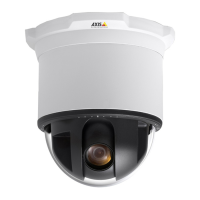
AXIS 225FD
Fixed Dome Network Camera
User’s Manual

Other manuals for Axis 225FD

Questions and Answers

  • S
    Sabrina GarzaSep 9, 2025
    How to fix image losing focus often on Axis 225FD?
    • J
      Jason DurhamSep 9, 2025
      If the image on your Axis Security Camera loses focus often, disable the DC-Iris lens in the settings for Video & Image > Advanced. Focus the camera, and then enable the DC-Iris lens.
  • K
    Kimberly HernandezSep 7, 2025
    Why no images in browser from Axis Security Camera (Internet Explorer only)?
    • R
      Rebecca LeachSep 7, 2025
      If you are not seeing images in your browser (Internet Explorer only) from your Axis Security Camera, set your browser to allow ActiveX controls. Also, make sure that the AXIS Media Control (AMC) component is installed on your workstation.
  • M
    Mary WhiteAug 22, 2025
    How to fix Axis 225FD if it cannot be accessed from a web browser?
    • A
      Arthur MorrisAug 22, 2025
      If you cannot access your AXIS 225FD from a web browser, it might be because the IP address has been changed by DHCP. Here's how to address it: 1. Move the AXIS 225FD to an isolated network, or one without a DHCP or BOOTP server. Reset the IP address using the AXIS IP Utility or ARP/Ping commands. 2. Access the unit and disable DHCP in the TCP/IP settings. Return the unit to the main network. The unit will now have a fixed IP address that will not change. 3. Alternatively, if a dynamic IP address via DHCP or BOOTP is required, select the necessary service and configure IP address change notification from the network settings.
  • J
    jessicaballardSep 5, 2025
    How to resolve IP address conflict on Axis 225FD Security Camera?
    • T
      Thomas JohnsonSep 5, 2025
      To resolve a possible IP address conflict with another device on the same subnet, set the static IP address to 0.0.0.0.
  • M
    Maria DouglasSep 3, 2025
    How to eliminate flickering in Axis 225FD image?
    • C
      colekathleenSep 4, 2025
      If you observe rolling dark bands or flickering in the image from your Axis Security Camera, try adjusting the Flicker-free exposure setting under advanced image settings.
  • A
    Amanda PriceSep 2, 2025
    Why are images from my Axis Security Camera only shown in black and white?
    • C
      Chad DurhamSep 2, 2025
      If the images from your Axis Security Camera are only shown in black and white, check the color level setting and the setting for the IR cut filter.
  • J
    josephjacobsSep 1, 2025
    What to do if the IP address of my Axis Security Camera is being used by another device?
    • C
      Connie BrowningSep 1, 2025
      If the IP address of your Axis Security Camera is being used by another device: 1. Disconnect the AXIS 225FD from the network. 2. Run the Ping command. * If you receive: Reply from : bytes = 32; time = 10 ms...., it means the IP address is already in use. Obtain a new IP address and reinstall the unit. * If you see: Request timed out, the IP address is available. Check all cabling and reinstall the unit.
  • D
    dennis14Aug 31, 2025
    How to adjust image brightness on Axis Security Camera?
    • A
      andrewbellAug 31, 2025
      If the image from your Axis Security Camera is too dark or too light, check the video image settings.
  • B
    barkerkatelynAug 30, 2025
    How to fix blurred images on my Axis 225FD Security Camera?
    • J
      jacob70Aug 30, 2025
      To resolve blurred images on your Axis Security Camera: * Refocus the camera. * In the Video & Image > Advanced - Camera Settings, verify that DC-Iris is set to Enabled.
  • B
    Billy YoungAug 28, 2025
    How to troubleshoot login issues on my Axis 225FD Security Camera?
    • M
      mezajamesAug 28, 2025
      If you're unable to log in to your AXIS Security Camera, and HTTPS is enabled, make sure that you're using the correct protocol (HTTP or HTTPS). You might need to manually type 'http' or 'https' in the browser's address bar.

Summary

Product Features

Key Features

Core functionalities and benefits of the AXIS 225FD camera.

Accessing the Camera

Access From a Browser

Steps to access the camera's web interface.

Setting the Root Password

Procedure to configure the administrator password for first-time access.

Setup Tools

Video and Image Settings

Image Settings

Options for adjusting image appearance, resolution, compression, and text overlays.

Event Configuration

Configuring Event Types

Defining actions triggered by events like motion detection or input signals.

System Options

Resetting Factory Defaults

Detailed steps for resetting the camera to its original factory settings.

Troubleshooting

Upgrading the Firmware

Step-by-step guide for updating the camera's software.

Emergency Recovery Procedure

Steps to recover the camera after a failed firmware upgrade.

General Performance Considerations

Axis 225FD Specifications

General IconGeneral
BrandAxis
Model225FD
CategorySecurity Camera
LanguageEnglish

Related product manuals