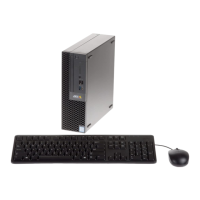
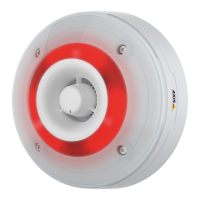
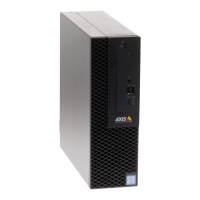
AXISF34MainUnit
Recordings
3.SelecttherecordingandclickPlay.Therecordingwillbeplayedinanewbrowserwindow.
ExportVideoClip
RecordingsontheSDcardornetworksharecanbeexportedasvideoclips.Itispossibletoexportacompleterecordingora
partofarecording.
Note
TheexportedrecordingisaMatroskavideole(.mkv).ToplaytherecordinginWindowsMediaPlayer,AXISMatroskaFile
Splittermustbeinstalled.AXISMatroskaFileSplittercanbedownloadedfromwww.axis.com/techsup/software
Toexportavideoclip,followthesesteps:
1.GotoRecordings>List.
2.Toreducethenumberofrecordingsdisplayed,selectthedesiredoptionsunderFilterandclicktheFilterbuttonto
applythelters.SeealsoFindRecordingsonpage40.
3.SelecttherecordingandclickExport.TheExportRecordingdialogopens.
4.Bydefault,thecompleterecordingisselected.Toexportapartoftherecording,modifythestartandstoptimes.
5.Optionally,enteralenamefortherecording.
6.ClickExport.
Note
Recordingscanalsobeexportedfromtheplaybackwindow.
ContinuousRecording
TheAxisproductcanbeconguredtocontinuouslysavevideotoastoragedevice.Forinformationaboutstoragedevices,seeStorage
onpage51.
Topreventthediskfrombecomingfull,itisrecommendedtocongurethedisktoautomaticallyremoveoldrecordings.
Ifanewstreamproleisselectedwhilearecordingisongoing,therecordingwillbestoppedandsavedintherecordinglistanda
newrecordingwiththenewstreamprolewillstart.Allpreviouscontinuousrecordingswillremainintherecordinglistuntilthey
areremovedmanuallyorthroughautomaticremovalofoldrecordings.
Tostartacontinuousrecording,followthesesteps:
1.GotoRecordings>Continuous.
2.SelectEnabled.
3.SelectthetypeofstoragedevicefromtheStoragelist.
4.SelectaStreamproletouseforcontinuousrecordings.
5.ClickSavetosaveandstarttherecording.
41


 To Next Page