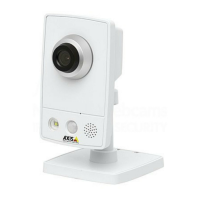
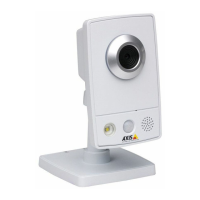
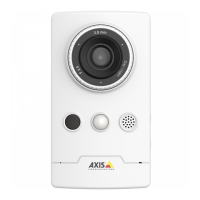
AXISM1145-LNetworkCamera
AboutPTZ(PanTiltZoom)
AboutPTZ(PanTiltZoom)
PTZ(pan,tiltandzoom)isavailableifyouhaveenableddigitalPTZintheselectedviewarea.Formoreinformationonviewareas,
seeViewAreaonpage20.
Aboutpresetpositions
Apresetpositionisasavedviewthatcanbeusedtoquicklysteerthecameratoaspecicposition.Apresetpositionconsistsof
thefollowingvalues:
•Panandtiltpositions
•Zoomposition
Eachviewareahasitsownpresetpositions.
Howtoaccessthepresetpositions
Presetpositionscanbeaccessedinseveralways:
•ByselectingthepresetfromtheSourcedrop-downlistintheLiveViewPage.
•Whensettingupactionrules.Seepage31.
Howtoaddapresetposition
1.GotoSetup>PTZ>PresetPositions.
2.Clickintheimageorusethecontrolstosteerthecameraviewtothedesiredposition.
3.WriteanameintheCurrentpositioneld.
4.ClickAddtosavethepresetposition.
Howtosetthehomeposition
TheentireviewareaistreatedastheHomepositionwhichisreadilyaccessiblebyclickingtheHomebuttonontheliveview
windowandinthePresetPositionssetupwindow.
TheproductcanbeconguredtoreturntotheHomepositionwhenthePTZfunctionalityhasbeeninactiveforaspeciedlengthof
time.EnterthelengthoftimeintheReturntohomeaftereldandclickSave.Setthetimetozerotopreventtheproductfrom
automaticallyreturningtotheHomeposition.
Aboutguardtours
Aguardtourdisplaysthevideostreamfromdifferentpresetpositions,one-by-one,inapredeterminedorderoratrandom,andfor
congurabletimeperiods.Theenabledguardtourwillkeeprunningaftertheuserhasloggedofforclosedthebrowser.
Howtocreateaguardtour
1.GotoSetup>PTZ>GuardTour.
2.ClickAdd.
3.Typeaname.
4.Specifythepauselengthbetweenruns.
5.Selectapresetpositionfromthedrop-downlistandclickAdd.
26


 To Next Page