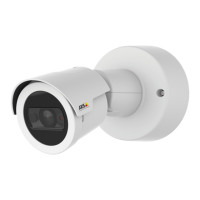
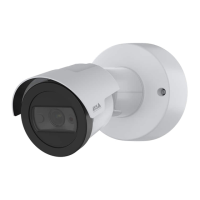
AXISM20BulletCameraSeries
Configureyourdevice
Configureyourdevice
Note
ThecapturemodesettingisonlyavailableforAXISM2036-LEBulletCamera.
Basicsettings
1.Setthecapturemode:
1.1GotoVideo>Installation>Capturemode.
1.2ClickChange.
1.3SelectacapturemodeandclickSaveandrestart.
SeealsoCapturemodesonpage38.
2.Setthepowerlinefrequency:
2.1GotoVideo>Installation>Powerlinefrequency.
2.2Selectapowerlinefrequency.
3.Settheorientation:
3.1GotoVideo>Installation>Rotate.
3.2Select0,90,180or270degrees.
SeealsoMonitorlongandnarrowareasonpage8.
Adjusttheimage
Thissectionincludesinstructionsaboutconguringyourdevice.Ifyouwanttolearnmoreabouthowcertainfeatureswork,go
toLearnmoreonpage38.
Levelthecamera
Toadjusttheviewinrelationtoareferenceareaoranobject,usethelevelgridincombinationwithamechanicaladjustment
ofthecamera.
1.GotoVideo>Image>andclick
.
2.Click
toshowthelevelgrid.
3.Adjustthecameramechanicallyuntilthepositionofthereferenceareaortheobjectisalignedwiththelevelgrid.
Selectexposuremode
Toimproveimagequalityforspecicsurveillancescenes,useexposuremodes.Exposuremodesletsyoucontrolaperture,shutter
speed,andgain.GotoVideo>Image>Exposureandselectbetweenthefollowingexposuremodes:
•Formostusecases,selectAutomaticexposure.
•Forenvironmentswithcertainarticiallighting,forexampleuorescentlighting,selectFlicker-free.
Selectthesamefrequencyasthepowerlinefrequency.
5


 To Next Page