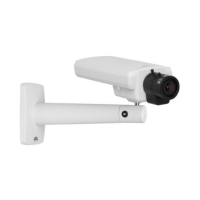
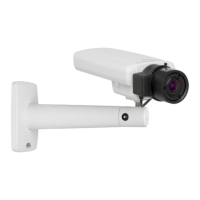
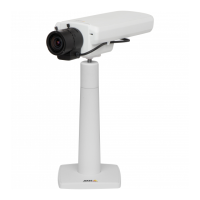
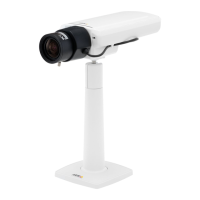
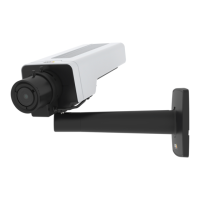
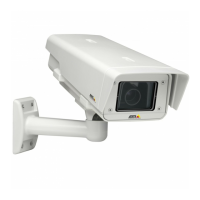
AXISP1353–ENetworkCamera
SetUptheProduct
SetUptheProduct
TheAxisproductcanbeconguredbyuserswithadministratororoperatorrights.Toopentheproduct’sSetuppages,clickSetupin
thetopright-handcorneroftheLiveViewpage.
•Administratorshaveunrestrictedaccesstoallsettings.
•OperatorshaveaccesstoallsettingsexceptSystemOptions
Seealsotheonlinehelp
.
BasicSetup
BasicSetupprovidesshortcutstothesettingsthatshouldbemadebeforeusingtheAxisproduct:
1.Users.Seepage49.
2.TCP/IP.Seepage52.
3.Date&Time.Seepage51.
4.VideoStream.Seepage20.
5.Focus.Seepage26
6.AudioSettings.Seepage27.
TheBasicSetupmenucanbedisabledfromSystemOptions>Security>Users.
Focus&Zoom
Forinstallationinstructions,refertotheproduct’sInstallationGuide.
Tosetfocusandzoom:
1.InstallthecameraasdescribedintheInstallationGuide.
2.GotoVideo&Audio>Focus&Zoom.
3.OntheBasictab,setthezoomlevelusingtheslider.Thebuttons<and>movethezoompositiononestepineither
direction.Thebuttons<<and>>movethezoompositioninmultiplestepsineitherdirection.
4.ClickPerformautofocustofocusthecameraautomatically.
5.Ifmoreadjustmentsareneeded,gototheAdvancedtab.
Note
•Movementsinfrontofthecamerashouldbeavoidedduringautomaticfocusing.
OntheAdvancedtab,focuscanbeadjustedmanually:
1.ClickOpeniristoopentheiristoitsmaximumposition.Thisgivesthesmallestdepthofeldandprovidesthebest
conditionsforfocusing.
2.FocusissetintheFocuswindow.Usethemousetomoveandresizethefocuswindow.
3.ClickintheFocuspositionbartofocusonadesiredlocation.Thebuttons<and>movethefocuspositiononestepin
eitherdirection.Thebuttons<<and>>movethefocuspositioninmultiplestepsineitherdirection.
4.Whensatised,clickEnableiristoenabletheiris.
19


 To Next Page