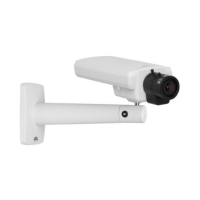
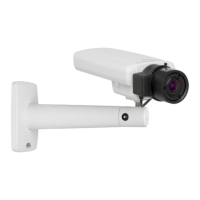
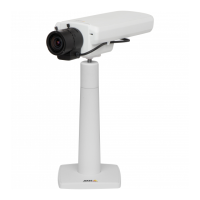
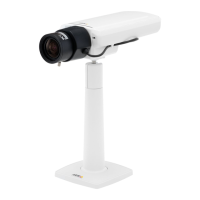
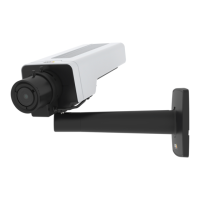
AXISP1353–ENetworkCamera
VideoandAudio
VideoandAudio
Thevideoandaudiosettingscanbeusedtooptimizevideoandaudioquality.Youcancongurethefollowing:
•Videostreamsettings.Seepage20.
•Streamproles.Seepage22.
•Camerasettings.Seepage22.
•Viewarea.Seepage24.
•Overlayimage.Seepage24.
•Privacymask.Seepage26.
•Focus.Seepage26.
•Audiosettings.Seepage27.
•Audioclips.Seepage28.
SetUpVideoStreams
Tosetuptheproduct’svideostreams,gotoVideo&Audio>VideoStream.
Thevideostreamsettingsaredividedintothefollowingtabs:
•Image.Seepage20.
•Audio.Seepage27.
•H.264.Seepage21.
•MJPEG.Seepage21.
PixelCounter
Thepixelcountershowsthenumberofpixelsinanareaoftheimage.Thepixelcounterisusefulinsituationswherethereisa
requirementthattheimageisacertainsize,forexampleinfacerecognition.
Thepixelcountercanbeaccessedfrom:
•Video&Audio>VideoStream.UnderPreview,clickOpenandselecttheShowpixelcounteroptiontoenablethe
rectangleintheimage.Usethemousetomoveandresizetherectangle,orenterthenumberofpixelsintheWidth
andHeighteldsandclickApply.
•Video&Audio>Focus.SelecttheShowpixelcounteroptiontoenabletherectangleintheimage.Usethemouseto
moveandresizetherectangle,orenterthenumberofpixelsintheWidthandHeighteldsandclickApply.
•TheLiveViewpageinInternetExplorerwithAXISMediaControl(AMC)inWindows.Right-clickintheimageandselect
Pixelcounter.Usethemousetomoveandresizetherectangle.
Image
ThedefaultimagesettingscanbeconguredunderVideo&Audio>VideoStream.SelecttheImagetab.
Thefollowingsettingsareavailable:
•Resolution.Selectthedefaultresolution.
20


 To Next Page