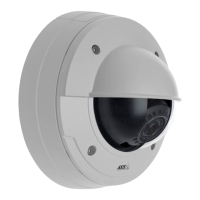
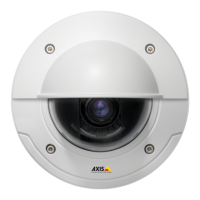
AXISP3367–VFixedDomeNetworkCamera
Troubleshooting
Troubleshooting
CheckingtheFirmware
Firmwareissoftwarethatdeterminesthefunctionalityofnetworkdevices.Oneofyourrstactionswhentroubleshootingaproblem
shouldbetocheckthecurrentrmwareversion.Thelatestversionmaycontainacorrectionthatxesyourparticularproblem.The
currentrmwareversionintheAxisproductisdisplayedinthepageSetup>BasicSetupandinSetup>About.
UpgradingtheFirmware
Important
•Yourdealerreservestherighttochargeforanyrepairattributabletofaultyupgradebytheuser.
•Preconguredandcustomizedsettingsaresavedwhenthermwareisupgraded(providingthefeaturesareavailableinthe
newrmware)althoughthisisnotguaranteedbyAxisCommunicationsAB.
Note
•Aftertheupgradeprocesshascompleted,theproductwillrestartautomatically.Ifrestartingtheproductmanuallyafterthe
upgrade,alwayswait10minutesevenifyoususpecttheupgradehasfailed.
•WhenyouupgradetheAxisproductwiththelatestrmwarefromAxiswebsite,theproductreceivesthelatestfunctionality
available.Alwaysreadtheupgradeinstructionsandreleasenotesavailablewitheachnewreleasebeforeupgrading
thermware.
Toupgradetheproduct’srmware:
1.Savethermwareletoyourcomputer.ThelatestversionofthermwareisavailablefreeofchargefromAxiswebsite
atwww.axis.com/techsup
2.GotoSetup>SystemOptions>Maintenanceintheproduct’swebpages.
3.UnderUpgradeServer,clickBrowseandlocatetheleonyourcomputer.ClickUpgrade.
4.Waitapproximately10minuteswhiletheproductisbeingupgradedandrestarted.Thenaccesstheproduct.
AXISCameraManagementcanbeusedformultipleupgrades.Seewww.axis.comformoreinformation.
60



 To Next Page