EasyManua.ls Logo

Axis P3344 - User Manual

Axis P3344
57 pages
Print Icon
To Next Page IconTo Next Page
Loading...
USER MANUAL
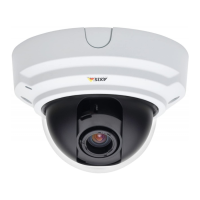
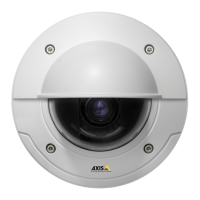
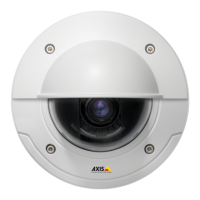
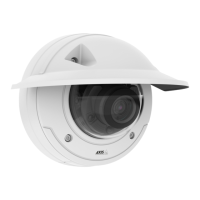
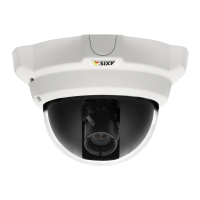
AXIS P3344 Fixed Dome Network Camera

Questions and Answers

  • C
    Casey DavidsonAug 16, 2025
    What to do if there is no audio on my Axis Security Camera?
    • D
      David RobinsonAug 17, 2025
      If you're experiencing a lack of audio, first, examine the computer's sound card settings to ensure that mute is off and the volume is appropriately adjusted. Next, verify that 'Enable audio support' is enabled under Setup > System Options > Security > Audio quality Support. Finally, confirm that the correct Audio Input source is selected under Setup > Video & Audio > Audio Settings.
  • M
    michael77Aug 19, 2025
    Why are my Axis P3344 Security Camera's motion detection triggers unexpected?
    • G
      Geoffrey MendozaAug 19, 2025
      Unexpected motion detection triggers can often be resolved by lowering the sensitivity setting. This helps avoid issues caused by luminance changes.
  • C
    Cindy GallagherAug 22, 2025
    How to fix poor audio quality on Axis P3344 Security Camera?
    • J
      Jennifer HillAug 22, 2025
      To improve poor audio quality, try the following: reduce the number of listeners and viewers, and decrease the image resolution and compression. Synchronize the product’s date and time settings with an NTP server by navigating to Setup > System Options > Date & Time. Also, ensure that the correct Audio Input source is selected under Setup > Video & Audio > Audio Settings.
  • K
    kelseycaldwellAug 25, 2025
    What to do if my Axis P3344 video cannot be recorded?
    • P
      Patty HardinAug 26, 2025
      If your video cannot be recorded, verify that the SD card is not write-protected, meaning it is not in read-only mode.
  • C
    Catherine PerezAug 27, 2025
    How to resolve poor rendering of H.264 images on Axis P3344 Security Camera?
    • J
      johnnicholsAug 28, 2025
      If you are experiencing poor rendering of H.264 images, ensure the color depth is set to 16-bit or 32-bit color on the clients. If text overlays are blurred, enable Advanced Video Rendering from the Video tab in the AMC Control Panel. Also, make sure your graphics card is using the latest driver, which can usually be downloaded from the manufacturer’s website.
  • K
    Kara JeffersonAug 30, 2025
    Why is H.264 not displayed in the Control Panel of my Axis P3344 Security Camera?
    • K
      Karina DavisAug 30, 2025
      If H.264 is not displayed in the Control Panel, first check that the relevant H.264 connection methods and the correct interface are enabled in the AMC client Control Panel (streaming tab). If that doesn't work, in the AMC Control Panel, select the H.264 tab and click 'Set to default H.264 decoder'. Finally, verify that RTSP is enabled under System Options > Network > TCP/IP > Advanced.
  • D
    Dr. Nancy TuckerSep 2, 2025
    What to do if my Axis Security Camera SD card cannot be mounted?
    • N
      nevansSep 2, 2025
      If the SD card cannot be mounted, reformat the SD card and then click 'Mount'.
  • M
    Megan ButlerSep 5, 2025
    Why is multicast H.264 only accessible by local clients on my Axis P3344 Security Camera?
    • C
      Christopher HahnSep 5, 2025
      If multicast H.264 is only accessible by local clients, check if your router supports multicasting, or if the router settings between the client and the product need to be configured. The TTL (Time To Live) value may need to be increased.
  • S
    Sean TerrellSep 7, 2025
    What to do if the IP address is being used by another device on my Axis P3344?
    • C
      Christopher JohnsonSep 7, 2025
      If the IP address is being used by another device, disconnect the Axis product from the network. Run the Ping command (in a Command/DOS window, type ping and the IP address of the product). If you receive: 'Reply from : bytes=32; time=10...', this means that the IP address may already be in use by another device on the network. Obtain a new IP address from the network administrator and reinstall the product. If you receive: 'Request timed out', this means that the IP address is available for use with the Axis product. Check all cabling and reinstall the product.
  • J
    Jessica MartinezSep 12, 2025
    How to resolve problems setting the IP address for my Axis P3344?
    • C
      callahansamuelSep 12, 2025
      If you're having trouble setting the IP address, try the installation again, ensuring the IP address is set within two minutes after powering on the product. Also, make sure the Ping length is set to 408.

Summary

Accessing the Product

Access from a Browser

Step-by-step instructions for accessing the product via a web browser.

Access from the Internet

Details on configuring network settings for internet access.

Set the Root Password

Instructions for setting the initial administrator password for secure access.

Configure Root Password

Explains setting the root password using HTTP or HTTPS connections.

Media Streams

How to Stream H.264

Details methods and protocols for streaming H.264 video.

Setting Up the Product

Basic Setup

Provides shortcuts to essential settings before using the product.

Video and Audio

Video Stream Settings

Configuration of resolution, compression, and frame rate for video streams.

H.264

Explains H.264 video compression, GOV length, and bit rate settings.

Focus & Zoom

Guides on setting focus and zoom levels for optimal image clarity.

Audio Settings

Configuration of audio functionality, channel types, and input/output.

PTZ (Pan Tilt Zoom)

Preset Positions

Creating and managing predefined camera views for quick access.

Detectors

Motion Detection

Configuring motion detection windows and parameters.

Motion detection parameters

Details on object size, history, and sensitivity for motion detection.

Events

Setting Up an Action Rule

Defining conditions and actions for event-triggered responses.

Recordings

Continuous recording

Enabling and configuring continuous video saving to storage.

System Options

Security

Managing user access, ONVIF, IP address filtering, and HTTPS.

Network

Configuring IPv4/IPv6 addresses, DHCP, and static IP settings.

Advanced TCP;IP Settings

DNS, NTP, and Host Name configuration for network integration.

SD card

Managing SD/SDHC memory cards for storage and formatting.

Reset to factory default settings

Restoring the product to its original factory default configuration.

Troubleshooting

Upgrading the firmware

Steps for updating the product's firmware to the latest version.

Emergency recovery procedure

Steps to recover the product after a failed firmware upgrade.

Symptoms, possible causes and remedial actions

Troubleshooting common issues like IP address problems and browser access.

Technical Specifications

Camera

Details on image sensor, lens, illumination, shutter time, and angle adjustment.

Video

Technical data for video compression, resolutions, frame rates, and streaming.

Performance considerations

Factors affecting performance, such as resolution, compression, and network load.

Performance Factors

Detailed analysis of factors impacting frame rate, bandwidth, and CPU load.

Axis P3344 Specifications

General IconGeneral
Maximum resolution1280 x 800 pixels
Pan range0 - 360 °
Tilt angle range0 - 170 °
Angle of rotation340 °
Camera shutter speed1/25000 - 1/6 s
Minimum illumination0.4 lx
Sensor typeCMOS
Optical sensor size1/4 \
Focal length range3.3 - 12 mm
Video motion detectionYes
Power source typePoE
I/O portsRJ-45
Dimensions (WxDxH)96 x 96 x 148 mm
Processor modelARTPEC-3
Flash memory128 MB
Supported network protocolsIPv4/v6, HTTP, HTTPS, QoS Layer 3 DiffServ, FTP, SMTP, Bonjour, UPnP, SNMPv1/v2c/v3(MIB-II), DNS, DynDNS, NTP, RTSP, RTP, TCP, UDP, IGMP, RTCP, ICMP, DHCP, ARP, SOCKS.
Operating temperature (T-T)0 - 50 °C
Operating relative humidity (H-H)20 - 80 %
Weight and Dimensions IconWeight and Dimensions
Weight445 g

Related product manuals