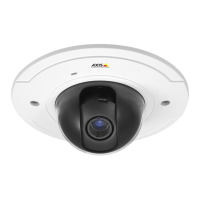
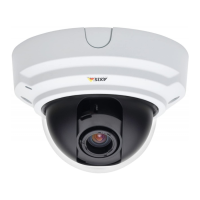
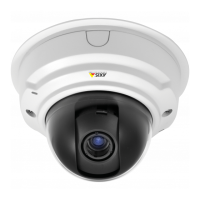
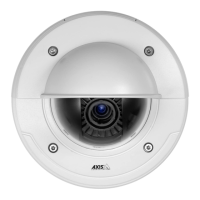
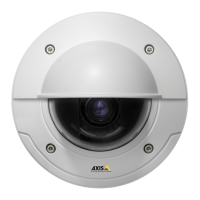
AXIS P3344 Fixed Dome Network Camera
Recordings
Recordings
TheAxisproductcanbeconfigured to record video continuously or according to an action rule:
• To start a continuous recording, see page 35.
• To set up ac tion rules, see page 32.
• To access recordings, see Recording List, on page 35.
•Toconfigure camera controlled storage, see Storage, on page 43.
Recording List
Recordings made to the SD card and network share are listed on the Recordings > List page. The list shows each recording’s start
date and time , duration and the event that triggered the recording.
To play or download a recording, follow these steps:
1. Go to Recordings > List.
2. Use the filter to narrow the list of recordings. Enter the desired filter criteria and click Filter. Som e filters may take
a long time to complete.
3. Select the recording.
4. Click Play to play the recording, or click Download to download the recording.
Multiple recordings can be downloaded at the same time. Select the recordings and click Download. The downloaded file is a z ip file
containing a minimum of three files, of which the Matroska (mkv) files are the actual recordings. The recordings are time-stamped
with the date and time they were downloaded (that is, not the date the
recordings were made).
Note
To play recordings in Windows Media Player, AXIS Matroska File Splitter must be ins talled. AXIS Matroska File Splitter
can be downloaded from www.axis.com/techsup/software
For detai led recording and video in forma t ion, select a recording and click Properties.
To remove a recording, select the recording and click Remove.
Continuous recording
The Axis product can be configured to continuously save video to an SD card or network share. To prevent the disk from becoming
full, it is recommended to configure the disk to automatically r emove old recordings see Storage, on page 43.
To start a continuous recording, follow these steps:
1. Go to Recordings > Continuous.
2. Select Enabled.
3. Select from the S D card or network share from the Disk list.
4. Select a Stream profile to use for continuous recordings.
5. Click Save to save and start the recording.
35



 To Next Page