EasyManua.ls Logo

Axis P3346 - User Manual

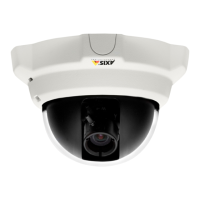
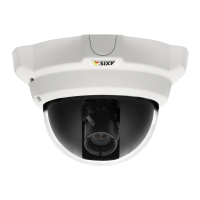
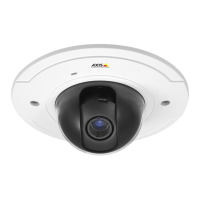
Axis P3346
64 pages
Print Icon
To Next Page IconTo Next Page
Loading...
AXISP3346FixedDomeNetworkCamera
UserManual

Other manuals for Axis P3346

Questions and Answers

  • E
    erikperezAug 17, 2025
    Why is my Axis Security Camera accessible locally but not externally?
    • J
      Jason Wallace DDSAug 18, 2025
      If your Axis Security Camera is accessible on your local network but not externally, the issue could stem from your router configuration or firewall settings. To configure your router, enable the NAT-traversal feature, which attempts to automatically configure the router to allow access to the Axis product. Also, check your Internet firewall settings with your network administrator. Finally, verify if you need to configure any specific router settings for the camera to function correctly externally.
  • A
    amyjonesAug 20, 2025
    Why is my Axis P3346 Security Camera showing video and image problems?
    • K
      Kristopher LongAug 20, 2025
      If you are experiencing general video and image problems with your Axis Security Camera, check the video stream and camera settings under Setup > Video & Audio > Video Stream and Setup > Video & Audio > Camera Settings. Try lowering the frame rate or the upload period. Keep in mind that configuring pre-buffers, motion detection, high-resolution images, or high frame rates will affect the performance of the Axis product. Poor performance may also be caused by heavy network traffic, multiple users accessing the product, low-performance clients, or the use of features such as motion detection, event handling, or uploaded applications. Ensure your screen is configured to show at least 65000 colors (16 bits).
  • A
    Anthony WilliamsAug 25, 2025
    What to do if there is no audio from my Axis P3346?
    • P
      Peter WalkerAug 26, 2025
      If you're experiencing no audio with your Axis Security Camera, check the sound card on your computer to ensure it is properly configured, that mute is not selected, and that the volume settings are correct. Also, verify that 'Enable audio support' is selected under Setup > System Options > Security > Audio quality Support. Finally, ensure the correct Audio Input source is selected under Setup > Video & Audio > Audio Settings.
  • U
    uballardAug 27, 2025
    Why is the audio quality poor on my Axis P3346 Security Camera?
    • K
      Kelly ScottAug 27, 2025
      If you are experiencing poor audio quality with your Axis Security Camera, it could be due to several factors. The CPU might be overloaded, so try reducing the number of listeners and viewers, and decrease the image resolution and compression. Synchronize the product’s date and time settings with an NTP server. Ensure that the correct Audio Input source is selected under Setup > Video & Audio > Audio Settings. If you are experiencing feedback loops, try moving the microphone or the speaker, or use half-duplex mode instead.
  • A
    Anthony AndersonAug 30, 2025
    Why does motion detection trigger unexpectedly on my Axis P3346 Security Camera?
    • C
      Charles AlexanderAug 30, 2025
      If motion detection is triggering unexpectedly on your Axis Security Camera, it may be due to changes in luminance. Try lowering the sensitivity setting to avoid problems caused by luminance variations.
  • J
    Jessica HillSep 1, 2025
    What to do if I have problems uploading files to my Axis Security Camera?
    • A
      amyevansSep 1, 2025
      If you're having problems uploading files to your Axis Security Camera, it might be due to limited space. Delete existing files to free up space.
  • M
    melinda45Sep 4, 2025
    Why does my browser freeze when using Axis Security Camera?
    • M
      Mark BirdSep 4, 2025
      If your browser freezes when using your Axis Security Camera, especially with Firefox on a slower computer, try lowering the image resolution.
  • L
    lhessSep 6, 2025
    How to fix storage and disk management problems on Axis Security Camera?
    • J
      james03Sep 6, 2025
      If you're having storage and disk management problems with your Axis Security Camera, and video cannot be recorded, check that the SD card is not write-protected (read-only). If the SD card cannot be mounted, reformat the SD card and then click Mount.
  • M
    Michael BridgesSep 9, 2025
    Why are no images displayed on the web page for my Axis Security Camera?
    • M
      Megan NelsonSep 9, 2025
      If no images are displayed on the web page for your Axis Security Camera, it could be due to restrictions on installing additional ActiveX components. Set the browser to allow ActiveX controls.
  • U
    ugeorgeSep 12, 2025
    Why is the overlay image not displayed on my Axis P3346?
    • J
      jennaleonardSep 12, 2025
      If the overlay image is not displayed on your Axis Security Camera, it might be due to an incorrect size or location of the overlay image. See Overlay Image Settings in the online help for more information.

Summary

About this document

Safety

Product safety compliance with IEC/EN 60950-1 standards for information technology equipment.

Accessing the Product

Access from a Browser

Steps to access the product's interface using a web browser.

Access from the Internet

Instructions for configuring the router to allow external access to the product.

Set the Root Password

Procedure for setting the initial administrator password for secure access.

The Live View Page

Overview of the controls and layout available on the product's live view interface.

PTZ Controls

Information on controlling the camera's pan, tilt, and zoom functions.

Media Streams

Setting Up the Product

Basic Setup

Provides shortcuts to essential settings before using the product.

Video and Audio

Video Stream

Settings for defining video stream parameters like resolution and compression.

Stream Profiles

Predefined sets of stream settings for quick configuration and use in action rules.

Camera Settings

Access to advanced image settings for the Axis product.

Capture Mode

Defines the maximum resolution and frame rate, affecting the camera's angle of view.

View Area

Cropping parts of the image to create separate video sources with unique stream and PTZ settings.

Focus & Zoom

Configuration of camera focus and zoom levels, including manual and automatic adjustments.

Audio Settings

Settings for enabling and configuring audio functionality for video streams.

Live View Config

Live View Layout

Customizing the Live View page by defining features like stream profile and viewer settings.

Default Viewer for Browsers

Selecting the default method for viewing video images in different web browsers.

PTZ (Pan Tilt Zoom)

Preset Positions

Defining and accessing predefined camera views for quick steering.

Guard Tour

Setting up automated camera tours that cycle through preset positions.

Detectors

Camera Tampering

Detecting and alarming on camera repositioning, lens cover, or defocus.

Motion Detection

Configuring motion detection using include/exclude windows and sensitivity parameters.

Set Up Motion Detection Windows

Step-by-step guide for defining areas where motion detection should be active.

Audio Detection

Configuring alarms based on audio levels rising above or falling below a set threshold.

Applications

Install Application

Procedure for uploading, installing, and starting applications on the product.

Events

Action Rule Triggers and Conditions

List of available triggers and conditions that can initiate an action rule.

Setting Up an Action Rule

Step-by-step guide to configure conditions and actions for event-driven rules.

Recipients

Configuration of recipients for receiving media files and notification messages.

Recordings

Continuous Recording

Configuration for continuous video recording to a storage device.

System Options

Security

Configuration of user access control, IP filtering, HTTPS, and IEEE 802.1X authentication.

Reset to Factory Default Settings

Procedure for resetting the product to its original factory default configuration.

Support

Troubleshooting

Upgrading the Firmware

Instructions for downloading and installing the latest firmware for the product.

Emergency Recovery Procedure

Steps to recover the product if a firmware upgrade fails or connection is lost.

Technical Specifications

Network

Specifications for network protocols, security features, and system integration.

Axis P3346 Specifications

General IconGeneral
Total megapixels3 MP
Maximum resolution2048 x 1536 pixels
Supported video modes1080p
Video formats supportedH.264, M-JPEG, MPEG4
Supported graphics resolutions2048 x 1536 (QXGA)
Pan range0 - 360 °
White balanceAuto
Tilt angle range0 - 160 °
Angle of rotation340 °
Camera shutter speed1/35500 - 1/6 s
Minimum illumination0.08 lx
Sensor typeCMOS
Optical sensor size1/3 \
Security algorithms802.1x RADIUS, HTTPS
Video motion detectionYes
Audio formats supportedAAC
Cabling technology10/100Base-T(X)
Supported network protocolsIPv4/v6, HTTP, HTTPS, QoS L3, FTP, SMTP, Bonjour, UPnP, SNMPv1/v2c/v3(MIB-II), DNS, DynDNS, NTP, RTSP, RTP, TCP, UDP, IGMP, RTCP, ICMP, DHCP, ARP, SOCKS
Dimensions (WxDxH)96 x 148 x 101 mm
Compliance industry standardsIEEE 802.3u, IEEE 802.3af
Power source typePoE
CertificationEN 55022 B, EN 61000-3-2, EN 61000-3-3, EN 55024, EN 61000-6-1, EN 61000-6-2, FCC 15 B B, ICES-003 B, VCCI B, C-tick AS/NZS CISPR 22, EN 60950-1
Processor modelARTPEC-3
Placement supportedIndoor
Flash memory128 MB
Compatible memory cardsSD, SDHC
Housing materialPolycarbonate (PC)
Operating temperature (T-T)0 - 50 °C
Operating relative humidity (H-H)15 - 85 %
Weight and Dimensions IconWeight and Dimensions
Weight490 g

Related product manuals