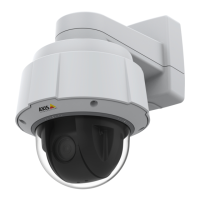
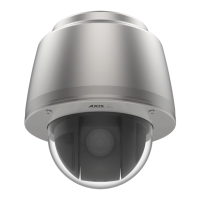
AXISQ6010-ENetworkCamera
Learnmore
Towatchthisvideo,gotothewebversionofthisdocument.
www.axis.com/products/online-manual/59061#t10001688
Howtoactivateanapplicationlicencecodeonadevice
Autopilot
Autopilotisanapplicationthatmonitorsanareaofinterest.Eventsonthedevicecanbesettotriggeranalarmortostartrecording
avideoifaperson,vehicleorotherobjectsaremovinginthearea.
Tousetheapplicationonmultichanneldevices,congureandruntheapplicationonatleastonedevice.
Recordvideowhenthecameradetectsmovingobjectsinanareaofinterest
Thisexampleexplainshowtosetupthecameratodetectmovingobjectsinanareaofinterestandstartrecordingit.
Beforeyoustart:
1.ConnectthePTZcameratothemultisensorcamera.
2.CreateastreamproleinthePTZcamera.
3.SetupnetworkstorageoronboardstoragetothePTZcamera.
4.Checkthatallsensorsaresetandcalibrated.
Conguretheautopilotapplicationonthemultisensorcamera:
1.GotoSettings>Apps>Autopilot.
2.Startandopentheapplication.
3.Gotothevideocontrolbarandselectthecameraonwhichyouwanttoviewtheareaofinterest.
4.Click
tocreateanewprole.
5.ClickProlepropertiesandnameyourprole.
6.Adjustthecongurationtotheareaofinterest.
7.Toreducefalsealarms,setIgnoreltersforsmall,shortlived,orswayingobjects.
8.SetProlepriorityifyouhavemorethanoneareaofinteresttodetect.
9.GototheAutopilotsettingstabandturnonObjecttracking.
CreatearuleinthePTZcamera:
1.GotoSettings>System>Eventsandaddarule.
2.Typeanamefortherule.
3.Inthelistofconditions,underPTZ,selectPTZmovement:Camera1.
4.Inthelistofactions,underRecordings,selectRecordvideowhiletheruleisactive.
16



 To Next Page