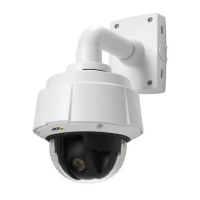
AXIS Q6035 PTZ Dome Network Camera
Video and Audio
Wide Dynamic Range
Wide dynamic range can improve the exposure when there is a considerable contrast b etween light and dark areas in the image.
Enable WDR in intense backlight conditions. The different WDR settings adjust for various amounts of contrast in the image. Use a
higher WDR number for a higher contrast. Disable WDR in low lig ht conditions for optimal expo sure.
Exposure Settings
Configure the exposure settings to suit the image quality requirements in relation to lighting, frame rate and bandwidth
considerations.
Exposure control - These settings is used to adapt to the amount of light used. Automatic is the de fault settings can be used in most
situations. T he shutter speed is automatically set to produce optimum image quality.
Maxexposuretime-Select the maximum exposure time from the drop-down list. Increasing the exposur e time will improve
image quality, but decreas e the frame rate. There may also be an increase in motion blur. Checking Allow slow shutter decreases
the shutter speed in low light to improve image brightness.
Enable Backlight compensation - Enable this option if a bright spot of light, for example a light bulb, causes other areas in
the image to appear too dark.
Exposure zones - This settings determines which part of the image is used to calculate the exposure. For most situations, the Auto
setting can be used. For particular requirement, select a predefined area.
Max gain - Measured in decibels (dB), gain describes the amount of amplification applied to a signal, in this case the visual
information in the image. A high level of am plification may provide a better imag e in very low light situations. A high gain will also
increasetheamountofimagenoise.
Day/Night
The IR cut filter prevents infrared (IR) light from reaching the image senso r. In poor lighting
conditions, for example at night, or
when using an IR lamp, set the IR cut filter to Off. This incr ea ses light sensitivity and al lows the product to “see” infrared light. The
image is shown in black and white when the IR cut filter is off.
If using automatic Exposure control,settheIRcutfilter to Auto to automatically switch between On and Off accordingtothe
lighting conditions.
Image Settings
Autofocus enabled - Automatic focusing is enabled by default. If the f ocus position is changed manually using the focus bar,
autofocus will be disabled even if enabled here. In this case, use the PTZ control panel to enable autofocus, see
PTZ Controls, on page
10
. If required, the focus control can be disable
d under PTZ > Advanced > Controls.
Noise reduction - Set to On to enable nois
e reduction. Noise reduction m ay increase the amount of motion blur.
ImagefreezeonPTZ-Select
All movements to freeze the image while the camera is moving during a pan, tilt or zoom operation.
Once the camera reaches its new position, the view from that position is shown. Presets freezes the image only when the camera
moves between preset positions.
Overlay
Overlays are used to provide extra information, for examp le for forensic video analysis or during pro duct installation and
configuration. Overlays are su perimposed over the video stream.
An overlay text can display the current date and time, or a text string. When using a text string, modifiers can be used to display
information such as the current bit rate or the current frame rate. For information about available modifiers, see
File Naming &
Date/Time Form ats
in the online help .
To enable overlays:
1. Go to Video & Audio > Video Stream and select the Image tab.
19



 To Next Page