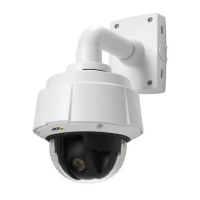
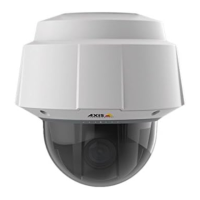
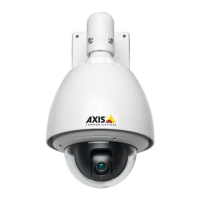
AXIS Q6035 PTZ Dome Network Camera
PTZ (Pan Tilt Zoom)
PTZ (Pan Tilt Zoom)
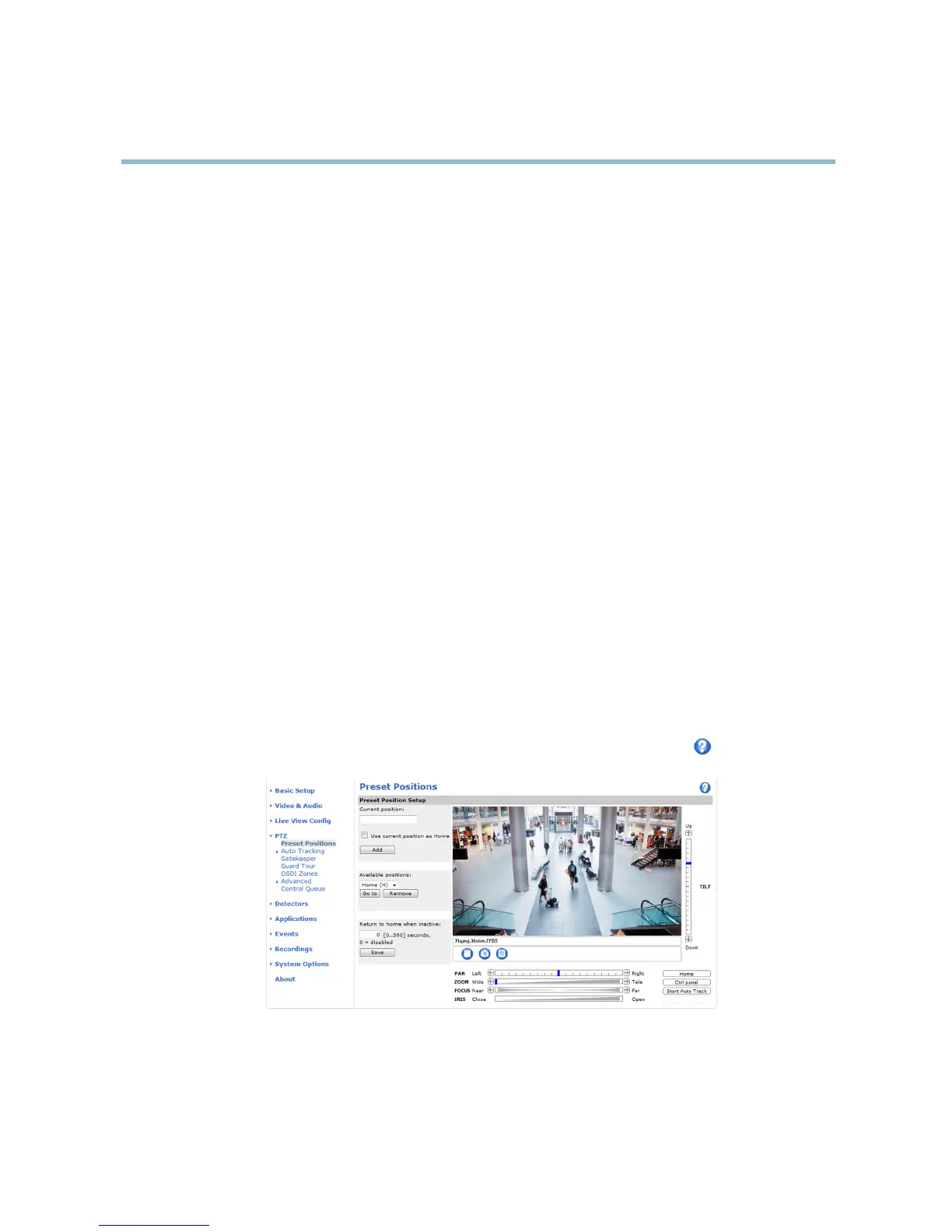
Preset Positions
A preset position is a predefined view that can be used to quickly steer the camera to a specific location. Preset positions can
be accessed in several w ays:
• By selecting the preset from the Preset positions drop-down list in the Live View Page.
• When setting up action rules. See
page 34
.
• When setting up Guard Tour. See
page 28
.
• When setting up the Gatekeep er. See
page 28
To add a preset position:
1. Go to PTZ > Preset Positions.
2. Use the pan, tilt and zoom controls to steer the camera view to the desired position.
3. Enter a descriptive nam e in the Current position field.
4. If required, s elect Use current position as Home.
5. Click Add. Thecamera’sposition,irisandfocussettingsaresavedasapresetposition.
The Home position is readily accessible by clicking the Home buttonontheLiveViewpageandinthePresetP
ositions setup window.
To set a customize d home position, select Use current position as Home when adding a preset pos
ition. The user-defined home
position will have (H) added, for example, Entrance (H ). The default Home position, called “Home”, will still be a vailable.
The product can be configured to return to the Home position when the PTZ functionality has been inactive for a specified length
of time. Enter the length of time in the Return to home when inactive field and click Save. Setthetimetozerotopreventthe
product from automatically returning to the H
ome position.
To include the preset position name in t
he overlay text, go to Video & Audio,selectInclude overlay text and enter the modifier #P in
the field. For mo re information about modifiers, see
File Naming & Date/Tim e Formats
in the o nline help .
Autotracking
The Axis product can detect movement in the field of view, for example a moving vehicle or person. If a utotracking is enabled, the
Axis product will automatically pan and tilt to follow the m oving object. In case there is much simultaneous movement, the area with
26



 To Next Page