EasyManua.ls Logo

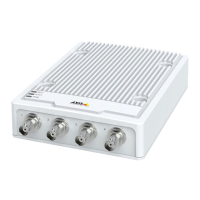
Axis Q7401 - User Manual

Axis Q7401
64 pages
Print Icon
To Next Page IconTo Next Page
Loading...
USERMANUAL
AXISQ7401VideoEncoder

Other manuals for Axis Q7401

Questions and Answers

  • P
    Patricia ByrdSep 12, 2025
    What to do if my Axis Q7401 has slow image updates?
    • H
      heatheroconnorSep 12, 2025
      Slow image updates on your Axis Media Converter can be caused by configuring pre-buffers, motion detection, high-resolution images, or high frame rates. Adjust these settings to improve performance.
  • C
    Christopher AndersonSep 14, 2025
    What to do if the power indicator is not constantly lit on my Axis Media Converter?
    • R
      Renee HorneSep 14, 2025
      If the power indicator on your Axis Media Converter is not constantly lit, check that you are using the correct power supply.
  • J
    Jack KirkSep 16, 2025
    What to do if the audio volume is too low/high on my Axis Q7401?
    • T
      Tracy CampbellSep 16, 2025
      If the audio volume is too high or low on your Axis Media Converter, adjust the microphone volume in the toolbar on the Live View page.
  • C
    Catherine BrownNov 20, 2025
    What to do if I have problems setting the IP address on my Axis Media Converter?
    • K
      Kathleen GarciaNov 20, 2025
      If you encounter issues setting the IP address for your Axis Media Converter, consider these potential causes and solutions: * **ARP/Ping:** If using ARP/Ping, retry the installation, ensuring the IP address is set within two minutes of powering on the encoder and that the Ping length is set to 408. * **Different Subnet:** If the encoder and your computer are on different subnets, contact your network administrator for an appropriate IP address. * **IP Address Conflict:** Disconnect the encoder, run the Ping command. If you receive a reply, another device is using the IP address; obtain a new one and reinstall. If the request times out, check cabling and reinstall. * **IP Address Conflict (Static):** To avoid conflicts with another device, set the static IP address to 0.0.0.0. * ...

Summary

Hardware Overview

Connectors and Buttons

Details about BNC, Network, I/O, Power, Audio, RS485/RS422, and SD card connectors.

Accessing the Product

Access via Web Browser

Steps to access the product via a web browser, including IP address and login.

Internet Access Configuration

How to make the product accessible over the Internet via router configuration.

Setting the Root Password

Instructions for setting the administrator password for the first-time login.

Live View Page Overview

Overview of controls and layout on the Live View page.

Setting Up the Product

Initial Basic Setup

Provides shortcuts to essential settings like Users, TCP/IP, Date & Time, Video, and Audio.

Video and Audio Configuration

Video Stream Settings

Defines video stream settings including Image, Audio, H.264, and MJPEG.

Audio Input;Output Settings

Configuration options for audio input, output, and modes (Full, Half-duplex).

PTZ (Pan Tilt Zoom) Control

Preset Positions Setup

Defines and accesses predefined camera views for quick steering.

PTZ Driver Installation

Steps to install drivers for supported PTZ devices.

Detectors and Alarms

Camera Tampering Detection

Generates an alarm for camera repositioning, covering, or defocusing.

Events and Action Rules

Setting Up Action Rules

Defines conditions and actions for automating product behavior.

System Options and Configuration

Security Settings

Manages user access, anonymous login, ONVIF, IP address filtering, and HTTPS.

Network Configuration

Manages TCP/IP settings (IPv4/IPv6), ARP/Ping, AVHS, and Dynamic DNS services.

Storage Management

Manages SD card and network share storage for recordings.

Factory Default Reset

Resets all product settings, including IP address, to factory defaults.

Troubleshooting Guide

Upgrading the Firmware

Steps to upgrade the product's firmware with the latest version.

Emergency Recovery Procedure

Procedure to recover the product if it becomes unresponsive after a failed upgrade.

Symptoms and Solutions

Lists common problems, their causes, and solutions for IP address and browser access issues.

Technical Specifications

Performance Considerations

Factors Affecting Performance

Discusses factors affecting performance like resolution, clients, events, and network utilization.

Axis Q7401 Specifications

General IconGeneral
BrandAxis
ModelQ7401
CategoryMedia Converter
LanguageEnglish

Related product manuals