EasyManua.ls Logo

Axis Q7404 - User Manual

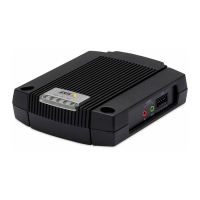
Axis Q7404
62 pages
Print Icon
To Next Page IconTo Next Page
Loading...
USERMANUAL
AXISQ7404VideoEncoder

Other manuals for Axis Q7404

Questions and Answers

  • H
    Henry BrandtAug 19, 2025
    What to do if the IP address of my Axis Security Camera has been changed by DHCP?
    • M
      Mr. Terry Sanders DVMAug 19, 2025
      If the IP address of your Axis Security Camera keeps changing due to DHCP, here's what you can do: 1. If the encoder and client are on the same network, use AXIS IP Utility to locate the encoder by its model or serial number. 2. Alternatively, move the encoder to an isolated network without a DHCP or BOOTP server. Set the IP address again using AXIS IP Utility or the ARP/Ping commands. 3. Access the unit and disable DHCP in the TCP/IP settings. Then, return the unit to the main network. This will give the unit a fixed IP address that won't change.
  • B
    Brad WilliamsonAug 22, 2025
    How to fix cannot log in issue on Axis Security Camera?
    • S
      Sarah KramerAug 22, 2025
      If you cannot log in to your Axis Security Camera, especially when HTTPS is enabled, make sure you're using the right protocol (HTTP or HTTPS). You might need to manually type 'http' or 'https' in your browser's address bar.
  • W
    wwilsonAug 25, 2025
    Why are H.264 images rendering poorly on my Axis Security Camera?
    • T
      Tracey HoodAug 26, 2025
      If you're experiencing poor rendering of H.264 images on your Axis Security Camera, consider the following: * **Color Depth:** Ensure your color depth is set to 16-bit or 32-bit on the clients. * **Advanced Video Rendering:** If text overlays are blurred, enable Advanced Video Rendering from the H.264 tab in the AMC Control Panel. * **Graphics Card Driver:** Make sure your graphics card is using the latest device driver, which you can usually download from the manufacturer's website.
  • C
    Chelsea HumphreyAug 27, 2025
    What to do if no H.264 is displayed in the client for my Axis Security Camera?
    • S
      Sarah CallahanAug 28, 2025
      If no H.264 is displayed in the client for your Axis Security Camera, verify that the relevant H.264 connection methods are enabled in the AMC Control Panel (Network tab). Additionally, in the AMC Control Panel, select the H.264 tab and click the button to set to the default H.264 decoder.
  • M
    Michelle TorresAug 30, 2025
    How to configure a broadband router for my Axis Security Camera?
    • M
      Michael OrtizAug 30, 2025
      To configure your broadband router to allow incoming data traffic to the Axis Security Camera, enable the NAT-traversal feature. This feature attempts to automatically configure the router to allow access to the encoder and can be enabled from Setup > System Options > Network > TCP/IP Advanced. Note that the router must support UPnP™.
  • G
    gibsonmarySep 2, 2025
    How to resolve no audio or poor audio quality on Axis Security Camera?
    • W
      William SotoSep 2, 2025
      To solve the issue of no audio or poor audio quality on your Axis Security Camera, check that the correct Audio Input source is selected under Setup > Video & Audio > Audio Settings. Select 'Microphone' for a connected external microphone or 'Line' for a connected line in source.
  • A
    Adam HansenSep 5, 2025
    How to fix incorrect volume settings on Axis Security Camera?
    • J
      Jacob HillSep 5, 2025
      If the volume settings are incorrect on your Axis Security Camera, adjust the microphone volume in the toolbar on the Live View page. The microphone volume may be either too high or too low.
  • J
    jennifer42Sep 7, 2025
    What does it mean if the power indicator on my Axis Security Camera is not constantly lit?
    • D
      Denise MaciasSep 7, 2025
      If the Power indicator on your Axis Security Camera is not constantly lit, check that you are using the correct power supply.
  • R
    Ronald SanchezSep 10, 2025
    How to prevent image degeneration in my Axis Security Camera?
    • M
      Michelle SmithSep 10, 2025
      To address image degeneration issues with your Axis Security Camera, decrease the GOV length. See the online help for more information.
  • B
    brownlisaSep 13, 2025
    What does it mean if the status and network indicator LEDs are flashing red rapidly on my Axis Security Camera?
    • M
      Michael DavisSep 13, 2025
      If the Status and Network indicator LEDs on your Axis Security Camera are flashing red rapidly, it indicates a hardware failure. Contact your Axis dealer for assistance.

Summary

Hardware Overview

Connectors and Buttons

Explains the purpose and functionality of various connectors and buttons.

Accessing the Product

Set the Root Password

Procedure for setting the initial administrator password for enhanced security.

The Live View Page

Overview of the live video feed interface and its controls.

Setting Up the Product

PTZ (Pan Tilt Zoom)

Preset Positions

Setting and managing predefined camera viewing positions for quick access.

Installing a PTZ driver

Steps to install drivers for supported PTZ devices.

Detectors

Camera Tampering

Setting up alarms for unauthorized camera repositioning or tampering.

Motion Detection

Configuring motion detection zones and sensitivity for event triggering.

Set Up Motion Detection Windows

Defining specific areas within the camera view for motion detection.

Audio Detection

Configuring alarms based on audio levels exceeding defined thresholds.

Events

Setting Up an Action Rule

Creating rules to define event triggers and corresponding actions.

Recordings

Continuous Recording

Configuring the product to record video continuously to a storage device.

System Options

Security

Configuration of user access, network security, and authentication protocols.

Network

Configuration of network settings, including IP addressing and services.

Storage

Configuring network storage for recordings and data management.

Reset to Factory Default Settings

Restoring the product to its original factory default configuration and settings.

Troubleshooting

Upgrading the Firmware

Steps for updating the product's firmware to the latest version.

Emergency Recovery Procedure

Procedure for recovering the product after a failed firmware upgrade.

Symptoms, Possible Causes and Remedial Actions

Common problems, their causes, and suggested solutions for troubleshooting.

Technical Specifications

Connectors

Detailed specifications of the various physical connectors on the device.

Performance Considerations

Factors affecting system performance, bandwidth, and frame rate.

Axis Q7404 Specifications

General IconGeneral
NTSC resolutions720 x 480 pixels
Channels quantity4 channels
Motion JPEG frame rate30 fps
Maximum video resolution720 x 576 pixels
Video compression formatsH.264
LED indicatorsYes
Wall mountableNo
Copper ethernet cabling technology1000BASE-TX, 100BASE-TX, 10BASE-T
BNC input ports4
I/O terminal ports-
Fiber ports quantity0
USB 2.0 ports quantityUSB 2.0 ports have a data transmission speed of 480 Mbps, and are backwards compatible with USB 1.1 ports. You can connect all kinds of peripheral devices to them.
Ethernet LAN (RJ-45) ports1
Operating temperature (T-T)0 - 45 °C
Operating relative humidity (H-H)20 - 80 %
Power requirements8-20 V DC
Power consumption (typical)16.1 W
Weight and Dimensions IconWeight and Dimensions
Weight796 g
Dimensions (WxDxH)194.4 x 151 x 35 mm

Related product manuals