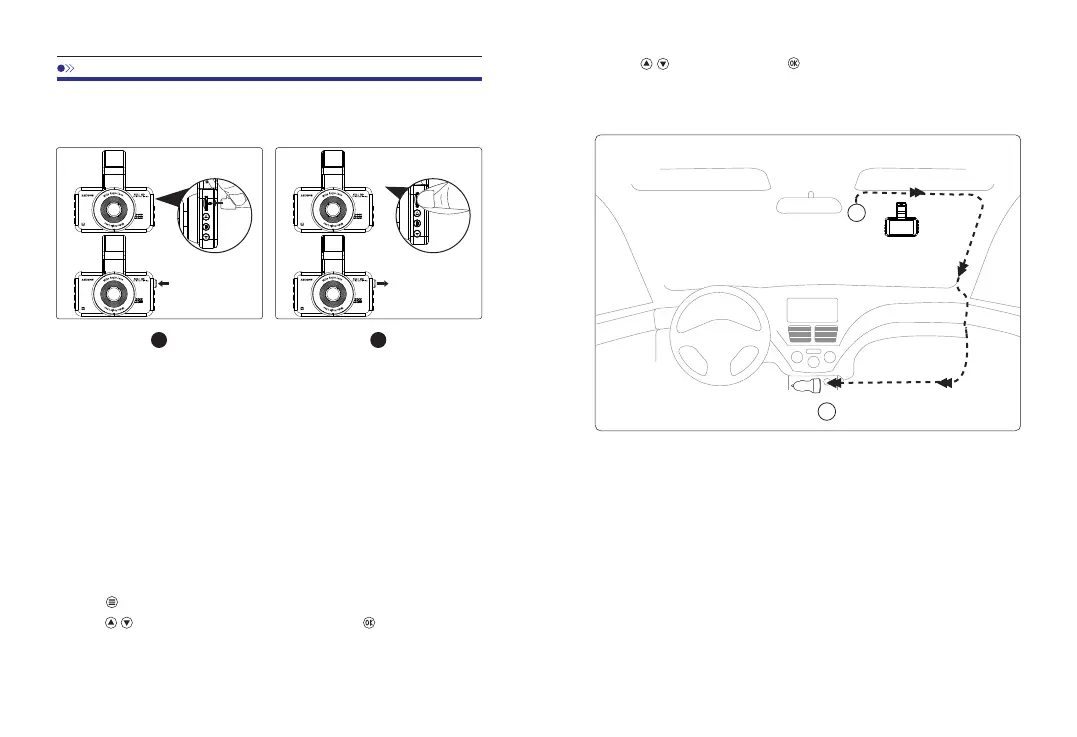
1.InsertacardwiththegoldencontactsfacingtheLCDdisplay
sideofthedashcam.
2.Toremovethecard,gentlypushituntilitclicksandpullitout
oftheslot.
Note:
1.DonotinsertorremovetheTFcardwhenthedashcamis
poweredontoavoidbreakageofthecard.
2.Pleaseuseaclass10microSDcardfrom32GBto128GB.
3.Formatthememorycardbeforeuse.
1 2
InstalltheMemoryCard
6.GetStarted
FormattheMemoryCard
1.Presstoentersettinginterface.
2.Press/tolocateMicroSDcardsetup,presstoenter
MicroSDcardformat.
3.Press/tolocat“eOK”,presstoconfirmformatting.
DashCamInstallation
2
1
ConnecttoCarCharger
IdealMountingArea
1.Slidethemountintothemountinstallationslot.
2.Turnoffthecarengine.
3.Stickthecarmounttogetherwiththecameraontoyour
windshield.
4.ConnecttheUSBchargingcabletotheminiUSBportofthedash
cam.Runthecablealongtheedgeofthewindshield.Tuckaway
intheseamsandextenditallthewaytotheUSBportofthecar
charger.Besuretokeepitawayfromtheairbagarea.
5.Adjustthedashcamtokeepthelenslevelwiththeground.
6.Starttheenginetocheckifthedashcamworksproperly.
07 08


 To Next Page