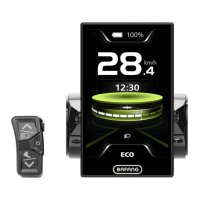
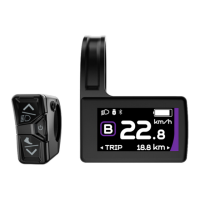
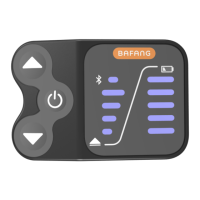
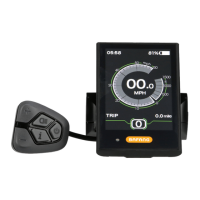
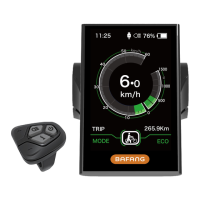
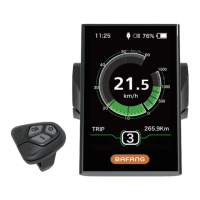
The BAFANG DP C07.CAN is a user-friendly display designed for electric bicycles, providing essential information and control over the e-bike system. Its robust construction, featuring a PC and Acrylic housing with silicone buttons, ensures durability and a comfortable user experience. The display is designed to be waterproof, though submersion should be avoided.
Function Description
The DP C07.CAN display serves as the central interface for monitoring and controlling your e-bike. It offers a comprehensive range of functions to enhance your riding experience:
- Speed Display: The display shows real-time speed (SPEED), maximum speed (MAXS), and average speed (AVG). Users can switch between kilometers per hour (km/h) and miles per hour (mile/h) units.
- Battery Capacity Indicator: A clear indicator shows the remaining battery capacity, typically represented by ten bars. Each full bar corresponds to a percentage of the battery's charge. A blinking frame around the indicator suggests that the battery needs charging.
- Automatic Lighting System: The display incorporates automatic sensors to manage the lighting system, ensuring visibility in varying light conditions.
- Backlight Brightness Setting: Users can adjust the brightness of the display's backlight to suit their preferences and ambient light.
- Performance Support Indication: The display indicates the level of motor assistance being provided, allowing riders to monitor their power output.
- Walk Assistance: This feature provides low-speed motor assistance, making it easier to push the e-bike when walking.
- Kilometer Stand: The display tracks both single-trip distance (TRIP) and total distance (TOTAL), offering a complete overview of your rides.
- Remaining Distance Display: Based on your riding style, the display estimates and shows the remaining distance the e-bike can travel on the current charge.
- Motor Output Power Indicator: This function displays the motor's output power in watts (W).
- Energy Consumption Indicator (CALORIES): For displays equipped with this function, it shows the energy consumption in calories, providing insights into your ride's intensity.
- Error Message View: The display can show error messages, accompanied by a wrench icon, to alert users to potential issues with the e-bike system.
- Service Information: A dedicated service section provides information relevant to maintenance and system health.
Usage Features
Operating the DP C07.CAN is intuitive, with clearly defined keys and a logical menu structure.
- Switching the System ON/OFF: To turn the system on, press and hold the power button (ن) for more than 2.5 seconds. To turn it off, press and hold the power button again for more than 2.5 seconds. The display also features an "Auto Off" function, which can be configured to automatically shut down the display after a set period of inactivity (e.g., 5 minutes).
- Selection of Support Levels: Once the display is on, briefly press the "+" or "-" buttons (less than 0.5 seconds) to cycle through the support levels. The lowest level is 1, and the highest is 5. The system typically starts at level 1, with no support at level null.
- Selection Mode (Trip Information): Briefly pressing the "i" button (less than 0.5 seconds) allows you to view different trip modes. These include daily kilometers (TRIP), total kilometers (TOTAL), maximum speed (MAXS), average speed (AVG), remaining distance (RANGE), output power (W), and energy consumption (C, available only with a torque sensor).
- Headlights / Backlighting Control: Press and hold the light button (Ο) for more than 2 seconds to activate the headlight and display backlight. Press and hold it again for more than 2 seconds to turn them off. The backlight brightness can be adjusted in the display settings. If the display is switched on in a dark environment, the backlight and headlight will automatically activate. Manually turning off the backlight/headlight deactivates the automatic sensor function, requiring manual activation to turn the light back on.
- Walk Assistance Activation: This feature can only be activated when the pedelec is stationary. Briefly press the "-" button until the support level is null. Then, briefly press the "-" button again (less than 0.5 seconds) to display the "WALK" symbol. Hold down the "-" button to activate walk assistance; the "WALK" symbol will flash, and the pedelec will move at approximately 4.5 km/h. Releasing the button stops the motor, and the system returns to level null. If no speed signal is detected, it shows 2.5 km/h.
- Settings Menu Navigation: To access the "MENU" interface, quickly press the "i" button twice (less than 0.3 seconds). Use the "+" or "-" buttons to select options and reset settings. Press the "i" button twice to confirm your selection and return to the main screen. If no button is pressed for 10 seconds in the "MENU" interface, the display will automatically return to the main screen without saving changes.
- Reset Mileage: In the "MENU" interface, navigate to "tC" using the "i" button. Use "+" or "-" to choose "y" (YES) or "n" (NO) to reset daily kilometers (TRIP), maximum speed (MAX), and average speed (AVG).
- Selection of Unit (km/Miles): In the "MENU" interface, navigate to "S7" using the "i" button. Use "+" or "-" to select "km/h" or "mile/h".
- Set Light Sensitivity: In the "MENU" interface, navigate to "bLO" using the "i" button. Use "+" or "-" to adjust light sensitivity (0-5), where 0 turns off sensitivity.
- Set Display Brightness: In the "MENU" interface, navigate to "bL1" using the "i" button. Use "+" or "-" to adjust brightness (1-5).
- Set Auto Off: In the "MENU" interface, navigate to "OFF" using the "i" button. Use "+" or "-" to set the auto-off time (1-9 minutes).
- Service Tip: In the "MENU" interface, navigate to "nnA" using the "i" button. Use "+" or "-" to choose between "0" (turn off notification) or "1". If the "Service" function is on, the "SERVICE" indicator will display every 5000 km.
- View Information (Read-Only): All data in this section cannot be changed, only viewed.
- Wheel Size: In the "MENU" interface, navigate to "LUd" using the "i" button to view the wheel size.
- Speed Limit: In the "MENU" interface, navigate to "SPL" using the "i" button to view the speed limit.
- Controller Hardware Info (CHc): In the "MENU" interface, navigate to "CHc" using the "i" button to view controller hardware information.
- Controller Software Info (CSc): In the "MENU" interface, navigate to "CSc" using the "i" button to view controller software information.
- Display Hardware Info (dHc): In the "MENU" interface, navigate to "dHc" using the "i" button to view display hardware information.
- Display Software Info (dSc): In the "MENU" interface, navigate to "dSc" using the "i" button to view display software information.
- BMS Hardware Info (bHc): In the "MENU" interface, navigate to "bHc" using the "i" button to view BMS hardware information.
- BMS Software Info (bSc): In the "MENU" interface, navigate to "bSc" using the "i" button to view BMS software information.
- Sensor Hardware Info (SHc): In the "MENU" interface, navigate to "SHc" using the "i" button to view sensor hardware information (not displayed if no torque sensor).
- Sensor Software Info (SSc): In the "MENU" interface, navigate to "SSc" using the "i" button to view sensor software information (not displayed if no torque sensor).
- Battery Information (b01): In the "MENU" interface, navigate to "b01" using the "i" button. Briefly press "i" (0.3 seconds) to view current temperature, voltage, discharge, remaining capacity, and total capacity.
- Message of Error Code (E00): In the "MENU" interface, navigate to "E00" using the "i" button. Briefly press "i" (0.3 seconds) to view the last ten error codes (E00 to E09). "00" indicates no error.
Maintenance Features
The DP C07.CAN is designed with maintenance in mind, providing features to help users troubleshoot and care for their device.
- Error Code Definition: The display can show a wrench icon and specific error codes to indicate problems with the pedelec. A detailed list of error codes and corresponding troubleshooting steps is provided in the manual. Users are advised to read the error code descriptions carefully and restart the system first. If the problem persists, contacting a retailer is recommended.
- Throttle Errors (04, 05): Instructions are provided to check throttle position, connections, and to contact a retailer if issues persist.
- Overvoltage Protection (07): Users are advised to remove and re-insert the battery, and contact a retailer if the problem continues.
- Motor Sensor Errors (08, 09, 11): These errors typically require contacting a retailer.
- Engine Temperature Errors (10, 14, 15): Instructions include turning off the system to allow cooling and contacting a retailer if the problem persists.
- Controller Sensor Error (12): Requires contacting a retailer.
- Battery Temperature Sensor Error (13): Requires contacting a retailer.
- Speed Sensor Error (21): Troubleshooting involves restarting the system, checking magnet alignment and distance, verifying connector integrity, and contacting a retailer if the error persists.
- Torque Signal Error (25, 26): Users should check all connections and contact a retailer if the problem persists. For speed signal of torque sensor errors, checking the connector and sensor for damage is also advised.
- Overcurrent from Controller (27): Requires contacting a retailer.
- Communication Problem (30): Users should check all connections and contact a retailer if the error persists.
- Brake Signal Error (33): Users should check all connectors and contact a retailer if the error continues.
- Voltage Detection Circuit Errors (35, 36, 41, 42, 43, 44): These errors generally require contacting a retailer.
- Battery Temperature Errors (45, 46): Requires contacting a retailer.
- SOC of Battery Errors (47, 48): Requires contacting a retailer.
- Switching Detection Defect (61): Requires contacting a retailer (only with this function).
- Electronic Derailleur Cannot Release (62): Requires contacting a retailer (only with this function).
- Electronic Lock is Jammed (71): Requires contacting a retailer (only with this function).
- Bluetooth Module Error (81): Requires contacting a retailer (only with this function).
- Cleaning: The display should not be cleaned with a steam jet, high-pressure cleaner, or water hose. Thinners or other solvents should also be avoided as they can damage the surfaces.
- Software Updates: The QR code label attached to the display cable contains information crucial for future software updates, so it should be kept.
- Warranty: The warranty does not cover wear, normal use, and aging of the product.

 Need help?
 General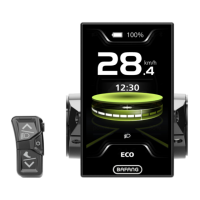


 To Next Page