Chapter 3
Chapter 3
Useful Features and Controls
The Keyboard
Your -Book
™
Laptop features a fully functional computer keyboard.
The Mouse
Move the mouse in the direction that you want to move the cursor arrow.
(see How to Make a Selection and Submit Your Answer)
The Cursor Buttons
Use these buttons to control the cursor arrow. Press the arrowheads on the directional cursor button to indicate the
direction you want the cursor arrow to go. Then press either the left or the right cursor button to enter your selection.
Cursor Arrow
The mouse or the cursor buttons can control the cursor arrow.
The Flashing Cursor
This shows you the position in which the next keyboard entry will appear.
Barbie
™
Expansion Cards
(sold separately)
Do not scratch or damage the metal contact plate of the Barbie
™
Expansion Card.
Only insert -Book
“
Laptop Barbie
™
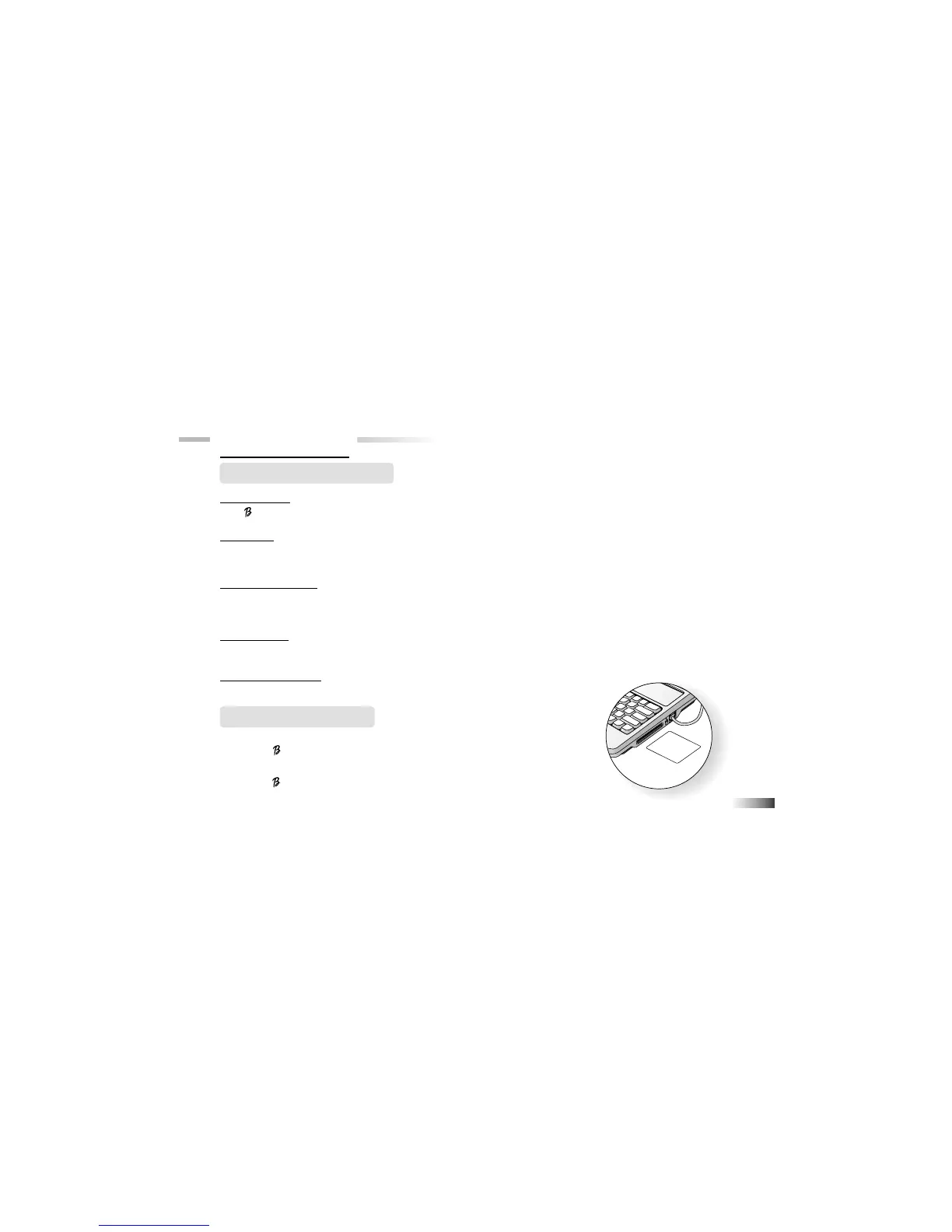
Expansion Cards into the Expansion Card
drive.
1. Plug the -Book
“
Laptop Barbie
™
Expansion Card into the Barbie
™
Expansion
Card drive on the right side of the unit.
5



 To Next Page