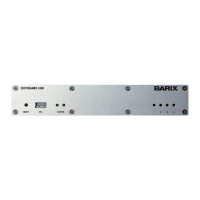
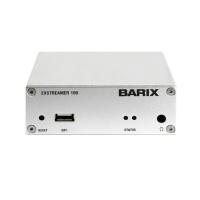
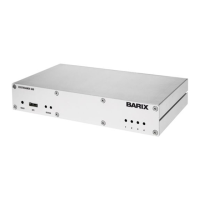
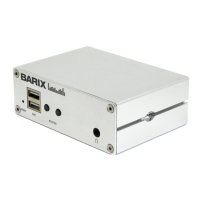
Barix Exstreamer 100 User Manual Version 07.07
Page 19
7 The step by step “How To”
7.1 How to set a static IP address
STEP 1
Open your Web Browser.
STEP 2
Enter the IP address of the Barix Exstreamer and press
Enter.
Example: 192.168.0.12
STEP 3
Click on the Config link.
STEP 4
Enter an IP address into the 4 IP address fields. At default it
is 0.0.0.0 for automatic. You can use the address that was
announced by the Barix Exstreamer.
STEP 5
In normal operating conditions leave the Netmask as is.
STEP 6
The Gateway can be left at default in normal operating
conditions. The Gateway enables the Barix Exstreamer to
connect to the internet (For advanced users).
STEP 7
Hit the Apply button to save all changes. The Barix
Exstreamer will reboot and has now a Static IP address.
7.2 How to set the Barix Exstreamer
to stream music from your PC
The Barix Exstreamer is in this operating mode by default.
Follow this steps to ensure correct settings.
STEP 1
You must have the zServer running on a computer (see
section Fehler! Verweisquelle konnte nicht gefunden
werden.)
STEP 2
Open your Web Browser
STEP 3
Enter the IP address of the Barix Exstreamer and press
Enter.
Example: 192.168.0.12
STEP 4
Click on the Config link.
STEP 5
Click on the SERVER tab in the SETTINGS menu
STEP 6
Choose "0 zServer (auto detect) " in the Mode field.
STEP 7
Make sure that Server Port says: 8888
STEP 8
Make sure that Server Path says: /
STEP 9
Make sure that Playlist List Path says: /playlist.html
STEP 10
Hit the Apply button to save the changes. The Barix
Exstreamer will reboot.
STEP 11
After the reboot wait until the green LED stays steady
(zServer was found), click on the HOME icon to get to the
main page. You should see now your playlists served by the
zServer. Clicking on a playlist will start the music.
7.3 How to set the Barix Exstreamer
to stream music from a specific PC
For use with multiple zServer in the network.
STEP 1
You must have the zServer running on the computer you
want to stream from.
STEP 2
Open your Web Browser
STEP 3
Enter the IP address of the Barix device and press Enter.
Example: 192.168.0.12
STEP 4
Click on the Config link.
STEP 5
Click on the SERVER tab in the SETTINGS menu
STEP 6
Choose "1 zServer (fix) " in the Mode field.
STEP 7
Enter the IP address of the computer you want to stream
from in the Server IP Address field.
Example: 192.168.0.99
STEP 8
Make sure that Server Port says: 8888
STEP 9
Make sure that Server Path says: /
STEP 10
Make sure that Playlist List Path says: /playlist.html
STEP 11
Hit the Apply button to save the changes. The Barix
Exstreamer will reboot.
STEP 12
After the reboot click on the HOME icon to get to the
main page. You should see now your playlists served by the
zServer. Clicking on a playlist will start the music.


 To Next Page
 Loading...