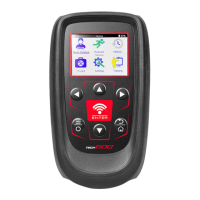
TECH600 User Guide 2020
28 | P a g e
• If the tool becomes corrupted after being disconnected from the PC without safely
ejecting it, the user can perform a check to attempt to fix the issue. To do so, right click on
the drive you wish to scan, and navigate to “Properties”. Select “Tools” from the available
options, and then select “Check”, to allow the PC to begin checking the device.
UPDATING YOUR TOOL VIA WIFI
Once the tool is set up to connect to WiFi network, it will be ready for updating via WiFi. Go
to Settings > Update Tool > WiFi Updates. There are two options:
The interval setting, with which the user want the tool to check for
updates (Off / Daily / Weekly / Monthly).
Once the interval is set, the tool will use its internal clock to switch on
WiFi, connect to the Bartec system and alert the user when an update
is available.
When pressing Enter, the tool connects to the WiFi network.
If there is an update: press Enter to download and install or ESC to
cancel downloading.
The user can always come back to this option to download and install.
APPENDIX
APPENDIX A: Vehicle Identification Number (VIN)
When using the TECH600 tool, it is important for the user to verify the Model Year to help
insure looking for that proper sensor and using the proper vehicle COMs when necessary.


 To Next Page