TECH600 User Guide 2020
27 | P a g e
Right click on the Bluetooth dongle icon and click on
Bluetooth settings. Tick the boxes as seen on the
Options tab above. Press OK when finished.
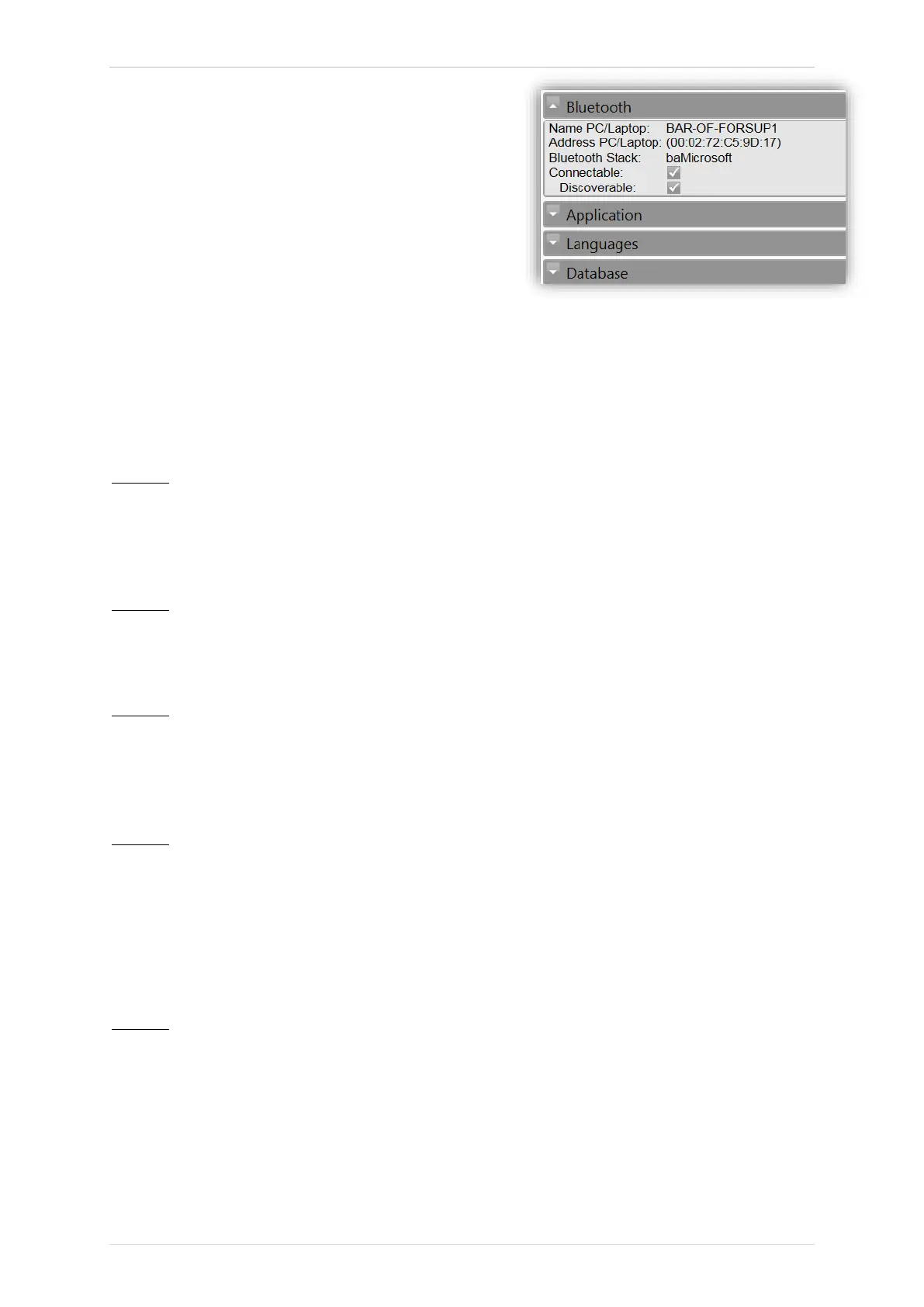
Start the TPMS Desktop application and go to
Settings. Open the Bluetooth section: the PC/Laptop
should be connectable and discoverable for the
TECH600.
UPDATING THE TOOL VIA USB CABLE
The tool is compatible with PCs running Windows operating systems.
Step 1:
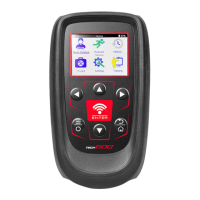
Power on the TECH600 and connect to a PC. The Tool will display a USB icon, to indicate
that it is ready to receive update files.
Step 2:
Navigate to TPMS Desktop, and login. If the User does not have TPMS Desktop or has not
registered the TECH600, please refer to the Registration pages in this document.
Step 3:
TPMS Desktop will check for the latest available update for the TECH600. If there is an update
available, a notification will be displayed. Select ‘OK’ to confirm that the update can be applied
to the tool.
Step 4:
TPMS Desktop will download the update files to the TECH600. When the files have been
successfully downloaded, the TECH600 will install the files. Do not unplug the tool before the
update has completed.
IMPORTANT: Please ensure that you “safely eject hardware” from the PC before unplugging
the TECH600. This is to prevent data on the tool from being corrupted.
Step 5:
The tool is now updated and ready to go. The user can confirm that the tool is up to date via
TPMS Desktop. The software version can also be checked in the Tool Info screen.
Trouble Shooting Tips:
• If Windows does not recognize the tool, please check that the USB cable is connected,
that the tool is in update mode, and that there are no unnecessary update files on your PC
available.


 To Next Page