Network / General
Network / DDNS
Network / Email
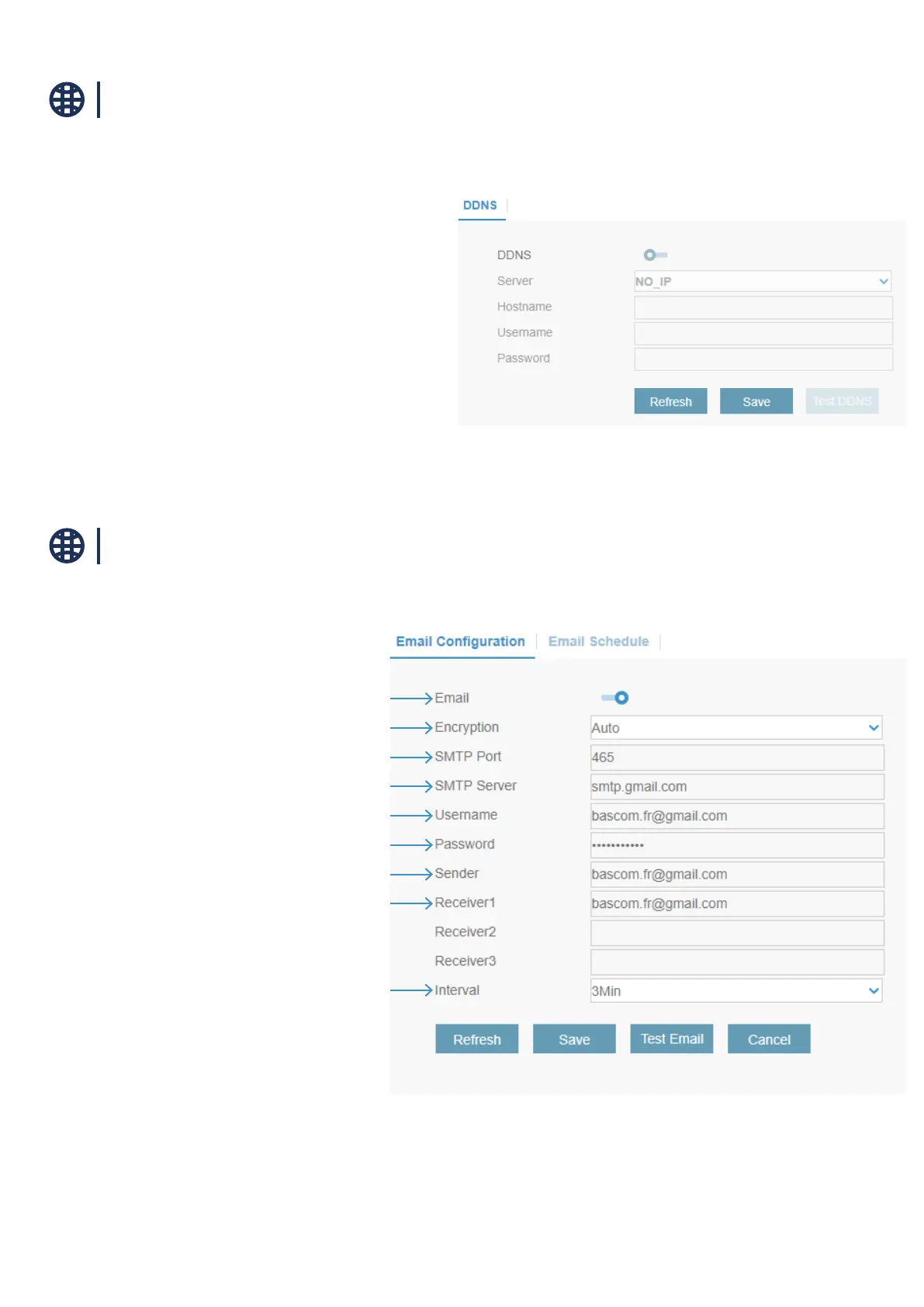
DDNS: Check to enable DDNS.
Server: Select the preferred DDNS server (DDNS_3322, DYNDNS,
NO_IP, CHANGEIP, DNSEXIT).
Hostname: Enter the domain name you created on the DDNS service
provider’s web page. This will be the address you type in the URL
box when you want to connect remotely to the system via PC. For
example: mycamerasystem.no-ip.org.
User/Password: Enter the Username and password you obtained when
creating an account on the DDNS service provider’s web page.
After all parameters are entered, click Test DDNS to test the DDNS
settings. If the test result is “Network is unreachable or DNS is incor-
rect”, please check whether the network works ne, or the DDNS
information is correct or not.
This menu allows you to congure DDNS settings. The DDNS provides a static address to simplify remote connection to your system. To use the DDNS,
you rst need to open an account on the DDNS service provider’s web page.
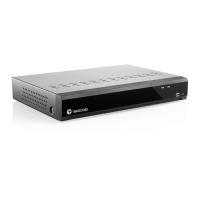
This menu allows you to congure email settings. Please complete these settings if you want to receive the system notications on your email when an
alarm is triggered, HDD becomes full, HDD is in error state, or Video Loss occurs.
To make sure all settings are correct, click Test Email. The system sends an automated email message to your inbox. If you received the test email, it means
the conguration parameters are correct.
Enable or disable to receive email
Enable if your email server requires the SSL or TLS verication. If you are
not sure, set it to Auto.
Enter the SMTP port of your email server
Enter the SMTP server address of your email
Enter your email address
Enter the password of your email
Enter a sender name for the system
Enter the email address where you want to receive the event
notications
Congure the length of the time interval between the notication
emails



 To Next Page