Channel / Motion Detection
Channel / Video Cover
Record / Encode
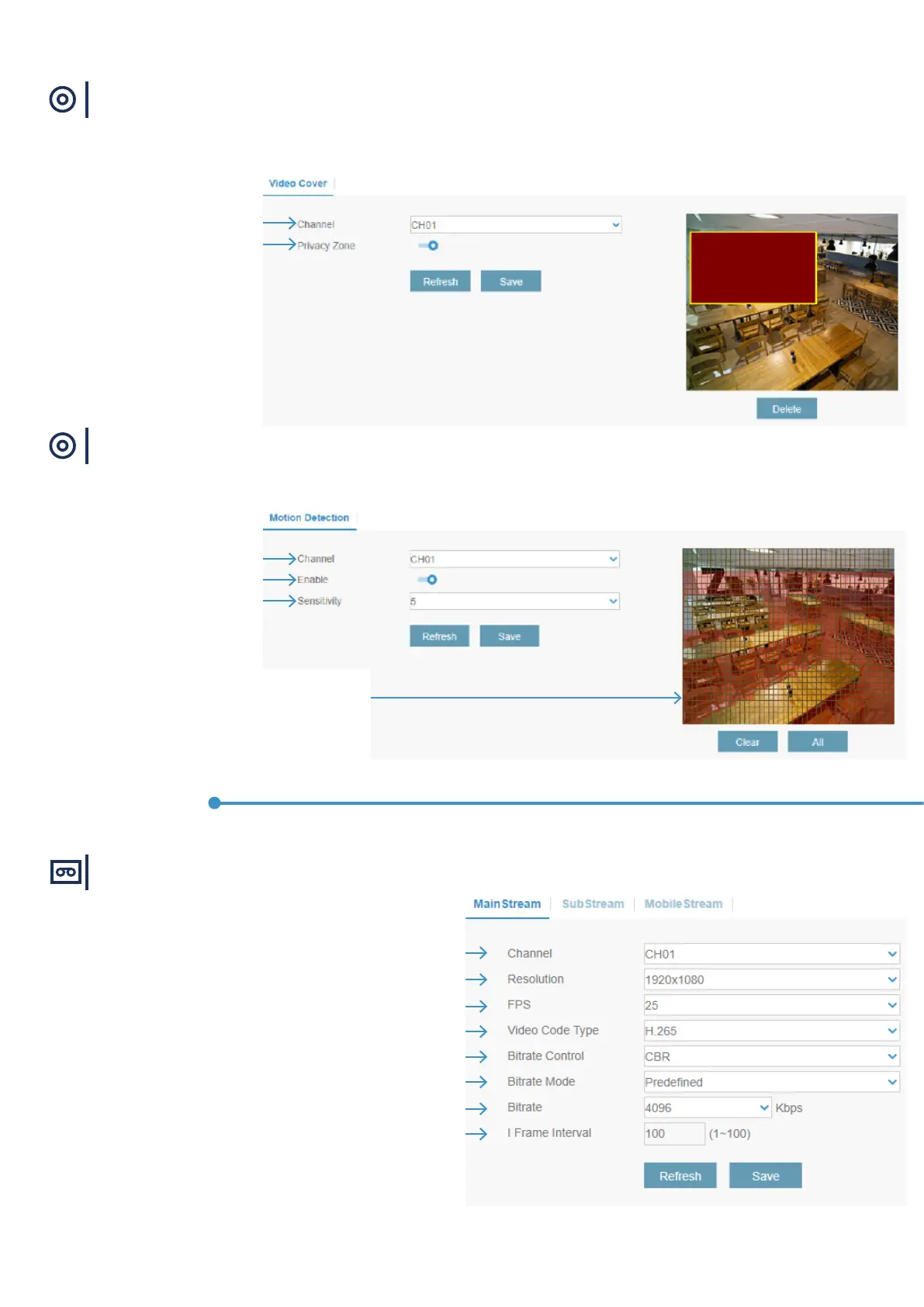
Choose the channel to congure
Enable or disable motion detection
Set the sensitivity level. Level 1 the lowest
sensitivity level while level 8 is the highest
sensitivity level.
Choose the channel to congure
Enable or disable privacy zone
Record menu
To congure general settings
This menu allows you to congure motion settings. When motion is detected by one or more cameras, the system can alert you by sending an email alert
and/or send push notications to your mobile app.
This menu allows you to create privacy zone(s) if you want to partially cover some certain part of the image. You can create up to 4 privacy zones in any
size and location on the camera image. Enable the Privacy Zone and choose how many zones you need. The zone(s) appear as a “red box”. Click the edge of
the red box and drag it to any size to create a privacy zone.
Motion Detection Area: The whole screen is marked for motion
detection (red blocks) as default. If you want to disable the motion
detection on a certain area, click the grid cursor and then drag the
mouse to highlight the scope to unmark the area into transparent
blocks. After setting is completed, click the “Save” button to make
the area setup effective.
Choose the channel to congure
How large the recorded image will be
The number of frames per second the system will record
H.265 is default, H.264 to support older cameras
The camera automatically chooses the correct setting between CBR (constant bitrate) and
VBR (variable bitrate). Please do not change the settings manually
If you want to set the bitrate by yourself, then choose User-dened mode. If
you want to select the predened bitrate, choose Predened mode
This parameter corresponds to the speed of data transfer that the system will use to
record video.
IFrame is the frame that is used as the primary reference point that is compared to the
other frames in the stream



 To Next Page