www.mybebook.com
15 Transfer non-DRM files to BeBook Neo
• Connect your BeBook to your computer as described above.
• The BeBook will be recognized as a USB Mass Storage Device when
connection is successfully made.
• You can use Windows Explorer (PC) or Finder (OS) as your BeBook Neo file
management program.
• You can now transfer files using the drag-and-drop method as you do with a
USB storage key.
16 Help
Visit the BeBook forum for support: www.mybebook.com/forum
You may need only simple instructions to correct a problem with your product. If
the problem cannot be solved with the troubleshooting information available on-line,
you will be offered service through Endless Ideas B.V.
Please do not send any products to Endless Ideas B.V. without contacting us first.
If you think you need to return your BeBook Neo for service or malfunction, please
visit the following website for detailed instructions:
www.mybebook.com/support
Use hard reset to solve software issues
P erforming a hard reset
To perform a hard reset, follow the steps below:
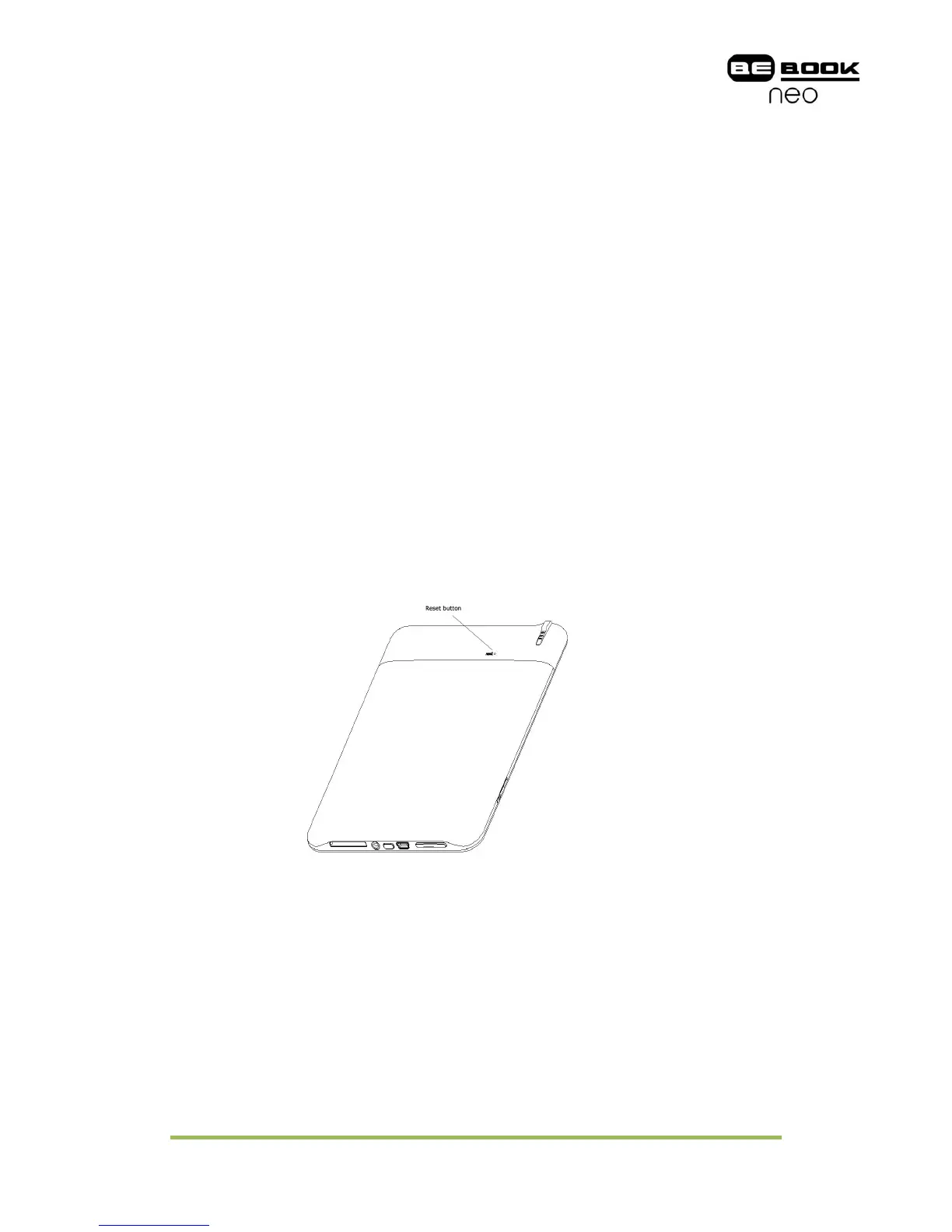
1.Push the reset button on the back of the unit with a paperclip for two seconds.
2.Your BeBook Neo will restart automatically.
Sometimes it is necessary to do a hard reset to erase all of the information in the
temporary memory and regain functionality of your BeBook Neo when it stops responding.
For example, doing a hard reset is helpful if your BeBook quits responding, you cannot
get your BeBook to come out of sleep mode, or if a content causes the BeBook Neo to freeze.



 To Next Page