NOTE
It is possible to switch from a target without VNC to a target with VNC at any time,
but not the other way around.
For more information on how to enable VNC in iX Developer, see Remote Access (FTP and VNC) in iX
Developer 2.xx, SUEN00314.
5.1.2. Download the iX Developer Project
To download an iX Developer project to a device, you can choose to either export the project to a
USB/SD card or to download the project over Ethernet.
NOTE
Not applicable for BoX2 pro motion.
Export Project to USB or SD Card
1. Open your project in iX Developer.
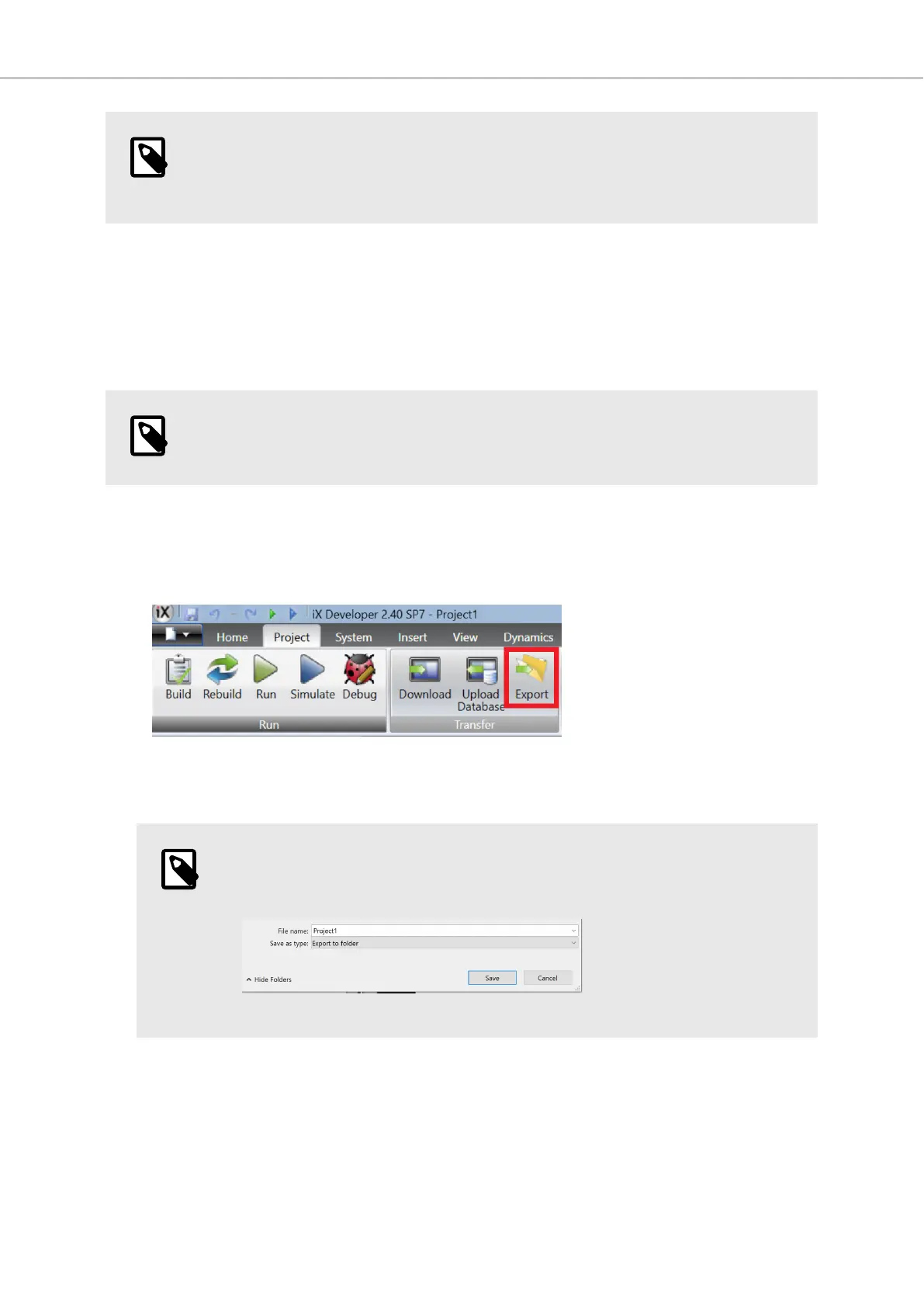
2. Select the Project tab and click Export.
3. In the pop-up window, find and select the root folder of your USB/SD card, and save the project
there by clicking Save.
NOTE
Make sure Save as type is set to Export to folder.
4. Eject the USB/SD card.
5. Connect the USB/SD card to your BoX2 device and boot it.
6. Wait until you get a blue LED-indication.
The installation is now completed.
Getting Started and Commonly Used Functions
Beijer Electronics, MAEN363 23 2023-06



 To Next Page