A green checkmark will illustrate that the project has been downloaded.
NOTE
Before further configuring data exchange, make sure that communication to all
devices works.
This is done by:
1. Opening the downloaded iX Runtime project on your BoX2 device remotely from
your PC.
For information on enabling VNC in iX Developer, see previous section Create a
Project in iX Developer and separate document Remote Access (FTP and VNC) in
iX Developer 2.xx, SUEN00314.
2. In the iX Runtime project, check that the tags that are configured to the
different controllers receive values as expected.
5.3. Enable Diagnostics Page
The diagnostics page shows diagnostic values from the BoX2 device. The diagnostic values include
internal temperature, available RAM, used storage, connection and database errors and other system
related information. The diagnostic page can be viewed after the project is downloaded to the
device.
In iX Developer:
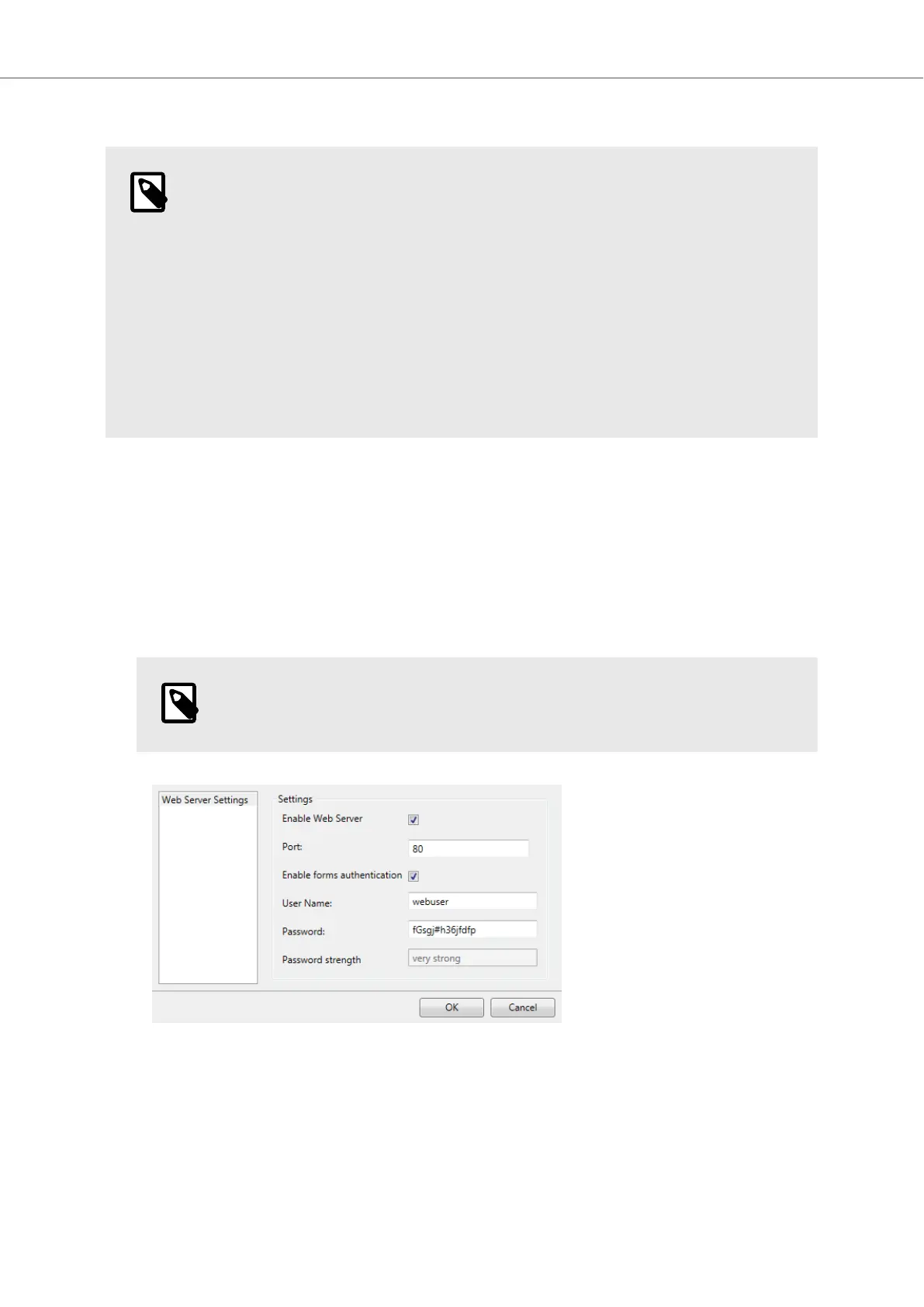
1. Open Web server configuration from System ribbon tab. Set values needed to access web server
and enable web server for the project.
NOTE
The URL for the diagnostics page should include the assigned port number.
2. Add system tags, used on the page, manually to the project. If the system tag is missing, ‘-’ will
be displayed on the page.
Getting Started and Commonly Used Functions
2023-06 28 Beijer Electronics, MAEN363



 To Next Page