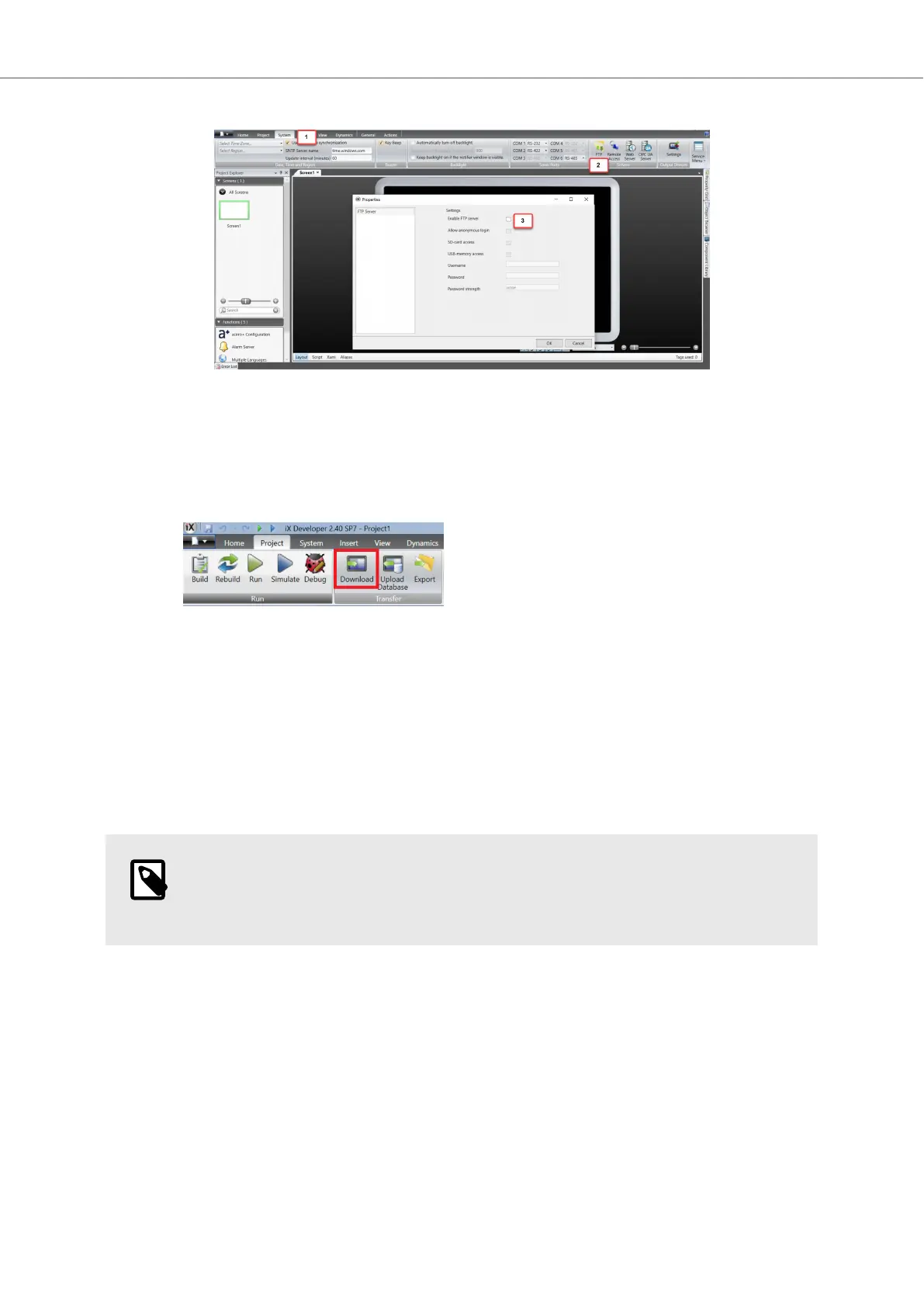
ii. In the dialog, check the Enable FTP server checkbox (3).
iii. (Optional) Set a username and password.
iv. Click OK.
b. Download the project to the BoX2 device through Project - Download.
c. Connect to the BoX2 device. Use FTP settings specified in the project with the help of any
FTP client.
d. Create a new folder named ‘diagnostics’ in the ‘Website’ folder and copy the diagnostics
page files into it.
Use this URL to access the diagnostic page: http://<image_ip_address><:port>diagnostics/index.html
to access the page. Use the port defined in the web server configuration. If Forms authentication is
enabled for the web server, user is first taken through authentication process. The page is updated
asynchronously every 2 seconds with the latest data.
NOTE
For more information about how to use FTP, see Remote Access (FTP and VNC) in iX
Developer 2.xx, SUEN00314.
5.4. Create a Project in BCS Tools and Download the PLC
Program
5.4.1. Create a Project in BCS Tools
If you are using a CODESYS Runtime in BoX2 pro SC or BoX2 extreme SC, the software BCS Tools is
required
BCS Tools can be downloaded from Beijer Electronics SmartStore.
Once you have downloaded and launched BCS Tools, do the following to create your project:
1. Click File > New project....
Getting Started and Commonly Used Functions
2023-06 30 Beijer Electronics, MAEN363



 To Next Page