Installing and Setting up the Adapter
11
section
1
2
3
4
5
6
Step 3 Configure
Use the Belkin Wireless Networking Utility
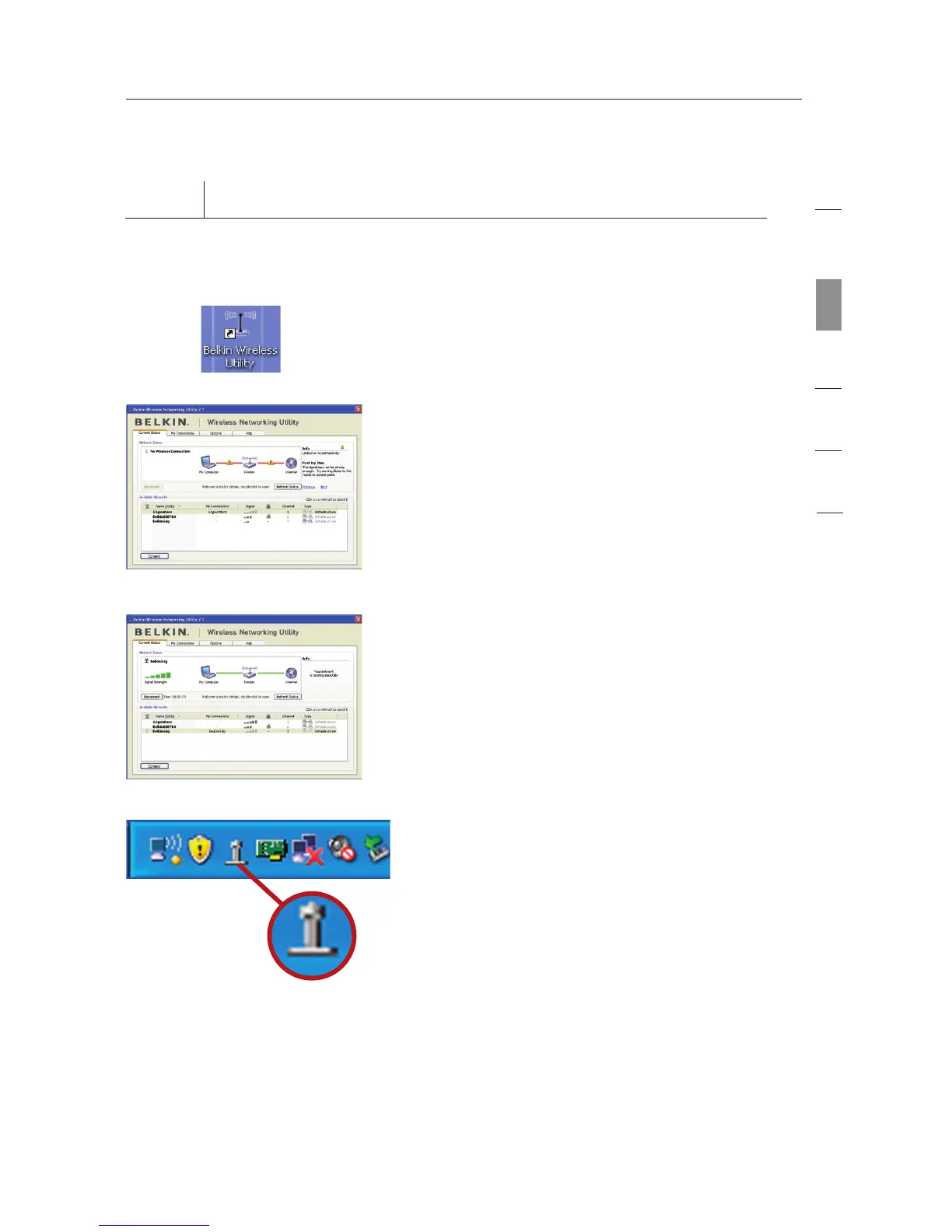
3.1 After restarting your computer,
double-click the Belkin Wireless
Networking Utility (WNU) icon on
the desktop screen.
3.2 The Belkin WNU screen will
appear.
3.3 Select a network to connect to
from the “Available Networks” list
and click “Connect”.
Note: In order to see your available
networks, you must be near a
working wireless router or access
point.
3.4 The Belkin WNU icon can also be
found on the system tray.
Note:
Double-clicking on the
Belkin WNU icon on the system
tray will bring up the “Utility”
screen.
Installation is now complete.





 To Next Page