7
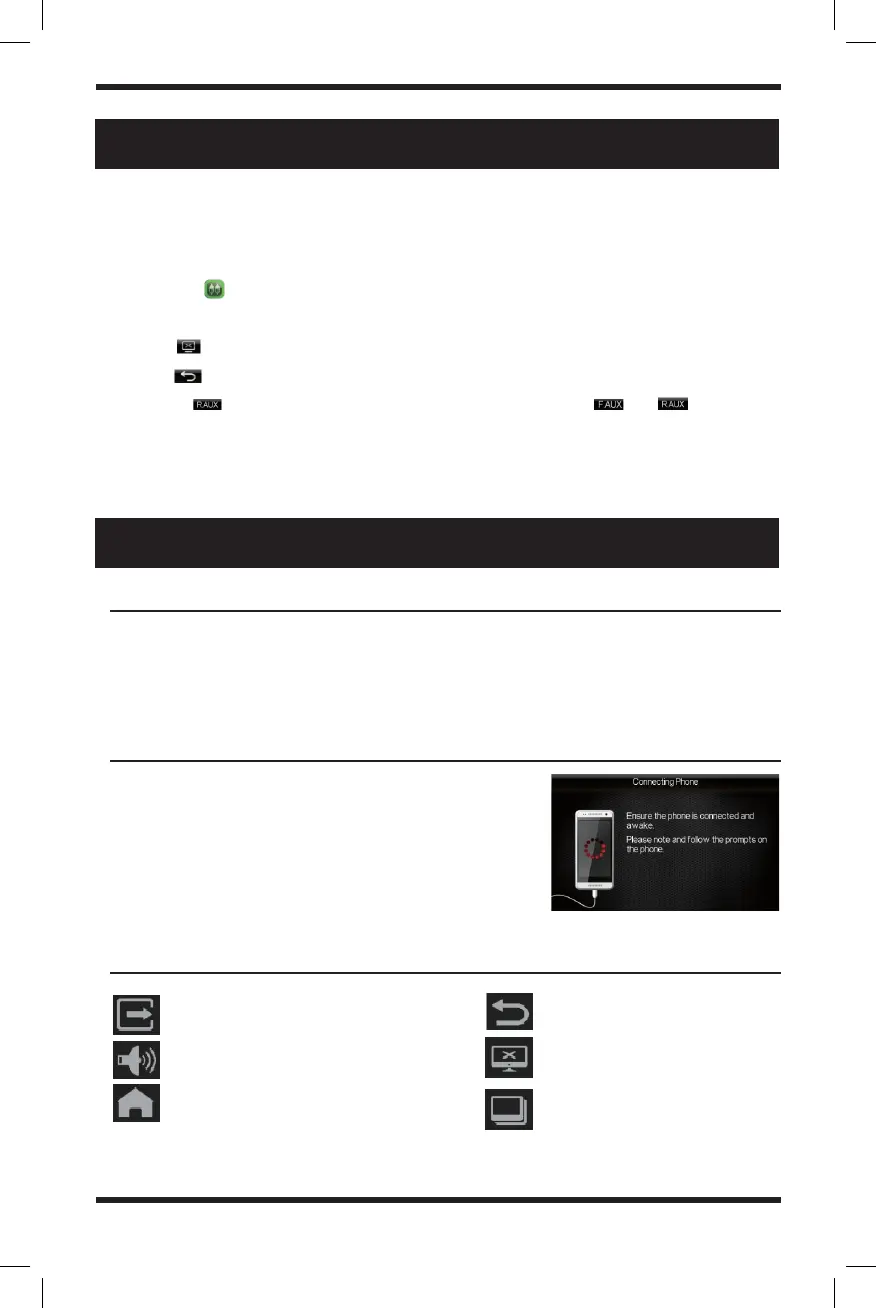
1. Only supports the Android Operating system. Supports two-way control.
2. The screen must be unlocked on your mobile device.
3. Bluetooth must be connected to have sound output
1. Connect the device with a USB cable that allows for
data transfer
2. Go into developer options on your Android device and
turn on “USB Debugging”
3. Your phone then should automatically connect and the
display should appear like the following image
Exit the phone link (Quit)
Volume adjustment
Return to mobile device’s homepage
Return to previous operation
(back button)
Screensaver
Force landscape
Connection requirements
Connection steps
Phone link icon meanings
AUX Function Operation
PHONE LINK Operation
This device supports external video signal and input of two-way stereo audio signals.
When the vehicle has other multimedia equipment, the audio, and video output
signal can be connected to the audio and video input port.
1. Touch the icon to enter AUX (external audio/video) mode.
2. In playing status, touch the screen and the invisible operational icons will be displayed.
3. Touch icon to turn off screen display, touch the screen for returning to display.
4. Touch icon to exit the AUX mode to the system main interface
5. Click the on the left top of the interface can switch between and
NOTE: If the system fails to detect external audio or video signal input, the screen will
display the prompt “No Video Signal”


 To Next Page