BenQ C600 Mobile Phone
Find a Phone Book record
You can find a Phone Book record.
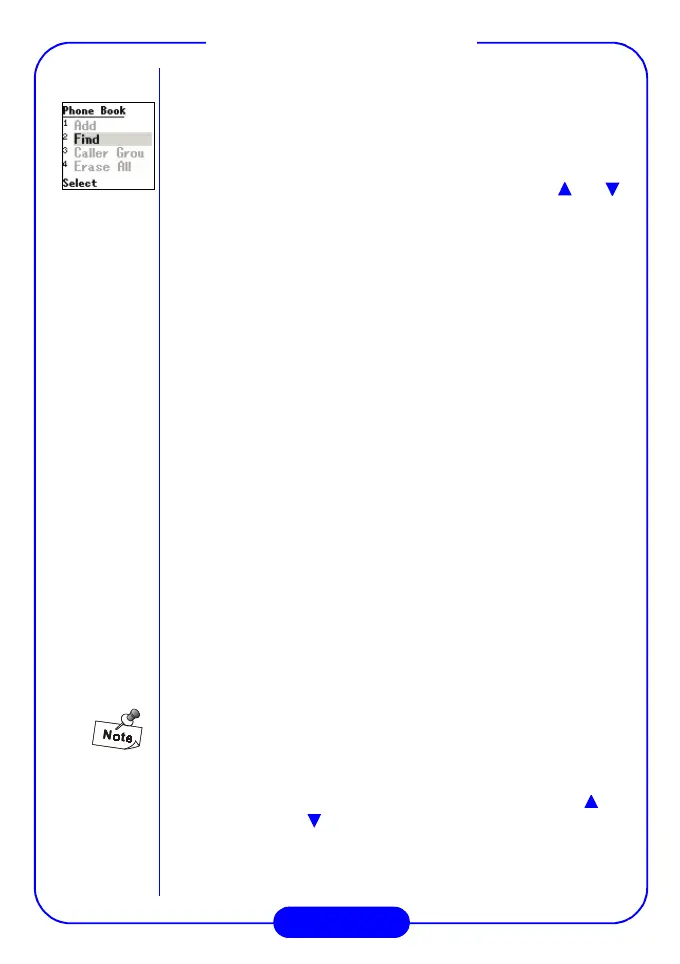
Enter Phone Book, then scroll to “Find” and press “Select” soft key.
All the Phone Book records will be listed in sequence on the LCD
screen. You can scroll the Phone Book records by pressing or
on the scroll key. When you find the Phone Book record you are
looking for, press “Select” soft key to enter that record. All the
information items of that record will appear on the screen. Select the
item you need and choose to make a call or modify the record. In
addition, you can also find record by inputting characters.
Caller Group
You have the following caller groups to choose from: Family, Friends,
Co-workers and Classmates. You can add any phone book records to
a particular caller group and define such settings as ring tone, call
animation, backlight, etc. for incoming calls from a specific group. In
addition, you can also add new groups. (maximum 20 groups including
these default groups)
Speed Dial
This feature, also known as 1-touch dialing, allows you to make phone
calls quickly and easily with the touch of a button.
You must add names and numbers in your phone book (see “Add a
Phone Book record (Add)” on page 25) before you can use this
feature. Then you can assign a number from the phone book to a
speed dialing location using your phone’s 1 through 9 keys.
Speed dialing location 0 is reserved for your voice mail.
To assign speed dial locations:
Key Mapping:
Press “Select” soft key to enter, and use or
on the scroll key to highlight "Key Mapping",
then press “Select” soft key to find your record.
You can assign a number from the phone book to
a one-touch dialing location using your phone’s 1
through 9 keys.



 To Next Page