BenQ C600 Mobile Phone
Phone Book Menu
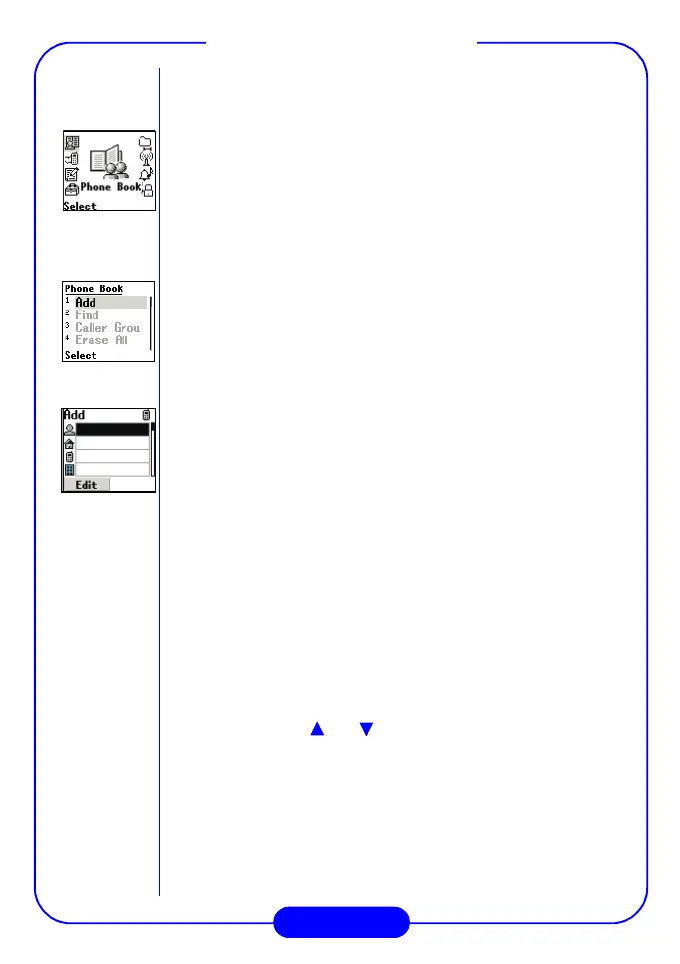
Add a Phone Book record (Add)
Select “Add” and press “Select” soft key. Follow the steps below to
add a new Phone Book record:
Step 1: You will be prompted to enter a list including all the personal
information of that number, the name of that number, the
mobile phone number, the office phone number, email
address and so on.
Step 2: Press “Edit” soft key and enter the personal information of
that number (maximum 12 characters) and then press “OK”
soft key (If the name you entered already exists, you will be
asked if you want to add a new record).
There are other alternatives to add a record to
Phone Book.
Option 1:
In standby mode, press “Book” soft key to enter Phone
Book, then select “Add”. Follow the instructions in the
"Add a Phone Book record" section above.
Option 2:
In standby mode, enter the phone number, then press
“Options” soft key and choose “Save”. Follow Step 2 and
3 in the "Add a Phone Book record" section above.
Option 3:
In standby mode, press “Book” soft key to enter Call Logs
menu, and select "Missed", "Incoming" or "Outgoing”.
In either of these menus, press “Select” soft key to
browse the call logs. You can scroll the call logs by
pressing or on the scroll key. When you find the
number you want to add to the Phone Book in a call log,
press “Option” soft key and select “Save”.
Follow Step 2 and 3 in the "Add a Phone Book record"
section above.



 To Next Page