18 Connection
Connection
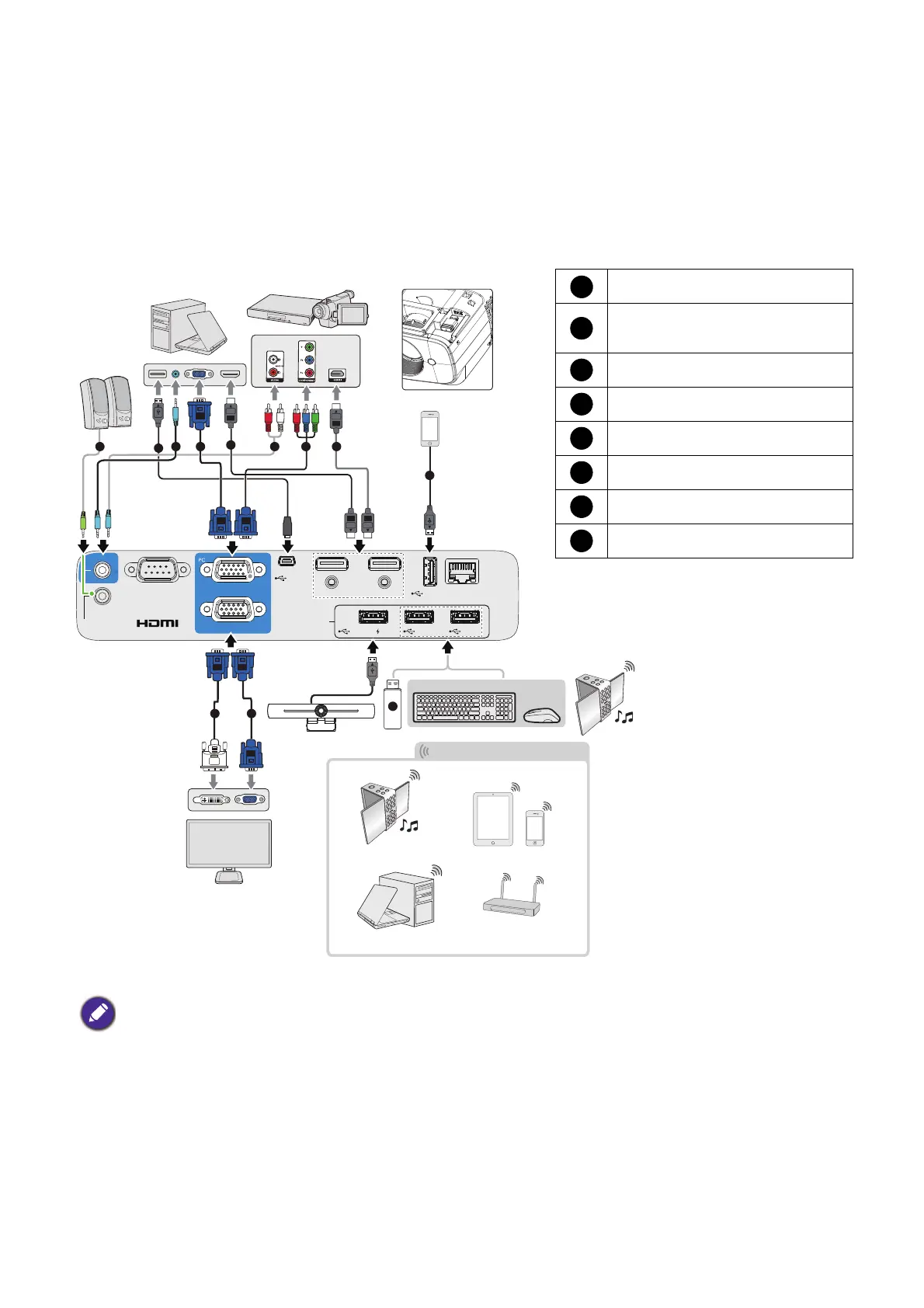
When connecting a signal source to the projector, be sure to:
1. Turn all equipment off before making any connections.
2. Use the correct signal cables for each source.
3. Ensure the cables are firmly inserted.
• In the connections above, some cables may not be included with the projector (see Shipping contents on page 7).
They are commercially available from electronics stores.
• The connection illustrations are for reference only. The rear connecting jacks available on the projector vary with
each projector model.
• Many notebooks do not turn on their external video ports when connected to a projector. Usually a key combo
like FN + function key with a monitor symbol turns the external display on/off. Press FN and the labeled function
key simultaneously. Refer to your notebook's documentation to find your notebook's key combination.
• If the selected video image is not displayed after the projector is turned on and the correct video source has been
selected, check that the video source device is turned on and operating correctly. Also check that the signal cables
have been connected correctly.
READER
OUT
AUDIO
IN
LAN
USB
USB 4
HDMI 1 HDMI 2
MINI
-
B
RS
-
232
MONITOR OUT
PC
USB 2 USB 3USB 1 /
1.5A
33
3 4
1
2
1
5
46
8
7
Monitor
Wireless Connection
Tablet PC
Bluetooth speakers
Smartphone
Wireless AP
Laptop or desktop computer
Keyboard/Mouse
Webcam
Laptop or desktop
computer
Speakers
A/V device
HDMI cable
Component Video to VGA
(D-Sub) adapter cable
Audio cable
VGA cable
USB cable (Mini-B to A type)
VGA to DVI-A cable
USB flash drive
USB cable for charging device






 To Next Page