24 Operation (under Launcher source)
Operation (under Launcher source)
BenQ Launcher
BenQ Launcher is the projector’s operating system that allows you to wirelessly cast your device’s
screen, play files, run apps, as well as adjust projector settings.
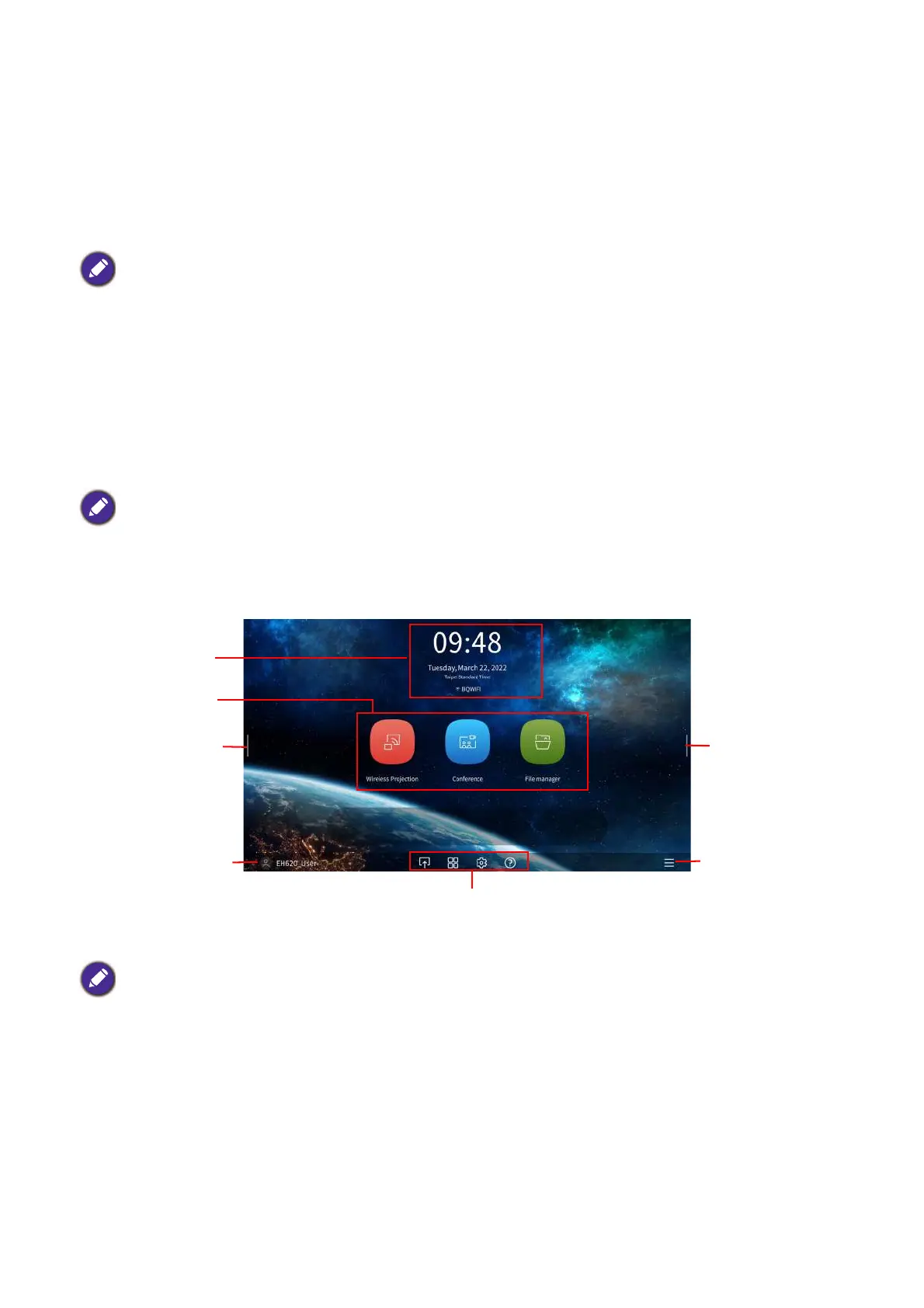
BenQ Launcher home screen
Upon initial start up or when BenQ Launcher is selected in the input source menu, the projector will
display BenQ Launcher. If the projector is projecting from an input source (e.g. HDMI 1 or HDMI 2
PC/YPbPr), you can return to BenQ Launcher mode by pressing the source button or the
LAUNCHER button on the remote control and then selecting BenQ Launcher in the input source
menu.
Use the buttons on the projector, the remote control, or connect a USB mouse to the
projector’s USB 1 or USB 2 or USB 3 ports to navigate BenQ Launcher and operate its
functions.
• When the Auto Source Search function is enabled in the Advanced > Settings menu of the projector’s OSD
menu, the projector will detect if a signal is available from the input source that was last used and switch to that
input source if it is available, if a signal is not available, the projector will display BenQ Launcher/Windows
Interface based on the previous settings preference.
• If the Auto Source Search function is off, the projector will display the source that was last used.
Actual screen may vary based on your BenQ Launcher firmware version.






 To Next Page